10. VictronConnect-Remote (VC-R) – Configuration and monitoring via VRM
10.1. Introduction
VictronConnect-Remote functionality enables Victron products with a VE.Direct or a VE.Can-only interface to be accessed remotely through a GX product, via the VRM online portal.
This powerful feature allows full product configuration and monitoring from practically anywhere in the world using the VictronConnect app.
The user interface experience is just like the products were connected locally using Bluetooth or a wired VE.Direct to USB interface.
A video demonstrating the feature is available here:
10.2. Compatibility
The VictronConnect-Remote feature is compatible with products connected to a GX product which use a VE.Direct, VE.Can, or VE.Bus interface.
Note
Products connected via VE.Bus interface, such as MultiPlus/Quattro inverter/chargers and larger Inverters, can only display their overview and details pages. Their settings cannot be changed; use Remote VEConfigure to configure these products remotely.
The following devices are not supported:
BlueSolar VE.Can MPPT 150/70 and 150/85
Lynx Ion and Lynx Ion + Shunt
Lynx Ion BMS 150A, 400A, 600A, 1000A
10.3. Setup
10.3.1. Minimum Requirements
VictronConnect SW: v5.20
GX Product- Venus OS FW: v2.40 (However v2.53 recommended for full functionality)
10.3.2. VictronConnect
Ensure that your device has VictronConnect installed that meets the minimum version requirements. The latest version is recommended.
To authorize VictronConnect to use your VRM account:
|
|
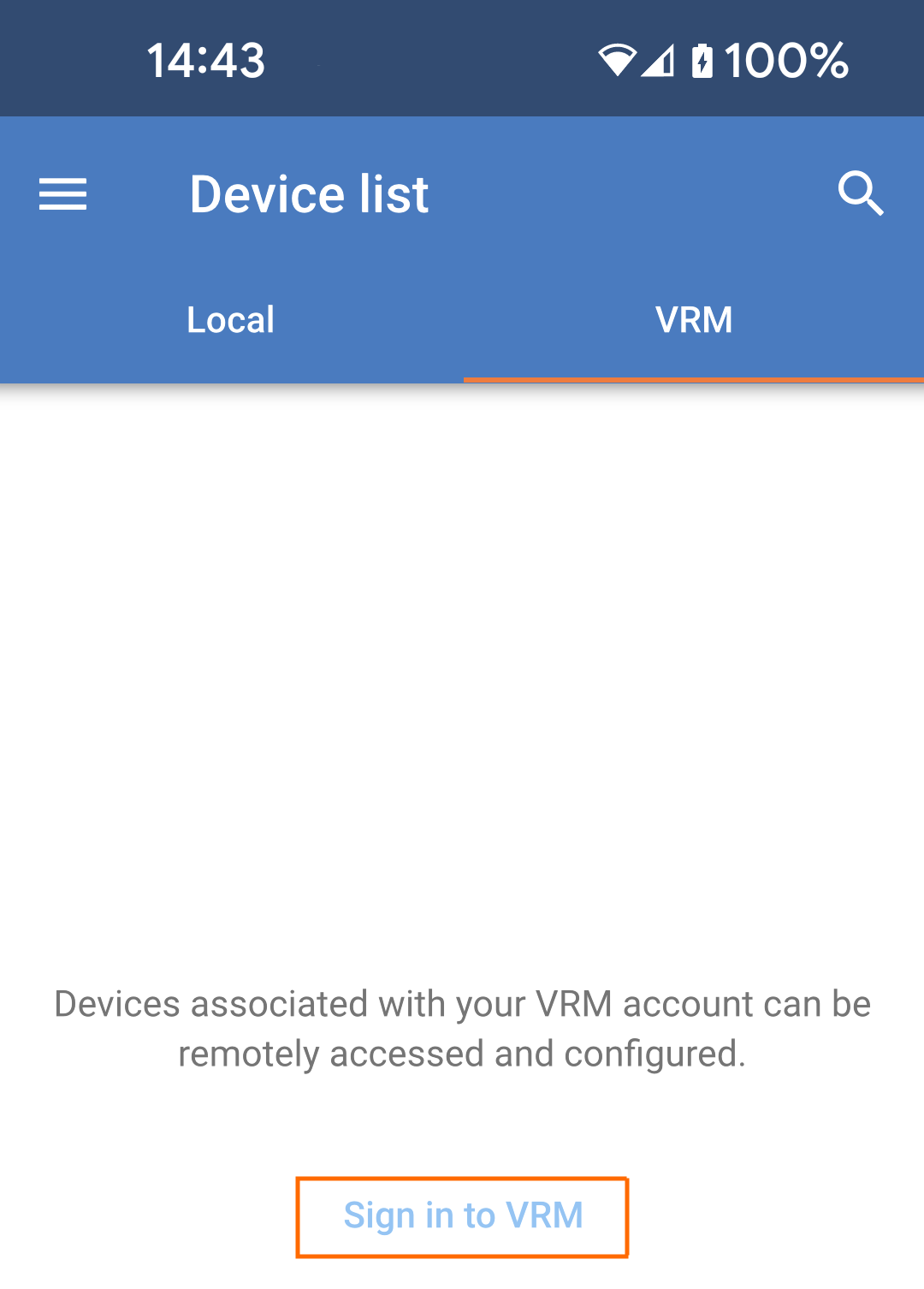
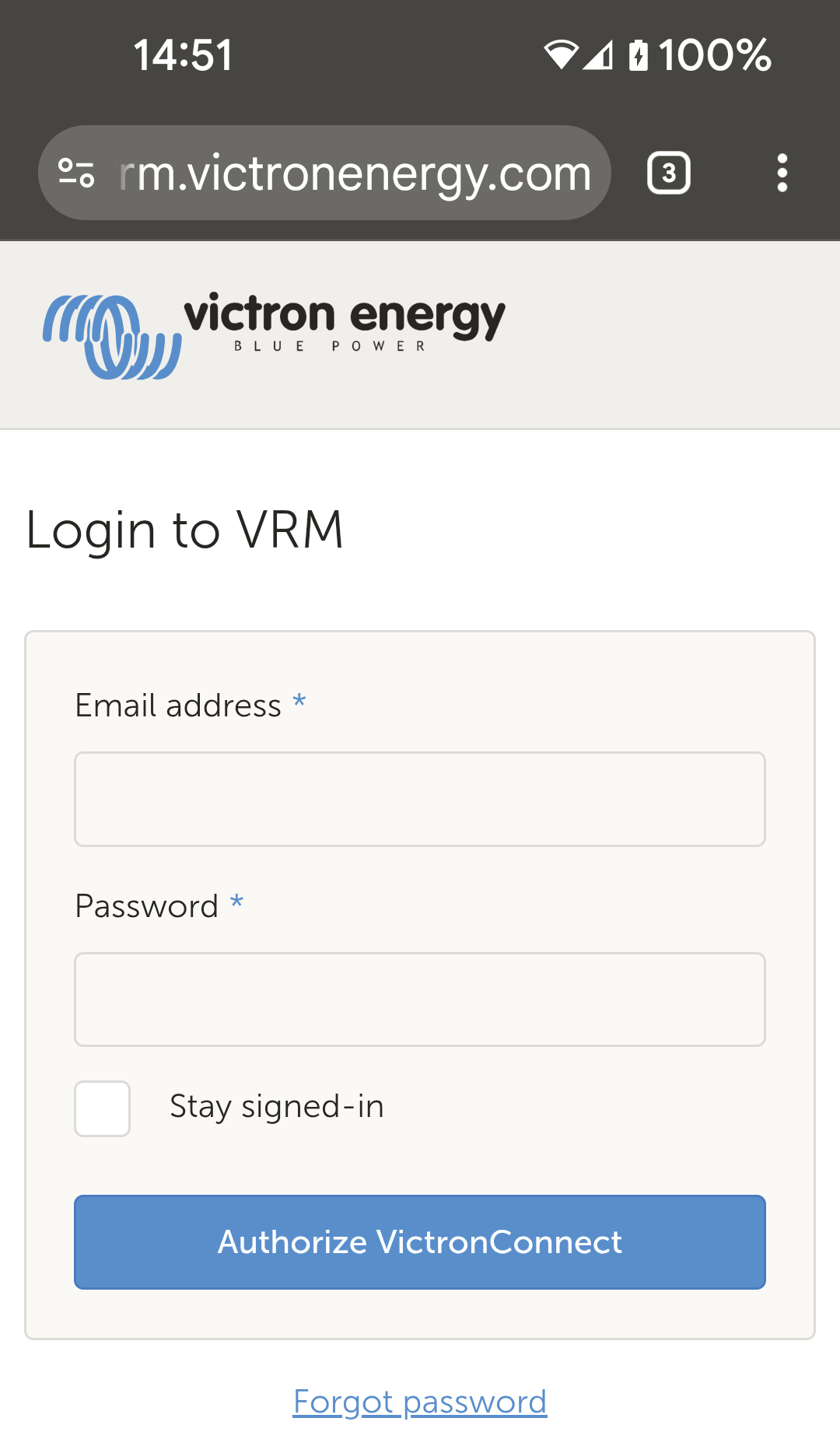
A browser tab will open.
|
|
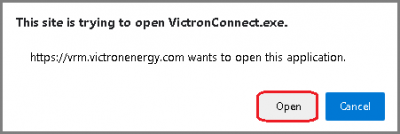
If you are using a tablet or PC, your browser may request permission to open VictronConnect.
|
|
10.3.3. GX Product
Confirm that the GX Product is running Venus OS firmware version that meets or exceeds the minimum requirements - upgrade if necessary.
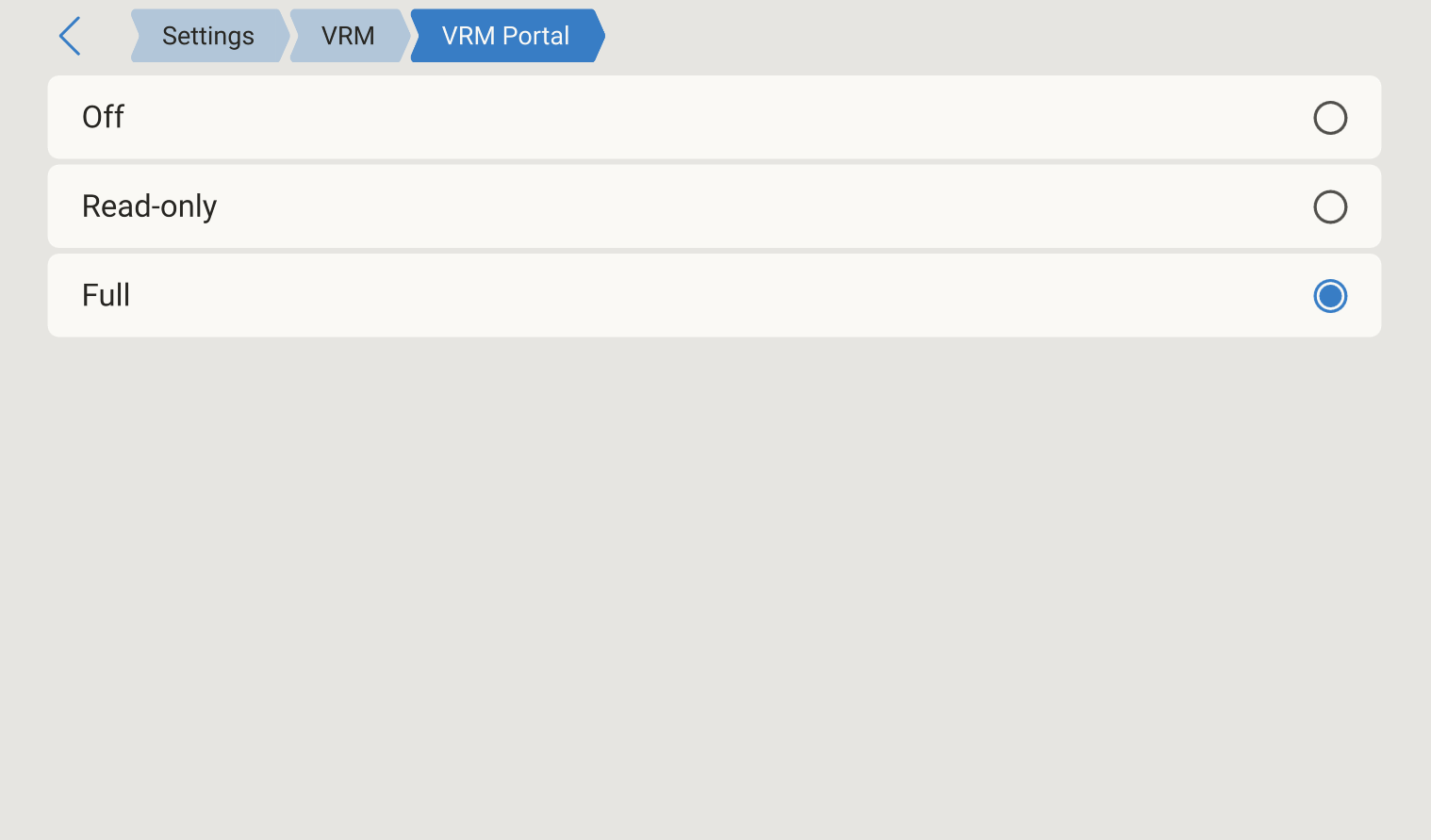
Your GX device needs to have full, two-way communication with VRM.
TipFor the older "v1 GUI" you can find the same settings under Device List > Settings > VRM online portal > VRM Portal. |
|
10.4. Local Tab
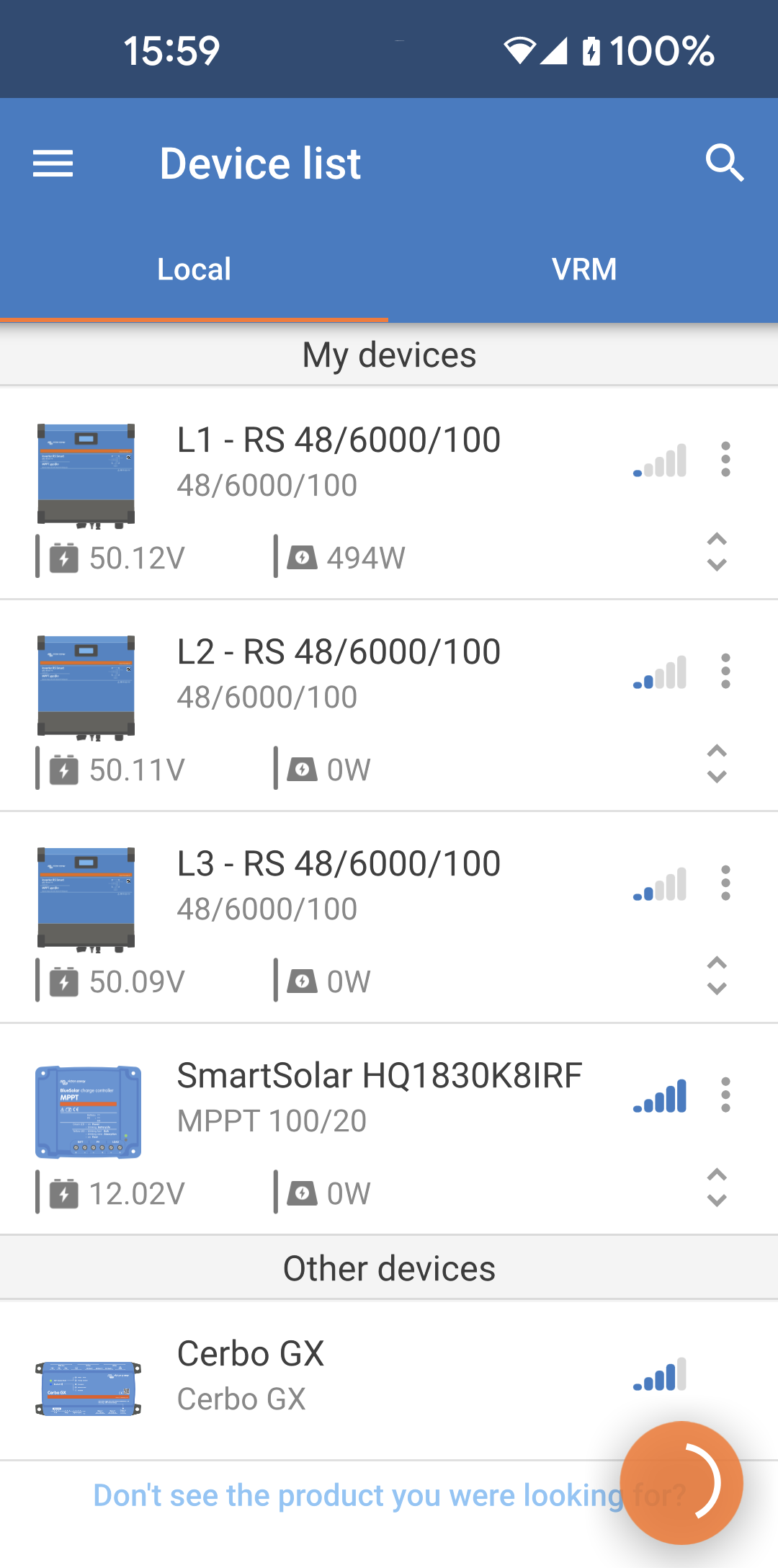
The local tab displays all products that are within local Bluetooth range, on the same LAN or physically connected to the device with VictronConnect (such as with a VE.Direct to USB or MK3 to USB interface cable). |
|
10.5. VRM Tab
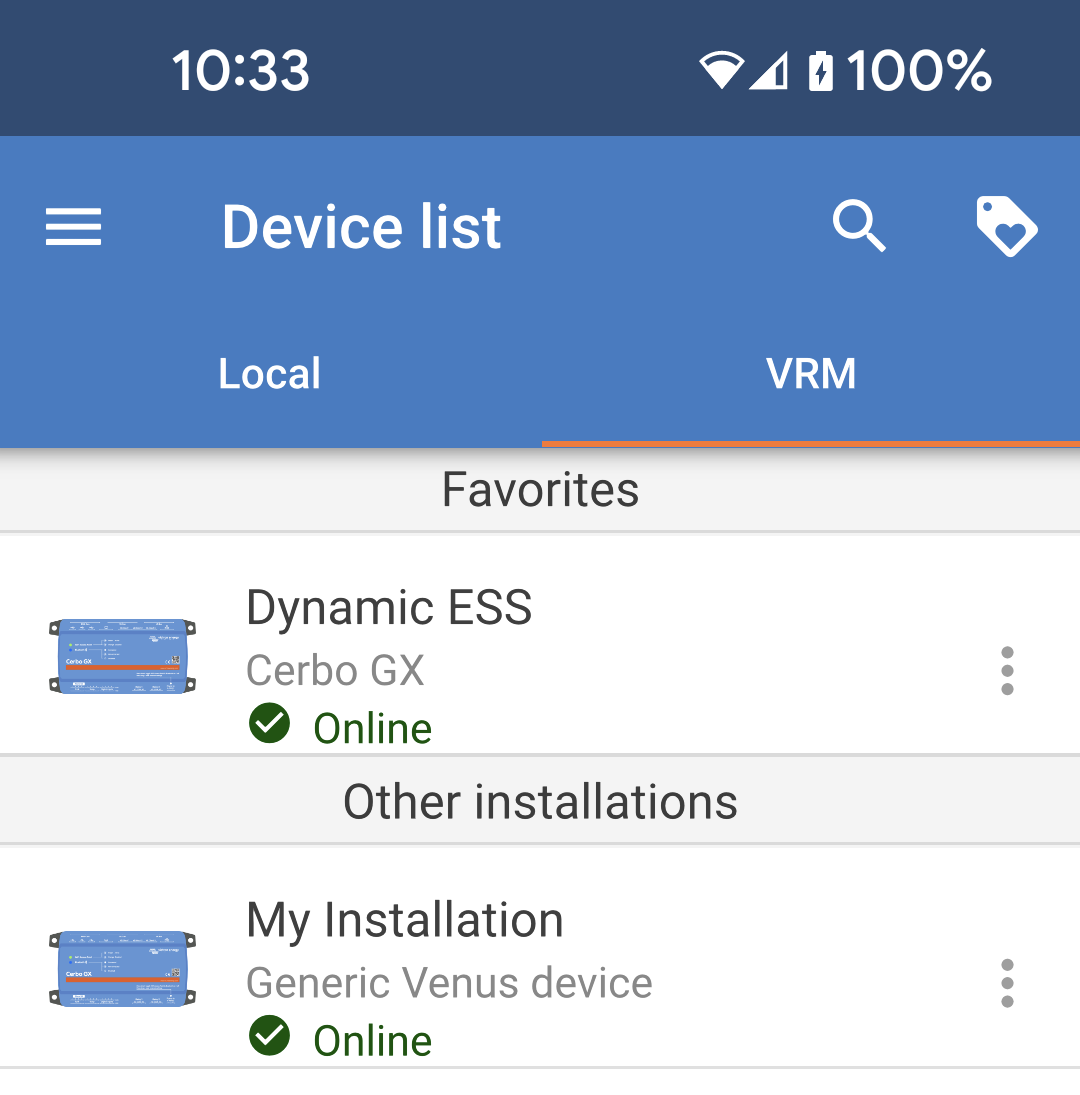
The VRM tab displays all VRM installations associated with the VRM user profile.
The VRM tab displays all installations that are associated with the logged-in VRM profile. |
|
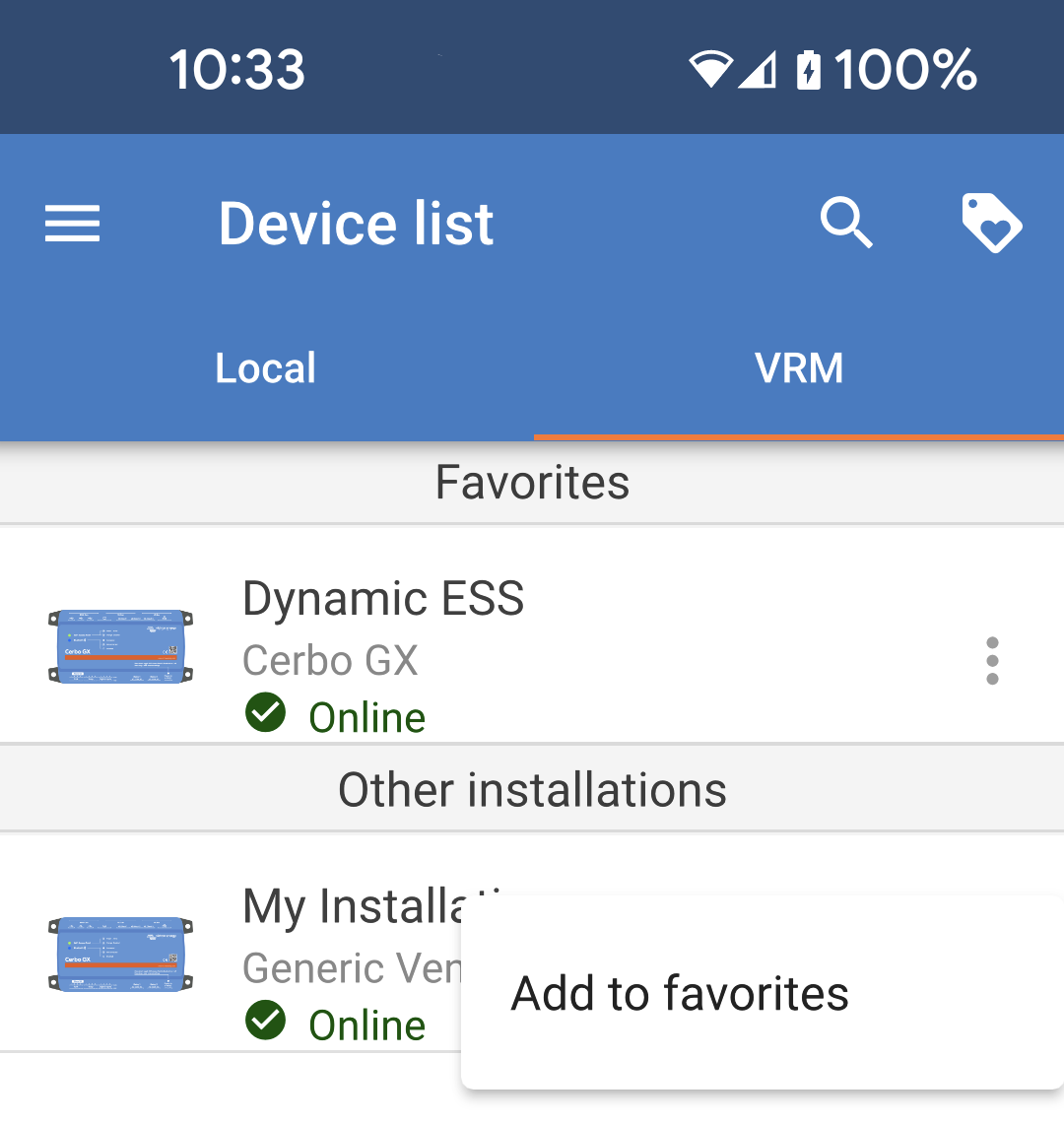
You can add installations as favorites. Installations added to favorites here will also be marked as favorites in VRM. Similarly, installations marked as favorites in VRM will appear in the Favourites section here.
Installations already in your Favourites can be removed by tapping the three dots and selecting "Remove from Favourites". |
|
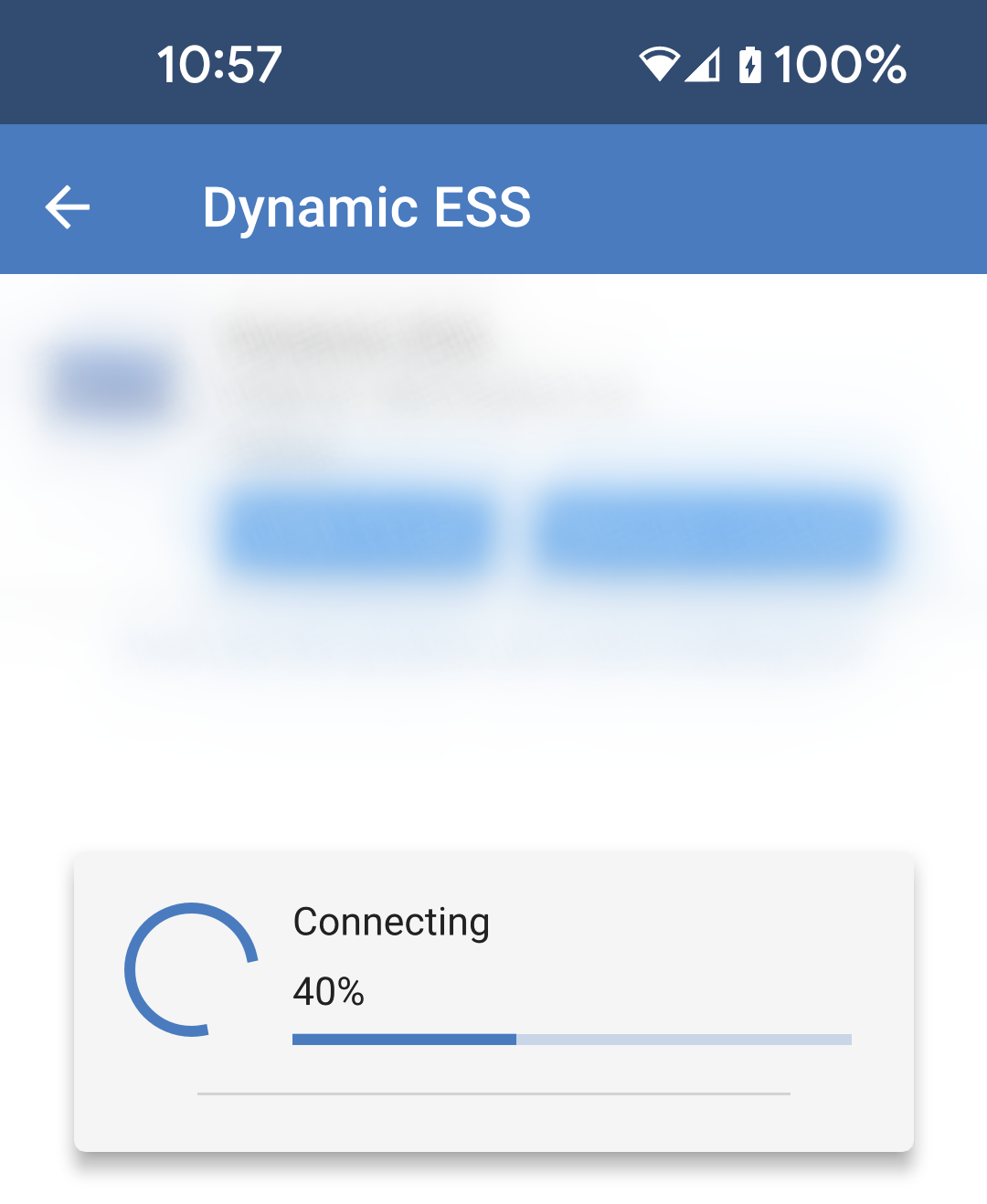
Any installation in the list can be selected to access its VRM portal and to show a list of connected products.
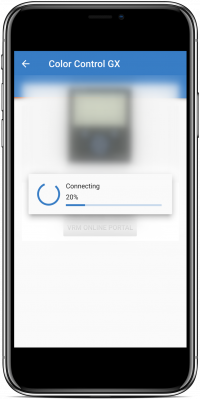
VictronConnect will then connect to the selected installation. |
|
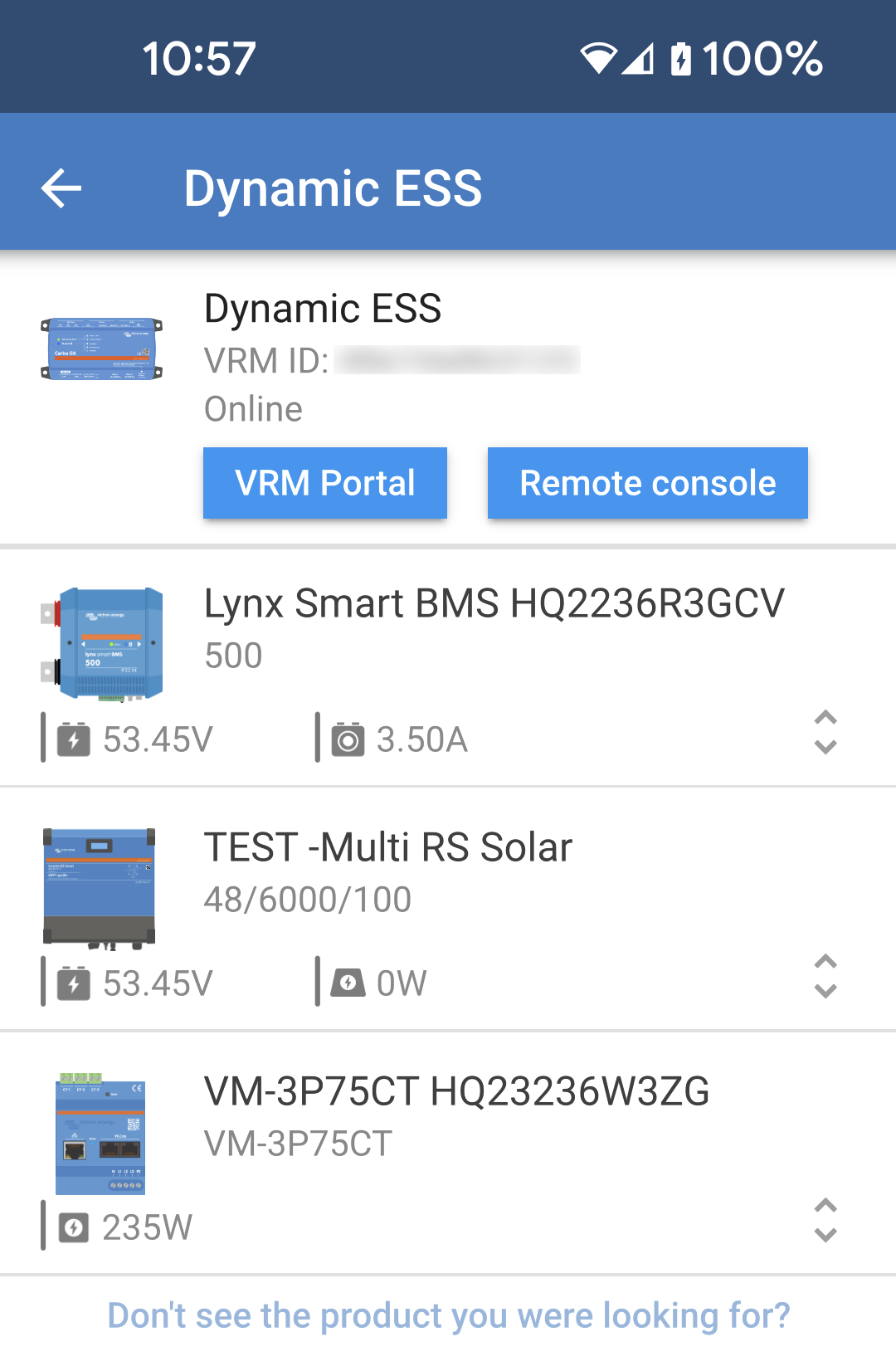
Once connected, the installation and its associated products will be listed. At the top is the list will be the installation name, this is essentially the GX device. The blue buttons allow access to the VRM Portal or Remote console. Any products connected to the GX device will be listed below it. |
|
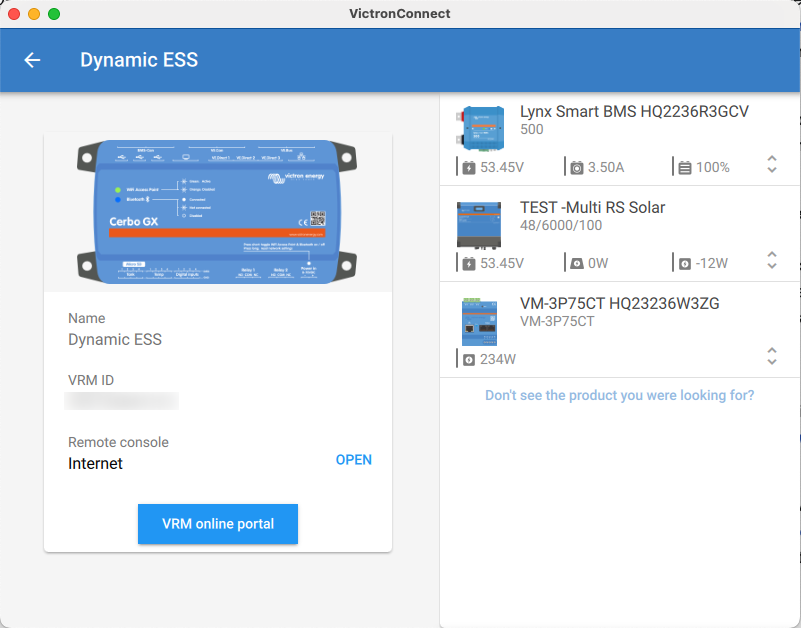
If you are using a tablet or PC, the layout will be slightly different, with the devices listed on the right. |
|
10.5.1. Overview Tab
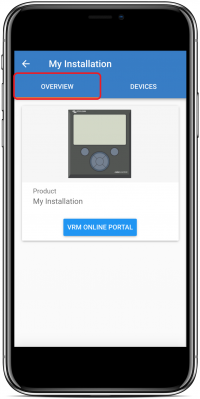
The ‘OVERVIEW’ tab has an image of the GX product, the name of the VRM installation, and a direct link to the associated VRM Online Portal.
10.5.2. Devices Tab
The ‘DEVICES’ tab has a list of all compatible products that are physically connected to the GX product.
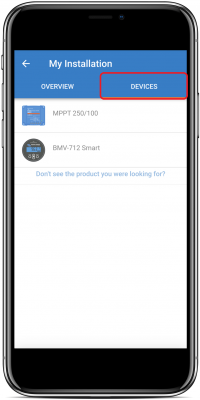 |
If using a tablet or PC, the ‘DEVICES’ tab is shown as a panel on the right side of the same screen.
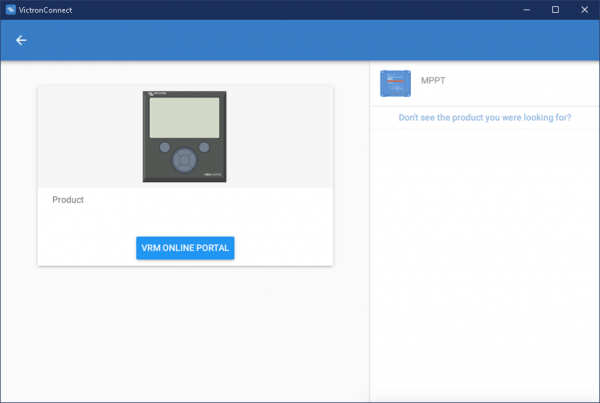
10.6. Remote product access
You can select a product from the list and access it as if it were connected locally.
|
|
The product will begin loading, and you may notice the tabs appearing one by one. NoteLoading times depend on the speed of your internet connection to the installation. The settings cog in the top-right corner will not be available until all the settings have loaded. The cloud symbol with animated circle indicates that the settings are loading. |
|
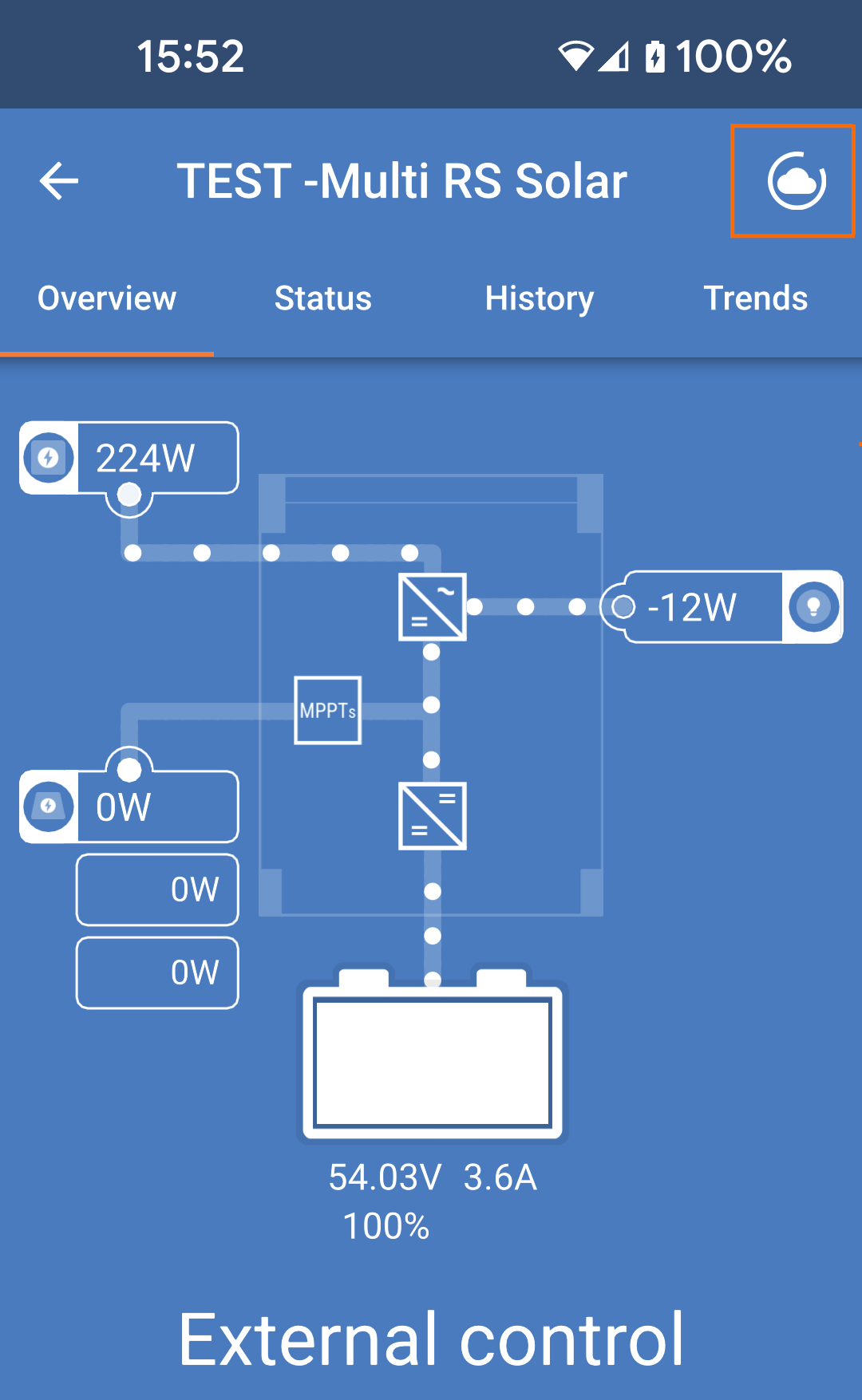
Once the product is fully loaded, the settings cog appears in the top-right corner.
|
|
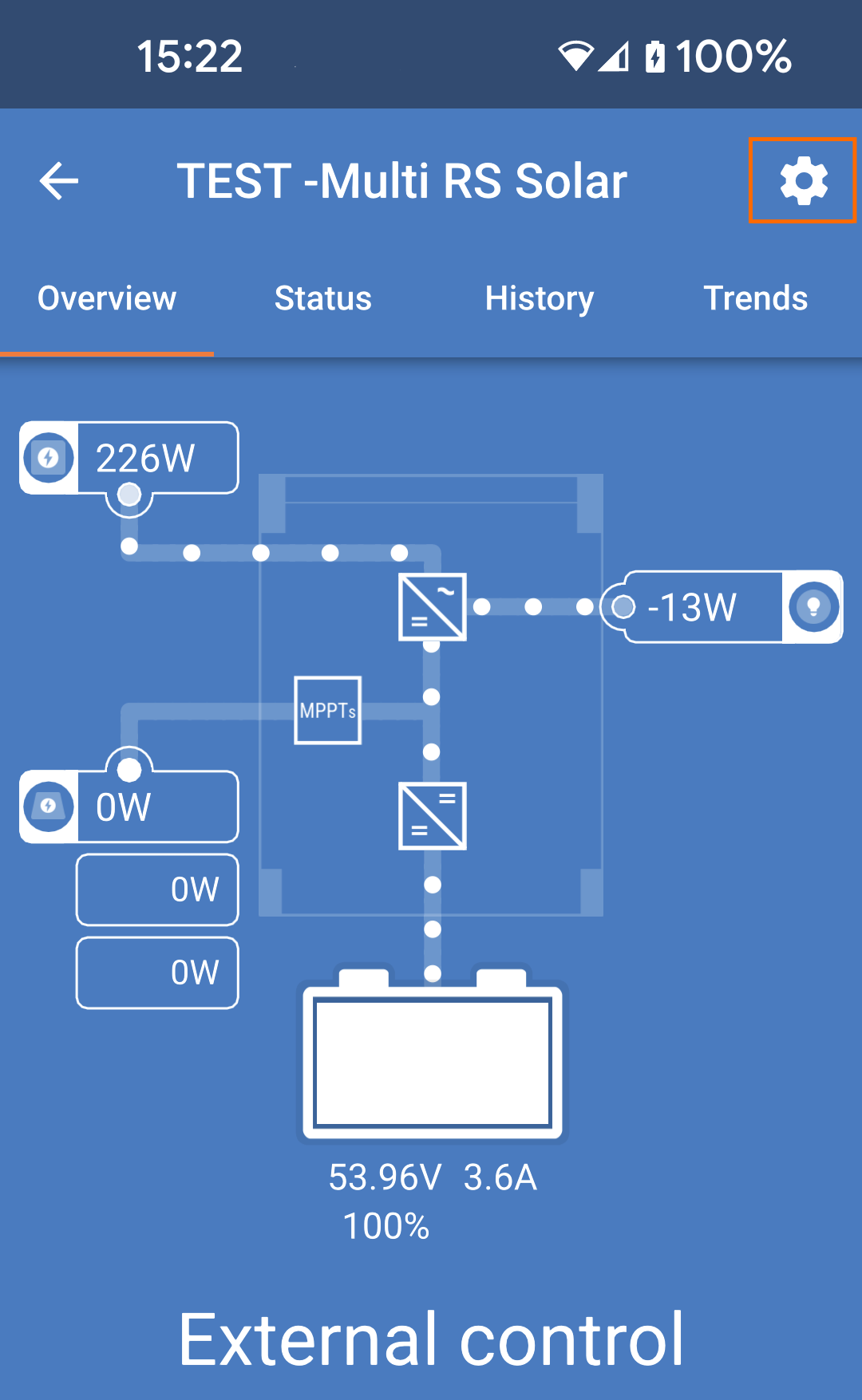
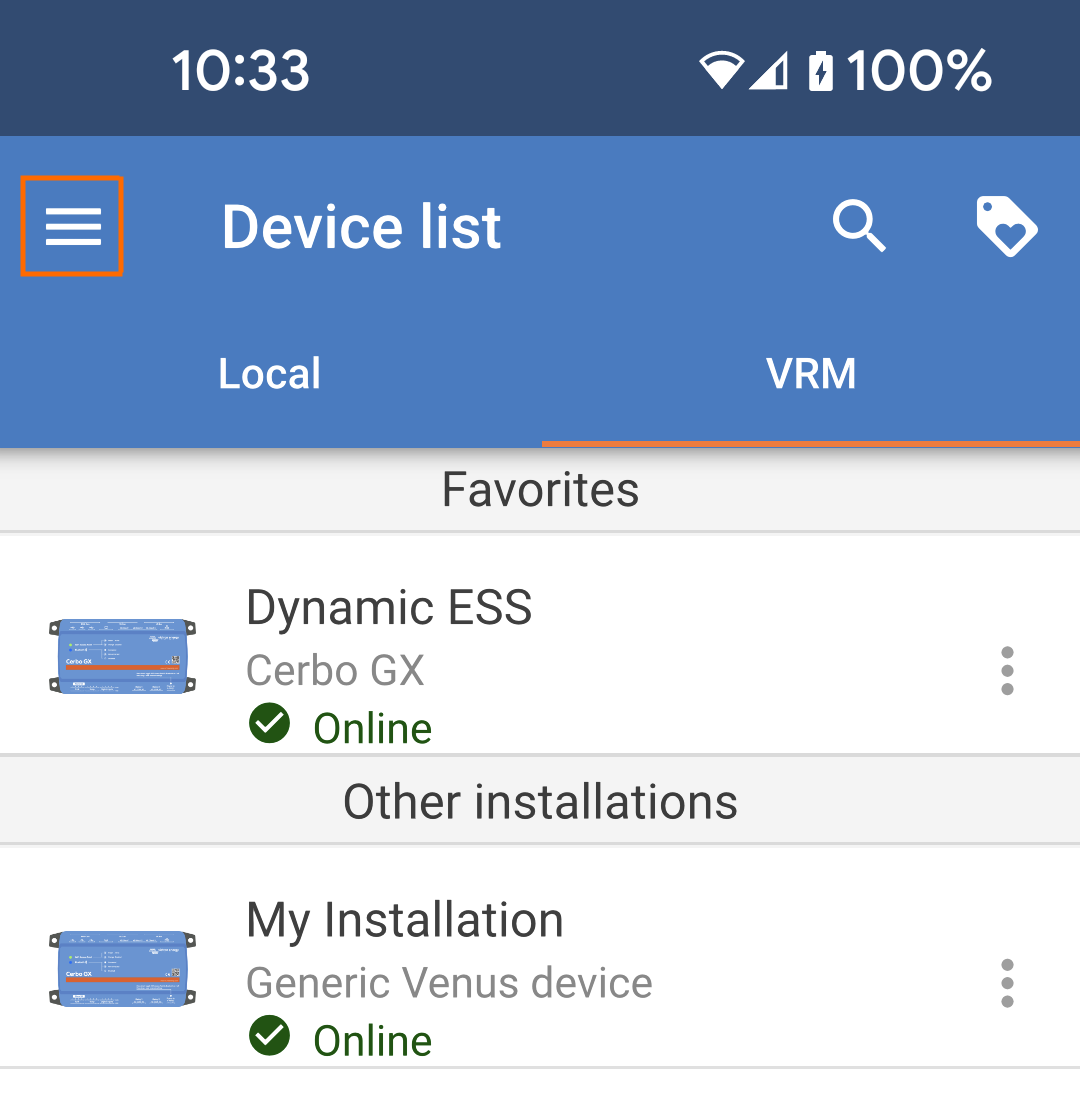
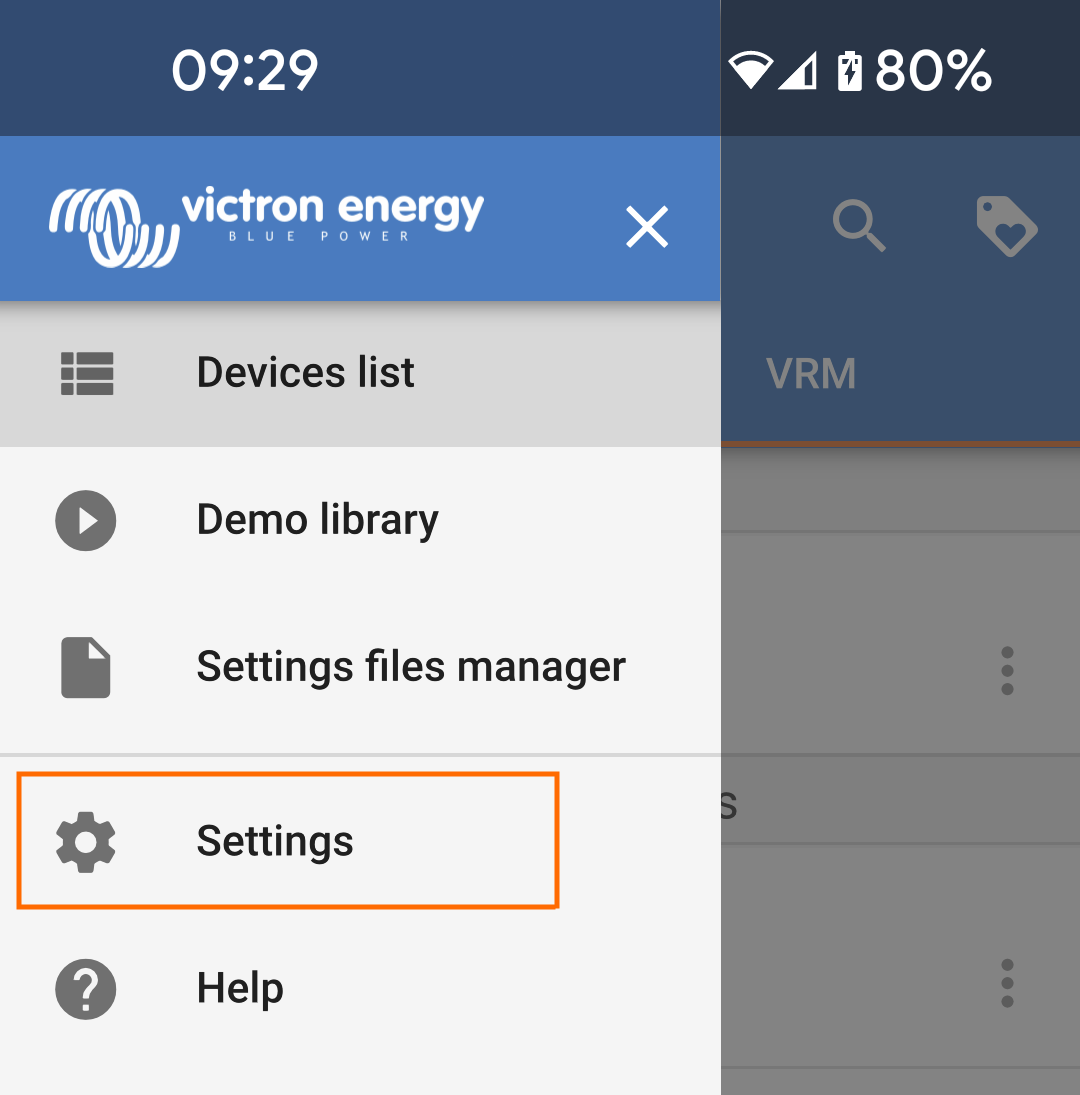
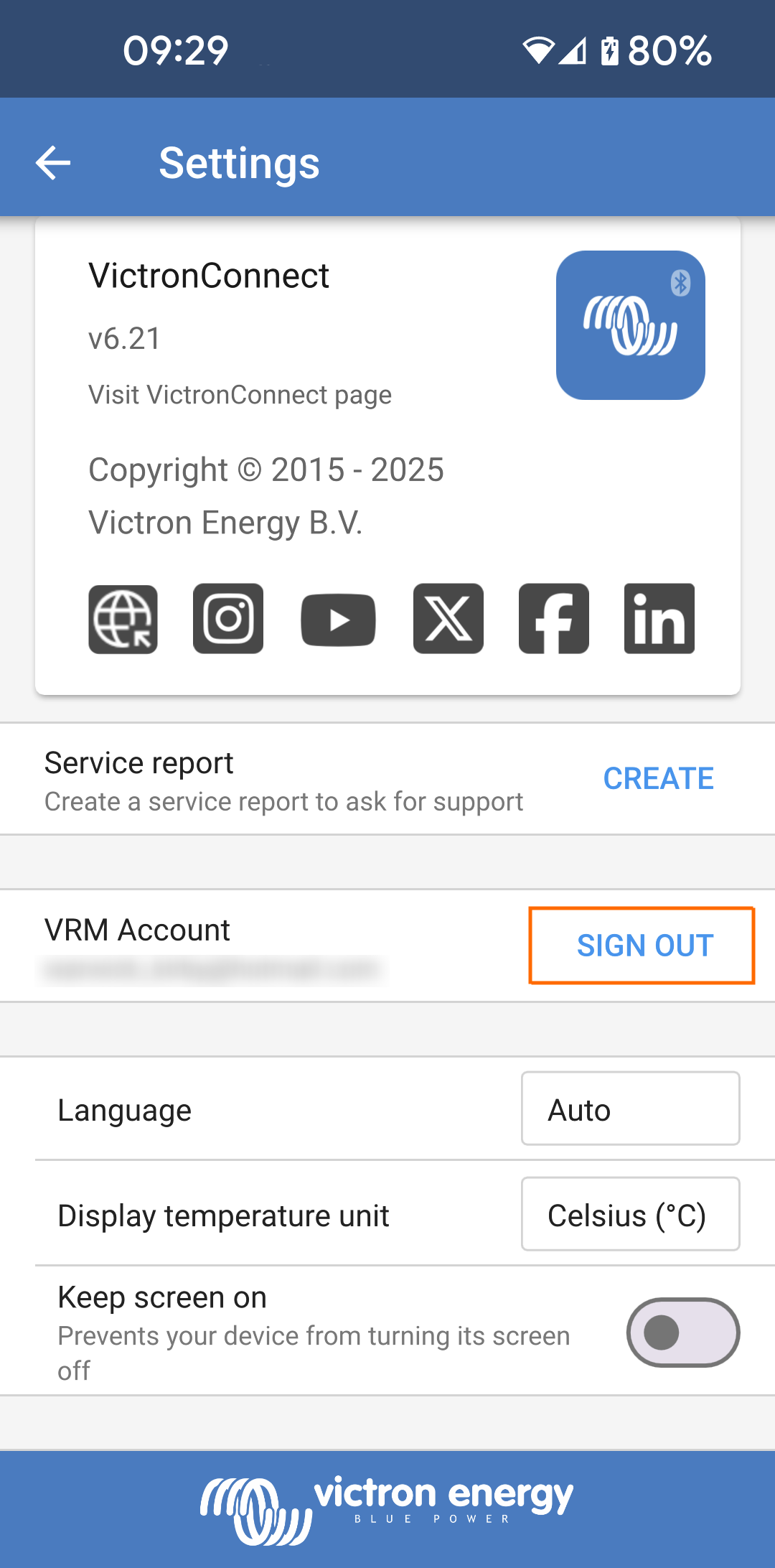
10.7. Signing out
Signing out disables the link between VictronConnect-Remote and your VRM account.
|
|
|
|
|
|
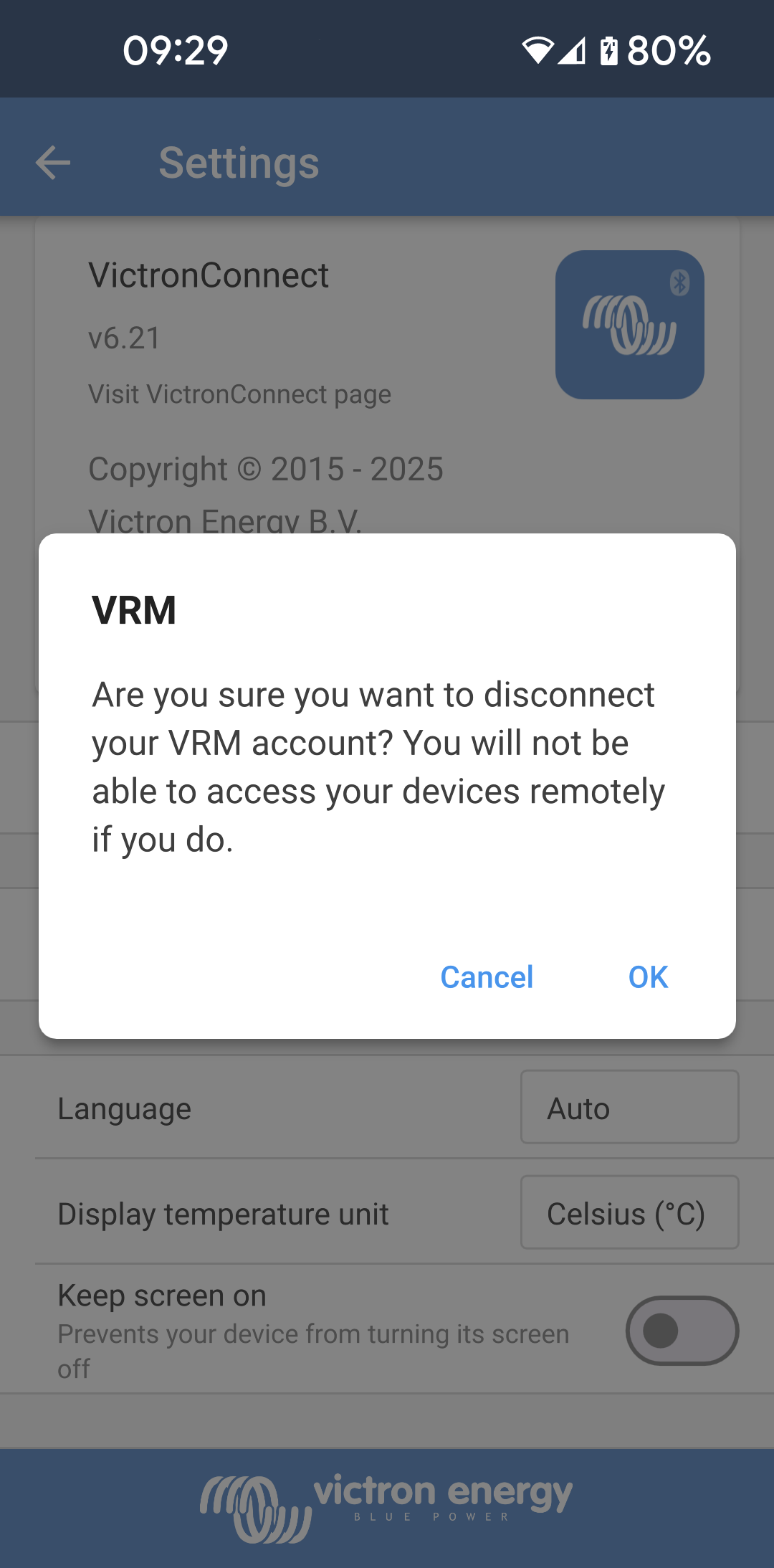
A confirmation box will appear.
After signing out, VictronConnect will no longer be able to access remote installations or devices. |
|
10.8. Troubleshooting and FAQ
Product not found
VictronConnect-Remote is only compatible with products that use a VE.Direct or VE.Can-only interface to the GX product – see the ‘compatibility’ section.
Ensure that the missing product is physically connected to the GX product, with the VE.Direct or VE.Can cable properly installed at both ends.
Ensure that the product is running a recent firmware version.
Installation/GX product not found or offline
Confirm that the installation is currently online and communicating with the VRM online portal.
Ensure that the installation is linked to the VRM account used during initial VictronConnect-Remote sign in to VRM.
Ensure that ‘VRM two-way communication’ is enabled – see the ‘settings’ section.
Ensure that the GX product is running the minimum compatible Venus OS firmware version – see the ‘settings’ section.
VictronConnect has no VRM tab
Ensure that the phone is running the minimum compatible VictronConnect software version – see the ‘settings’ section.
VRM account
It is necessary to have an active VRM account linked to your installation and any others that you intend to monitor or configure using VictronConnect-Remote - creating a new account is quick and easy.
For further information in relation to VRM (Victron Remote Management) see Getting started with VRM and the VRM online portal site.
Systems with no GX product
VictronConnect-Remote functionality is not possible unless the system includes a GX product. A GX product can be easily added to any system and there are a range of products available.
Installations with no internet connection
VictronConnect-Remote functionality is not possible unless the GX product at the installation site has an active internet connection.
For remote sites without an existing internet connection or with mobile installations, a Victron GX GSM modem can be easily be added to the system in order to provide an internet connection.
Large systems
The use of the VictronConnect-Remote feature will slightly increase the GX product CPU load.
In some large/complex systems (with many products connected to the GX product) the CPU may already be operating at its limit and any additional CPU load could exceed its capability - this will typically be recognisable by slow user interface response and/or unexpected system reboots.
It is important to select a GX product that has sufficient performance capability in relation to the system design, for example, a Cerbo GX has significantly more processing power than a Color Control GX and is much better suited to large/complex systems – see the performance section in the GX product range comparison table.
VictronConnect-Remote troubleshooting
VictronConnect will report errors encountered during communication attempts with VRM in a message box with an error code. The code can have one of the following value:
Error | Description |
|---|---|
-100 | Call to retrieve a list of child devices expired (60 seconds). The most common cause is a bad internet connection. |
1 | No link to VRM can be established. Check if the internet is present and try again. |
2 | VRM encountered temporary difficulties. Try again in a while. |
5 | The local system ran out of resources. Free some system resources and try again. |
8 | An error occurred with the network (e.g., the network cable was accidentally plugged out). |
13 | Proxy authentication error. VictronConnect does not support communication over proxy. |
14 | Failed to establish a secure connection to VRM. |
65538 | VRM MQTT broker is not responding. Please try again in a while. |
There are also other error codes that could be reported. They are a result of internal errors in VictronConnect and/or VRM. In case these errors persist after a retry, please create a “Service Report” and submit it for examination.
VictronConnect-Remote is establishing communication with a range of services on the 'victronenergy.com' domain. Please make sure that traffic with this domain is allowed in your firewall and internet security application.