3. Connecting
There are three ways to connect to a Victron product:
Method | iOS | Android | Windows PC | macOS X |
|---|---|---|---|---|
Products with built-in Bluetooth | Yes | Yes | No | Yes |
Yes | Yes | No | Yes | |
No | Yes (1) | Yes | Yes |
(1) Requires a USB On-The-Go cable. These cables are available in mobile phone shops, phone-repair shops, and online retailers.
Use the Compatible Victron products chapter to verify that your Victron product is compatible.
3.1. Bluetooth Smart - Pairing and Connecting
When connecting to your Victron product over Bluetooth, always connect from within VictronConnect.
Note
Do not connect from the phone's system menu. Otherwise, VictronConnect will not find your Victron product.
Here is how to connect:
Enable the Bluetooth on your phone.
Open VictronConnect, and scan:
On a phone or tablet, pull down the screen, or tap the refresh button to initiate a scan.
On a computer or laptop: click the “Scan or Refresh” button on the left.
The first time you attempt to connect, the phone will ask to pair with the Victron product. Enter the PIN code. Usually, your device already has a random PIN code printed on a sticker attached to the device. If no PIN is printed on the sticker, then the default PIN is 000000.
The connection is complete.
If the connection was not successful please refer to section Troubleshooting below.
3.2. Bluetooth Smart - Changing the PIN code
To prevent unauthorised connections to your Victron product we recommend you change the PIN code. Avoid using obvious PIN codes such as 111111 or 123456.
To change the PIN code, first complete your connection. Then go to the Product info page. To access that page, click the button on the upper right. For some products, it will be the settings icon:  . After opening that menu press
  , and click Product info.
For other products you'll find the  button on the upper right, which takes you straight to the Product info page.
On this page, select the change PIN code button.
Note
After changing the Bluetooth PIN code, all other devices which were previously paired will need to have their old pairing information removed and then paired again using the new PIN code. See Bluetooth Smart - Removing from the list of paired devices to learn how to remove the pairing information.
3.3. Bluetooth Smart - Resetting the PIN code
If the PIN code is lost, it can be reset to 000000. This also applies to products that have already been delivered from the factory with a random PIN code. Resetting with the PUK code will reset the PIN to 000000, not to the random factory PIN.
After resetting the PIN, ensure that you change it from 000000 to prevent unauthorized access.
Follow one of the steps below, depending upon the product:
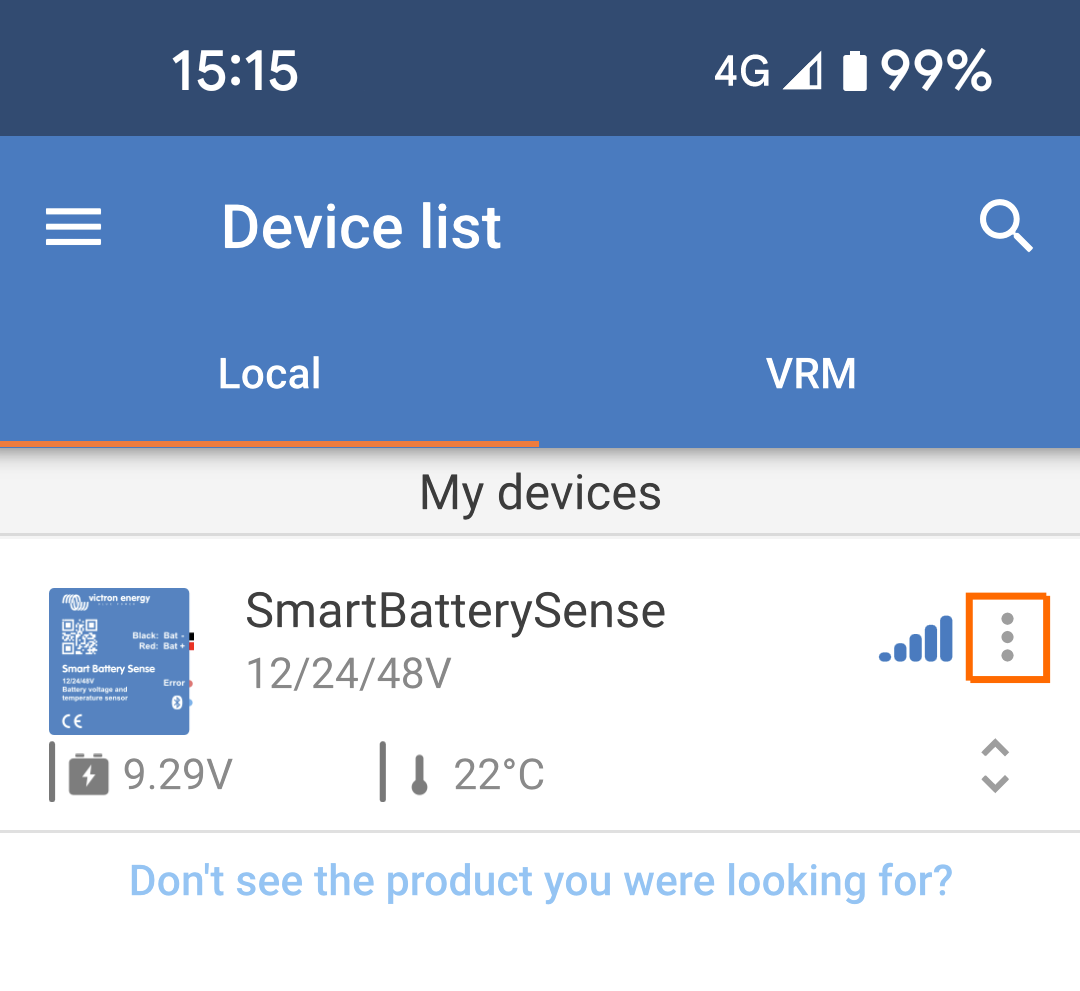
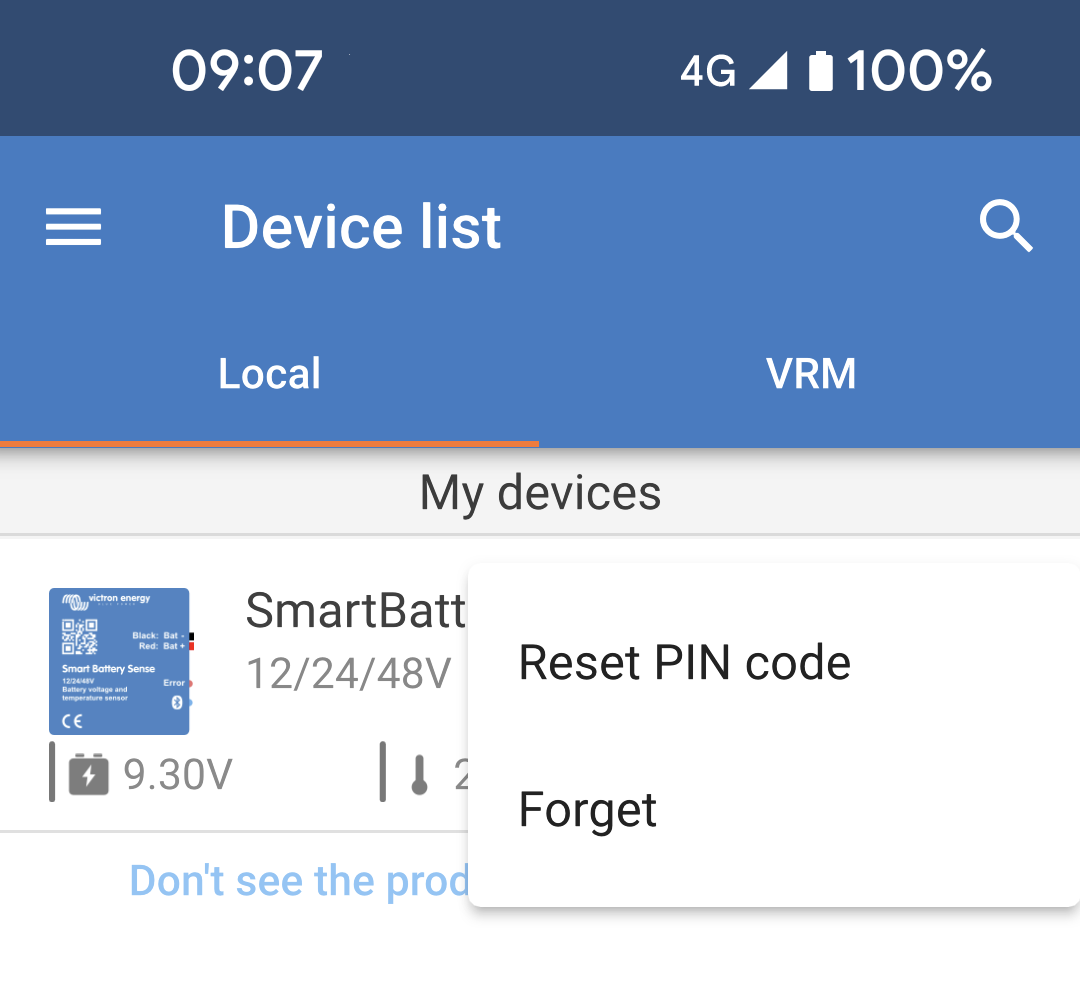
These steps apply to the following products: Blue Smart Charger IP22, Blue Smart Charger IP43, Blue Smart Charger IP67 Smart Solar MPPT charge controllers SmartShunt, BMV-712 Smart, Smart Battery Sense Lithium Battery Smart, Lithium NG Battery On the device list: tap or click the three-dots menu on the right side of the product description. A menu will pop up offering a 'Reset PIN code' option. Click that, and enter the PUK code. The PUK code can be found on the product label, on the back of the product. |
|
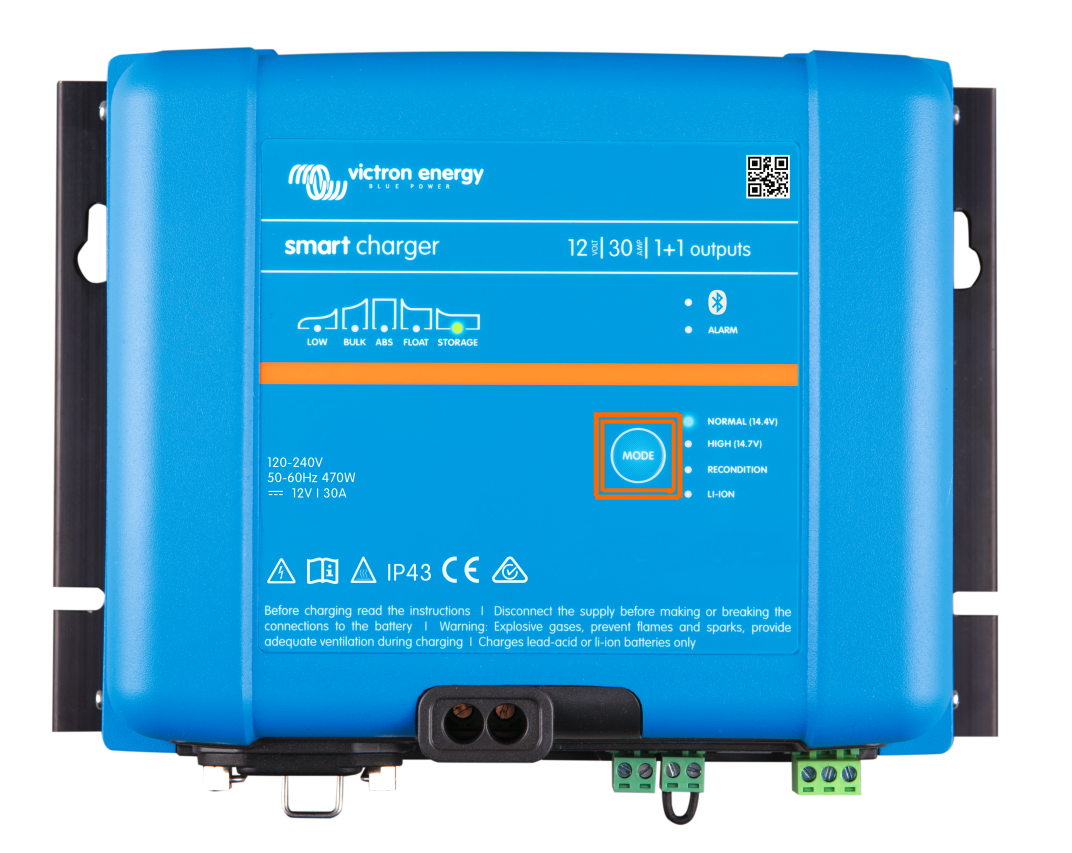
Some chargers feature a Mode button, allowing you to reset the PIN code by holding it down for ten seconds until the blue LEDs flash twice. Blue Smart Charger IP22 Blue Smart Charger IP43 Blue Smart Charger IP65 |
|
VE.Direct Bluetooth Smart dongle
Reset the PIN code by pressing and holding the 'Clear PIN' button. After holding the button for 5 seconds, both LEDs will blink twice. This indicates that the PIN code has been reset.
3.4. Bluetooth Smart - Removing from the list of paired devices
There may be instances where you need to remove a product from your phone's Bluetooth devices list, such as when the PIN code has been changed on a different device.
To remove the pairing information you will need to go to your phone's Bluetooth settings. Watch the videos below to learn how to remove the pairing information from iOS and Android:
Remove Bluetooth pairing on iOS (click to play, double-click to enter fullscreen mode) |
Remove Bluetooth pairing on Android (click to play, double-click to enter fullscreen mode) |