11. Stored trends & Instant readout
11.1. Stored trends
Stored trends is a feature that records and stores data in the non-volatile memory of compatible smart devices, even during a power loss or battery disconnection.
Data is recorded every 30 minutes, providing approximately 46 days of storage. The exception is the Smart Battery Sense, which has a storage period of about 181 days.
Note
Stored trends works if you connect to the Victron product via Bluetooth. Unfortunately, this will not work if you connect via a VE.Direct USB cable.
Therefore, Stored trends will not work on a Windows device, as it can only connect to products via a VE.Direct USB cable.
Currently, SmartSolar chargers, BMV-712 Smart, SmartShunt and Smart Battery Sense support stored trends. More smart devices will follow.
Note
Some other products may show the Trends tab with real-time data, but the data is not stored.
The following list of devices support stored trends, along with their parameters:
SmartSolar chargers:
Battery voltage, current and temperature.
Solar voltage, current and power.
Load current.
BMV-712 Smart and SmartShunt:
Battery voltage, current and State of Charge.
The selected Aux input parameter can be Battery temperature, midpoint voltage deviation, or starter battery voltage.
Smart Battery Sense:
Battery voltage and temperature.
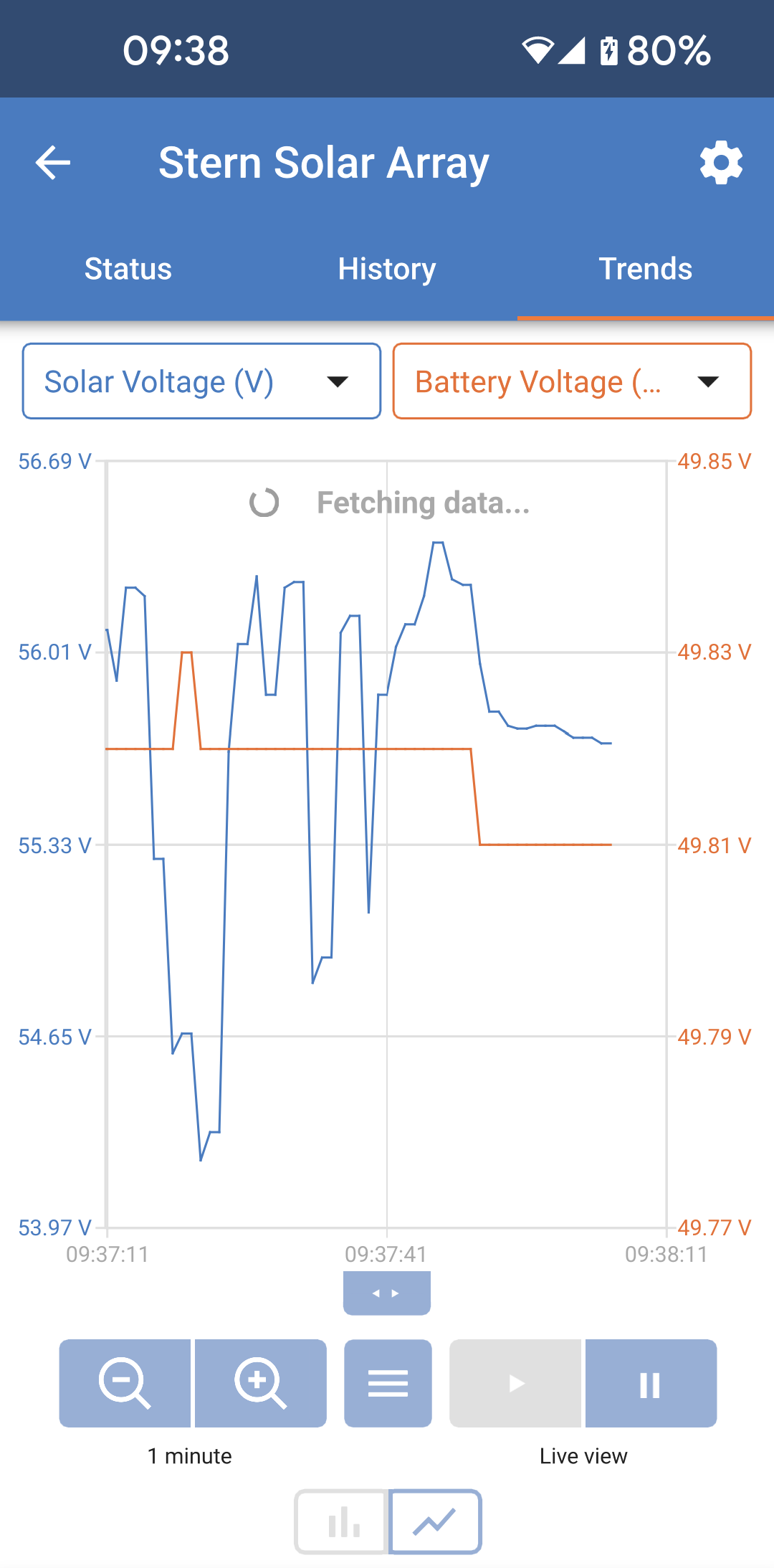
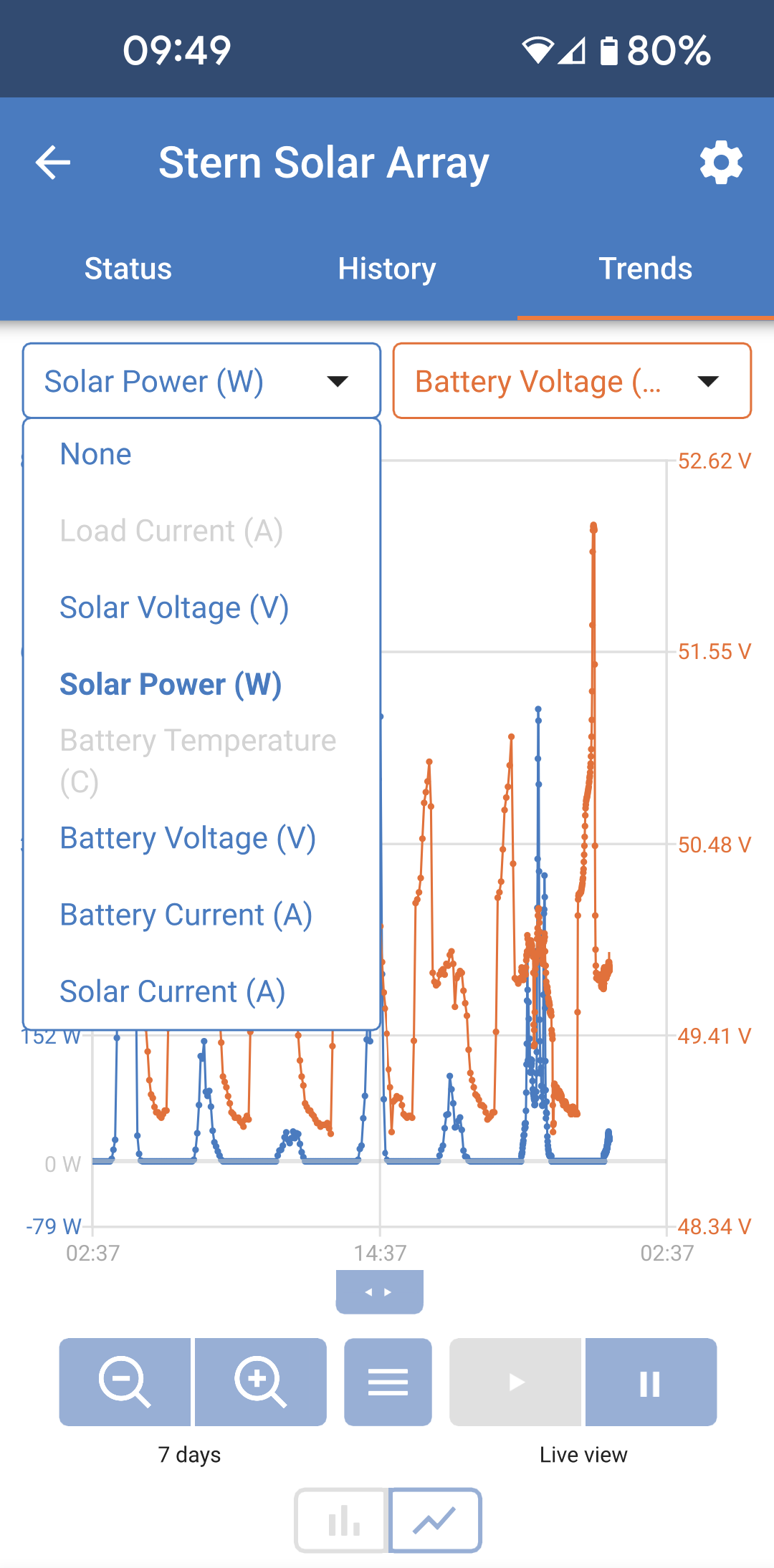
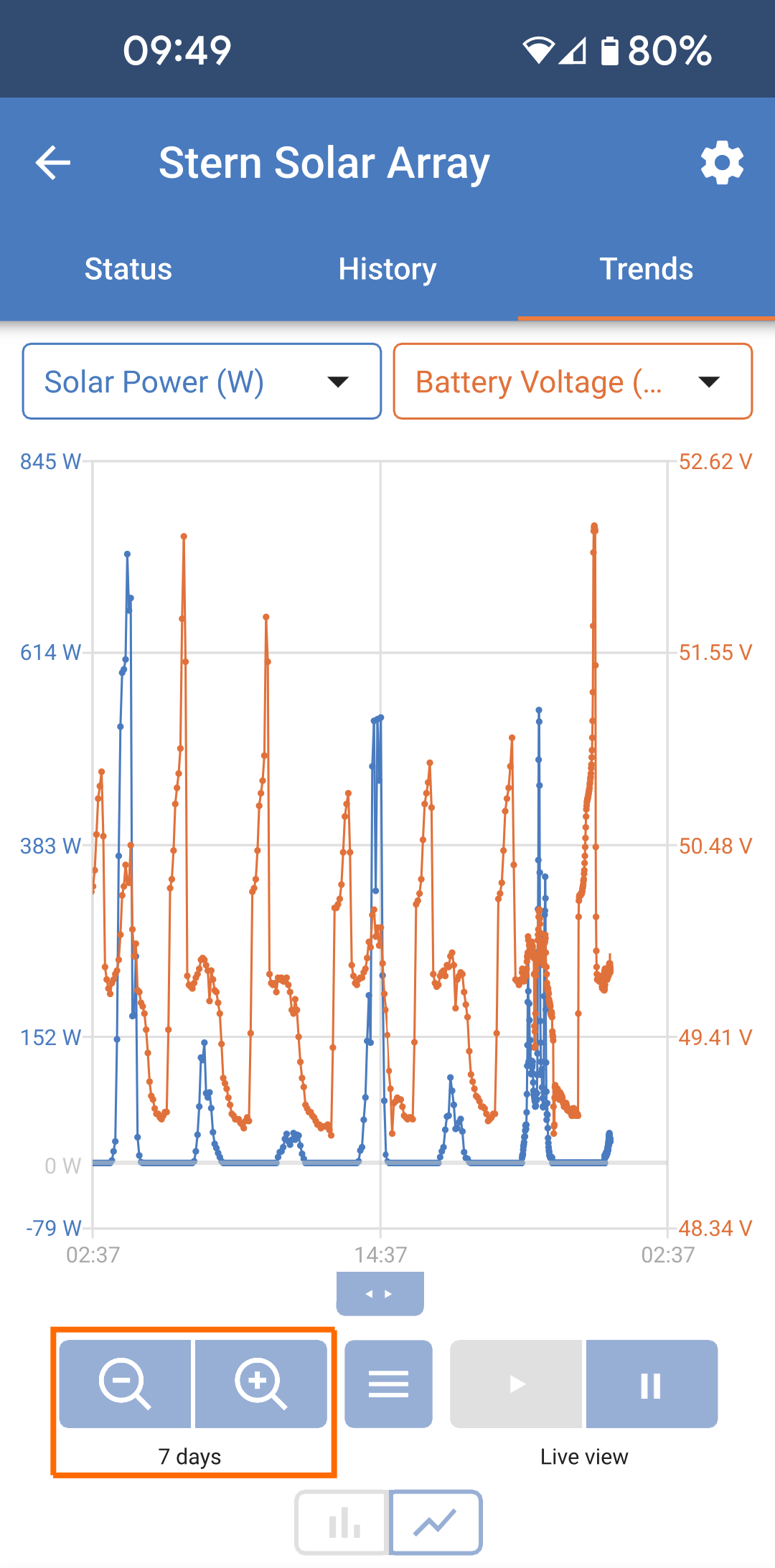
To see the stored trends, open the VictronConnect app and connect to your device.
|
|
|
|
|
|
|
|
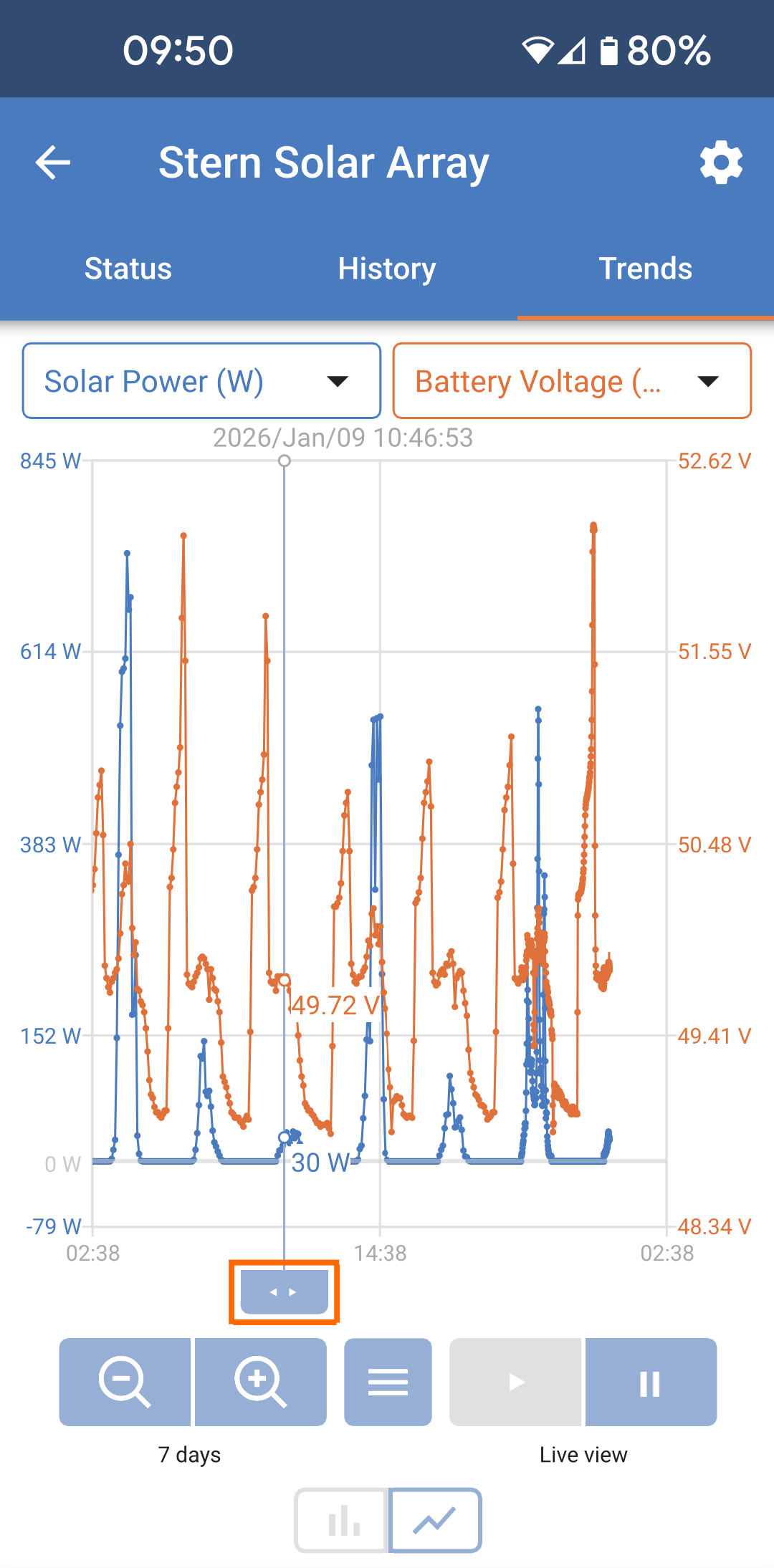
The hamburger button in the center opens a menu that allows you to view the graph’s legend or clear the stored data. |
|
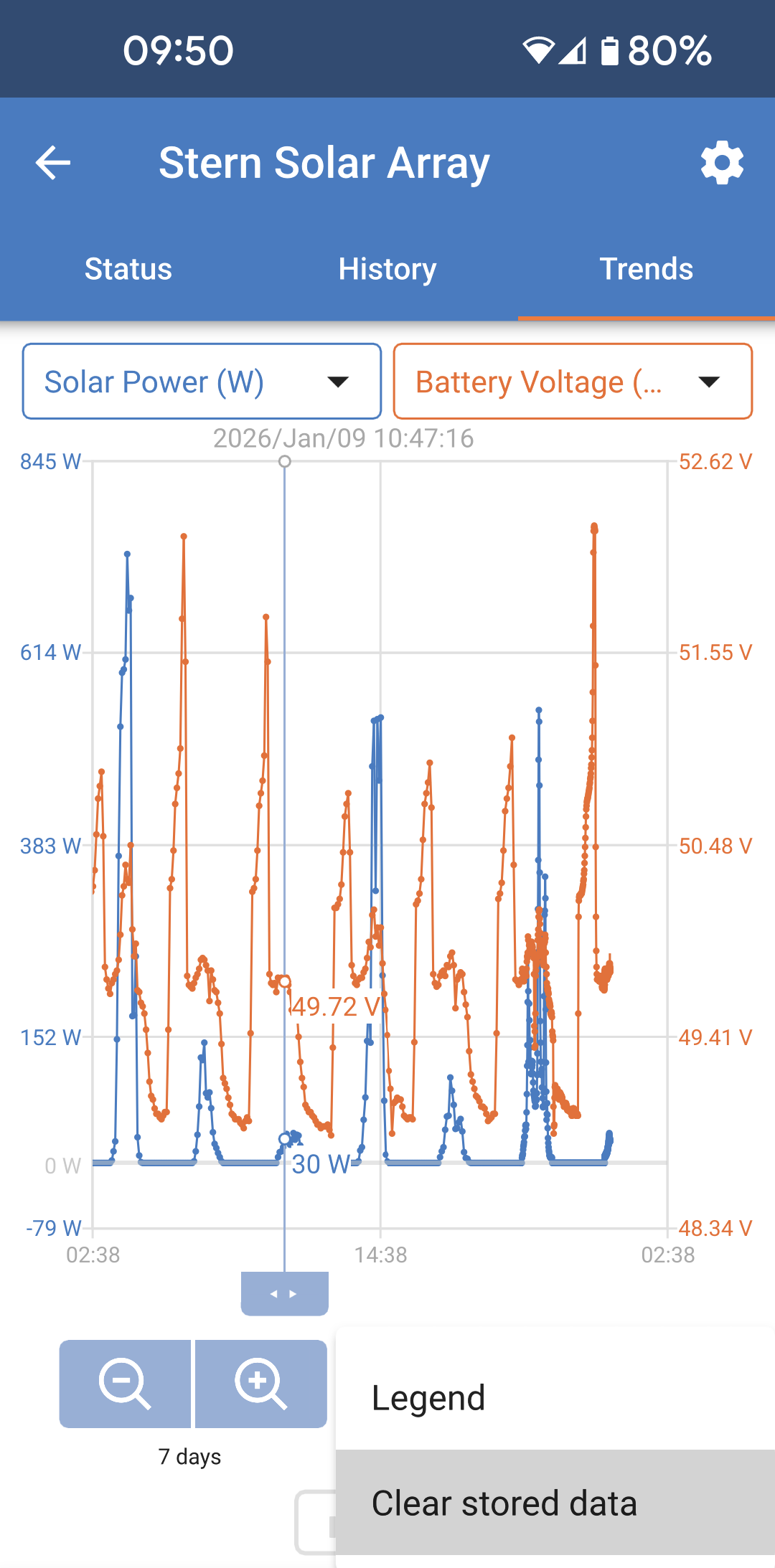
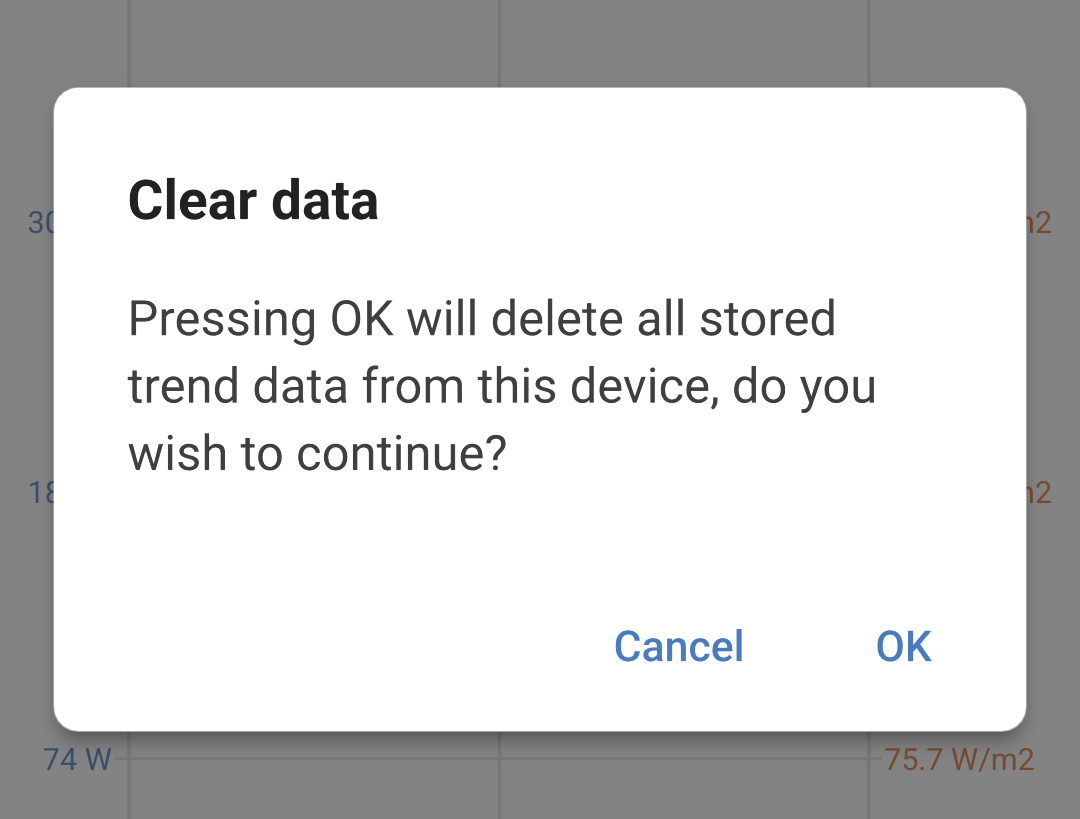
If you chose to Clear stored data, a confirmation box will appear.
|
|
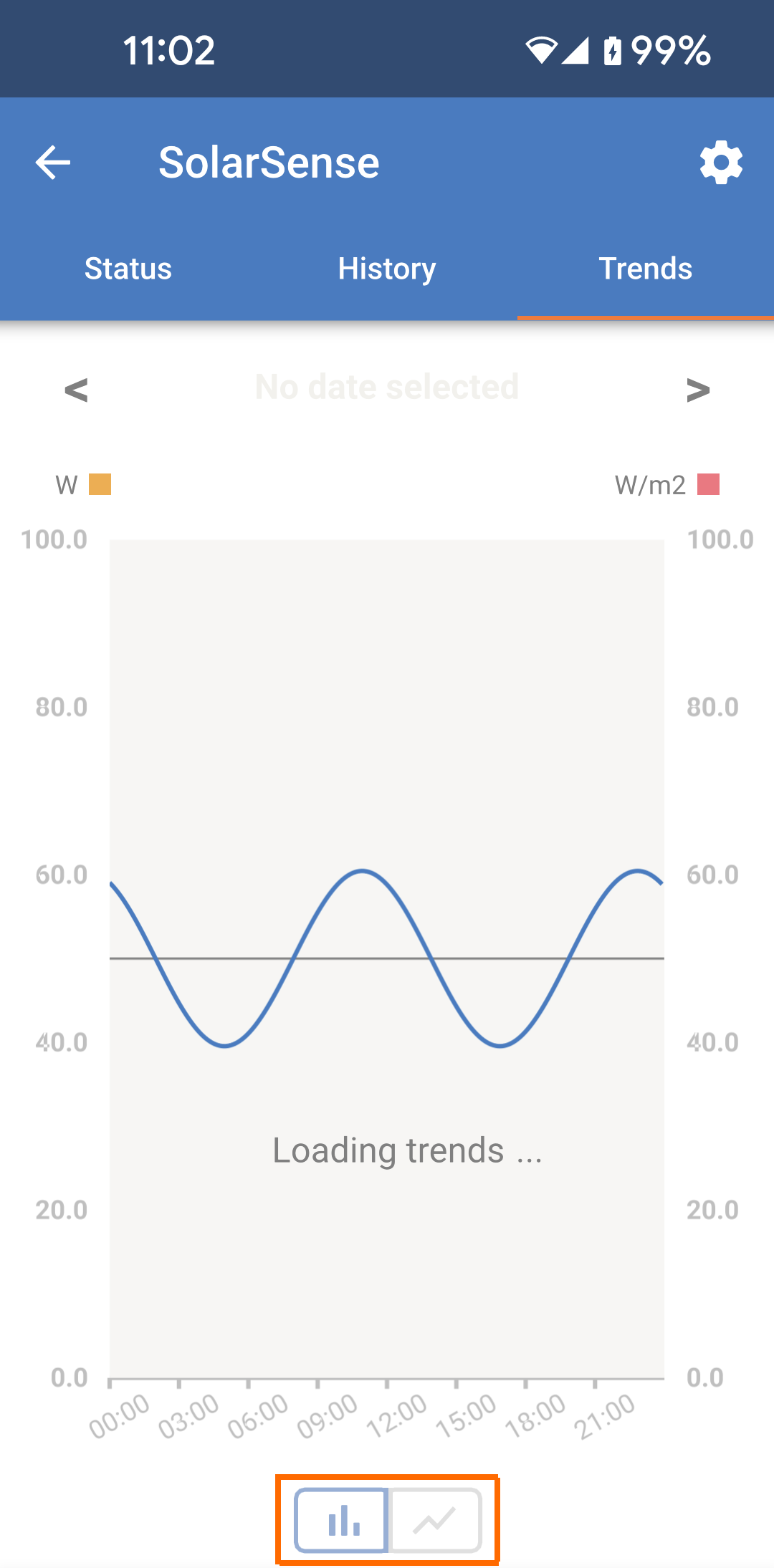
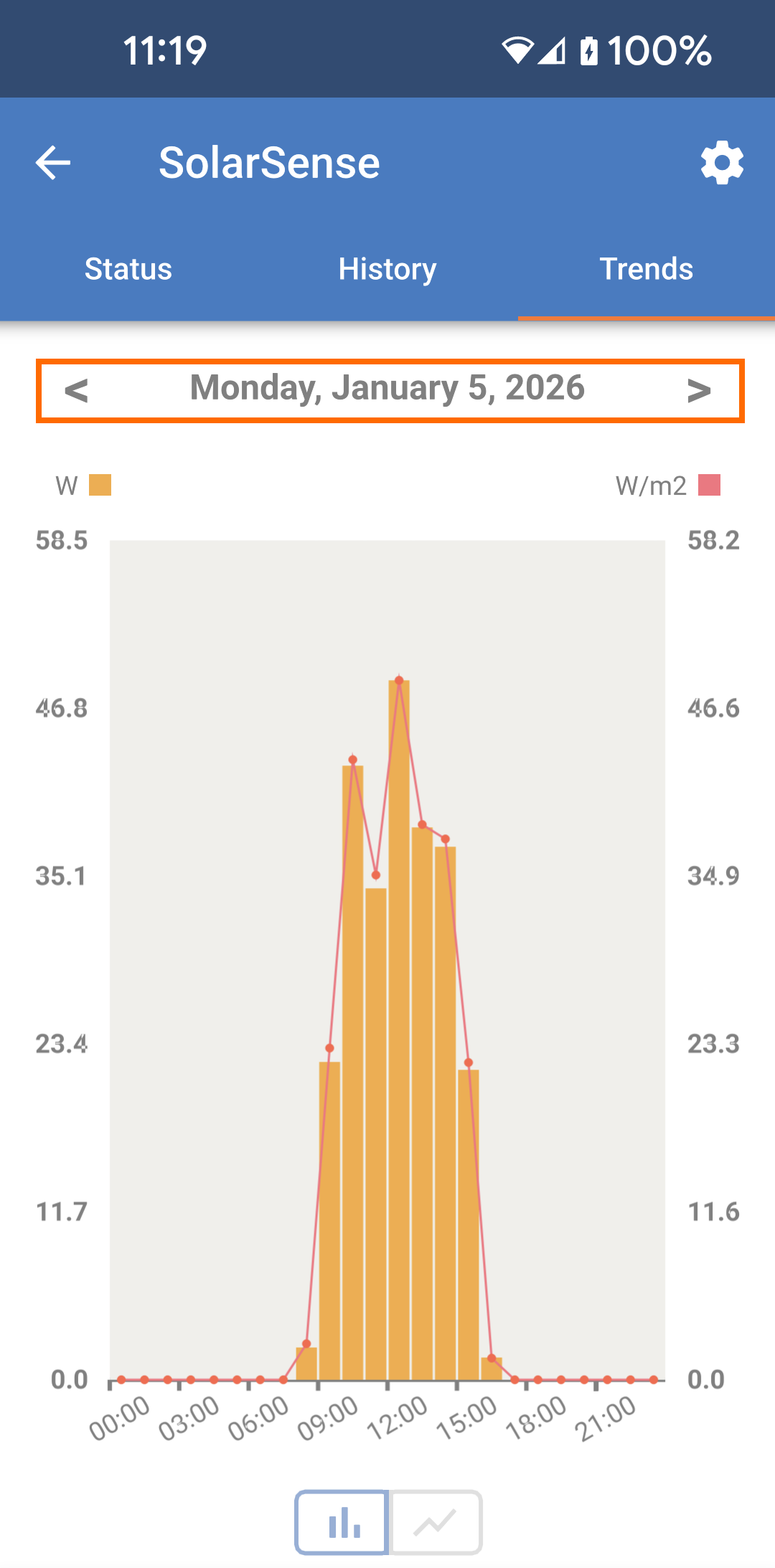
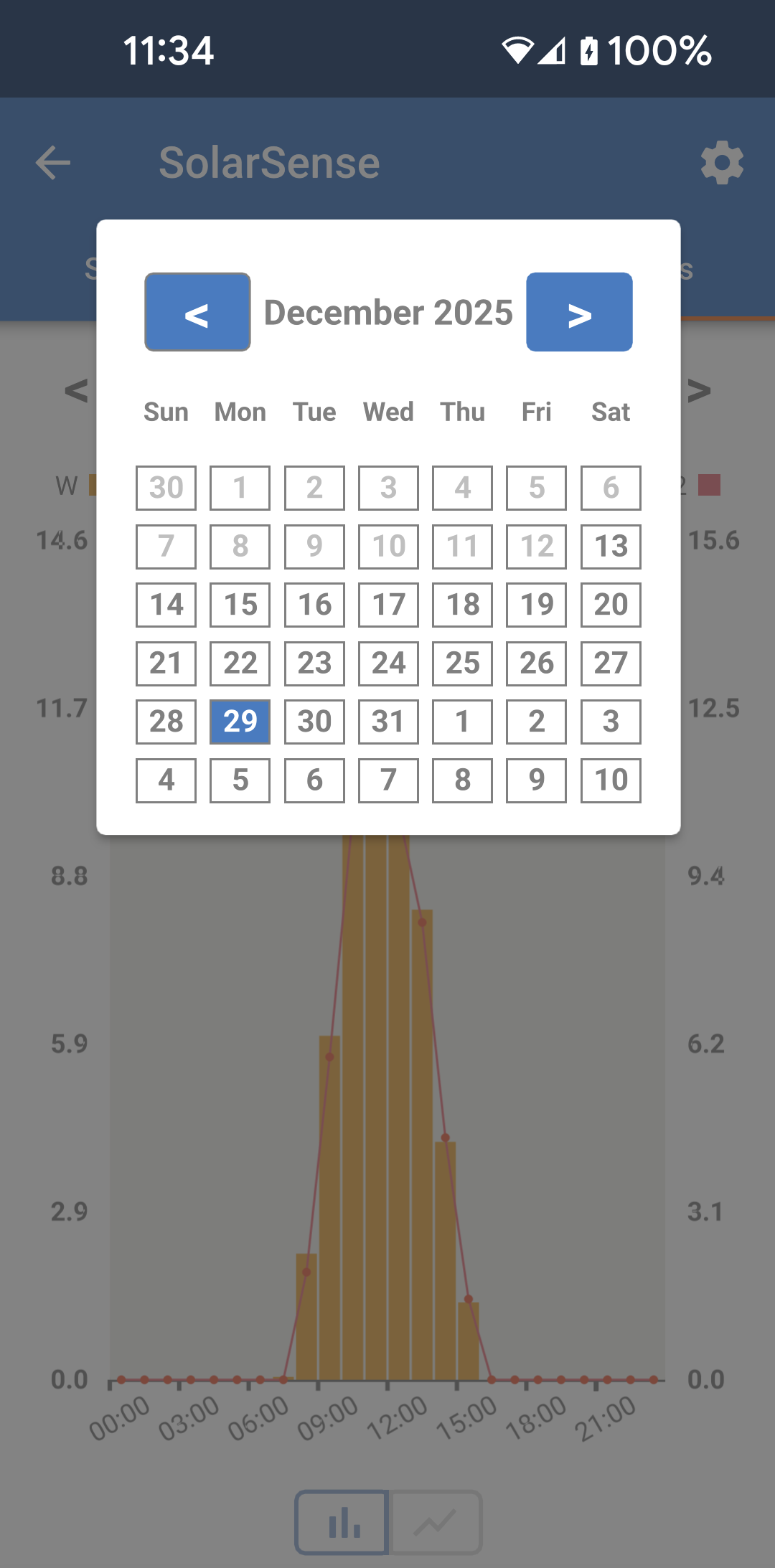
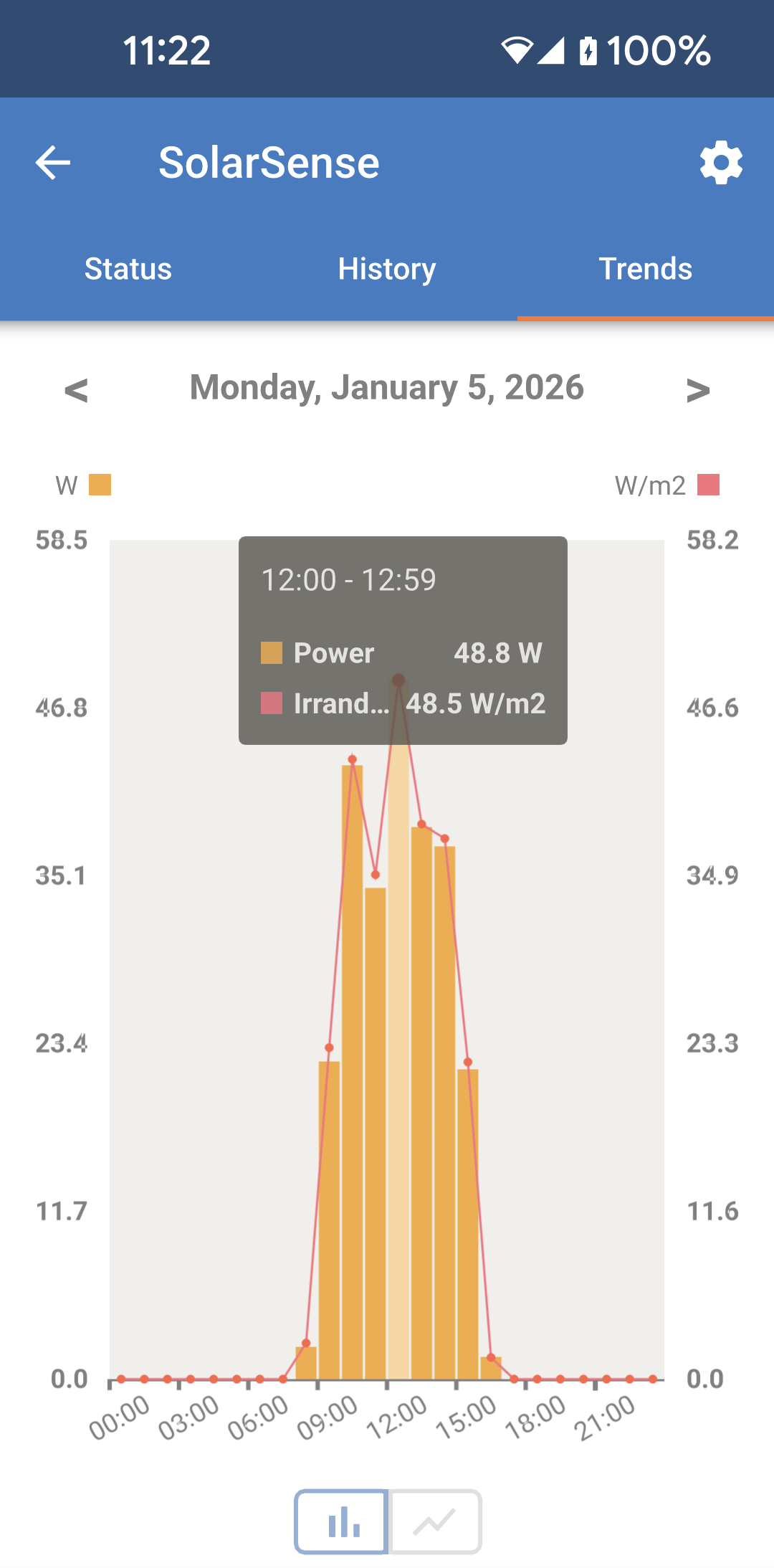
There is also an alternative view which allows stored data to be viewed over a specific day. The trends data is presented as a full day with data points for each hour.
You can also view the hourly data for a specific day.
You may need to wait for the trends data to load. |
|
|
|
|
|
|
|
11.2. Instant Readout
VictronConnect can display key data of Smart products on the Device list page without connecting to the products. This feature provides visual notifications of warnings, alarms, and errors, enabling quick diagnostics at a glance.
There are several advantages:
Better range than a regular Bluetooth connection.
No need to connect to the smart product.
Key data at a glance.
Encrypted data.
VE.Direct and VE.Can devices also benefit from this feature; no new firmware and no setup required. The instant readout data is automatically displayed on the VRM Devices page in VictronConnect.
VE.Direct products also automatically display Instant readout data when using the VE.Direct to USB cable for connection to a PC or Mac.
Instant readout is not enabled by default. Follow the steps below to enable it.
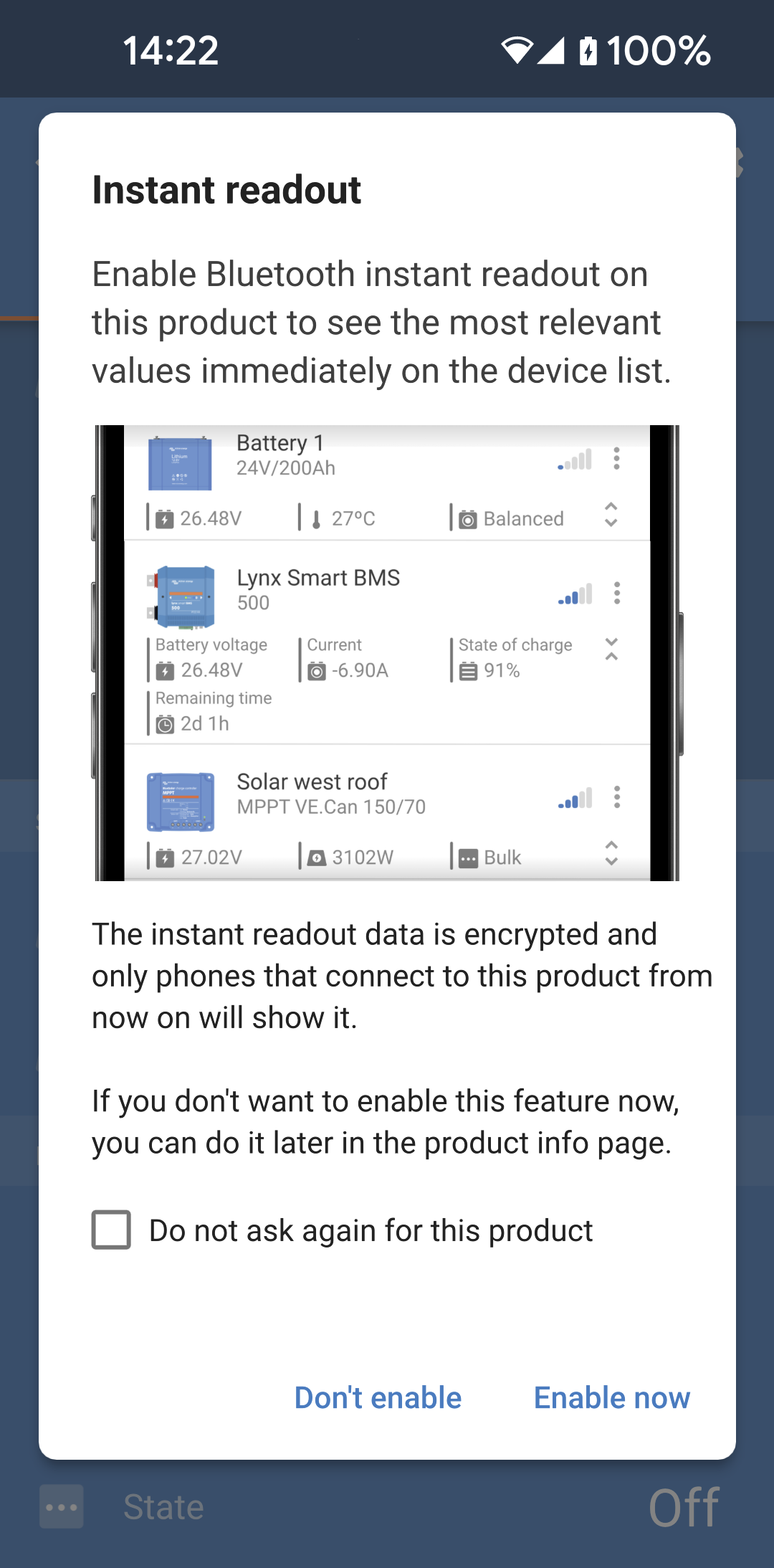
When you connect to a new product which does not have Instant readout enabled yet, then you will see a popup asking if you would like to enable it.
|
|
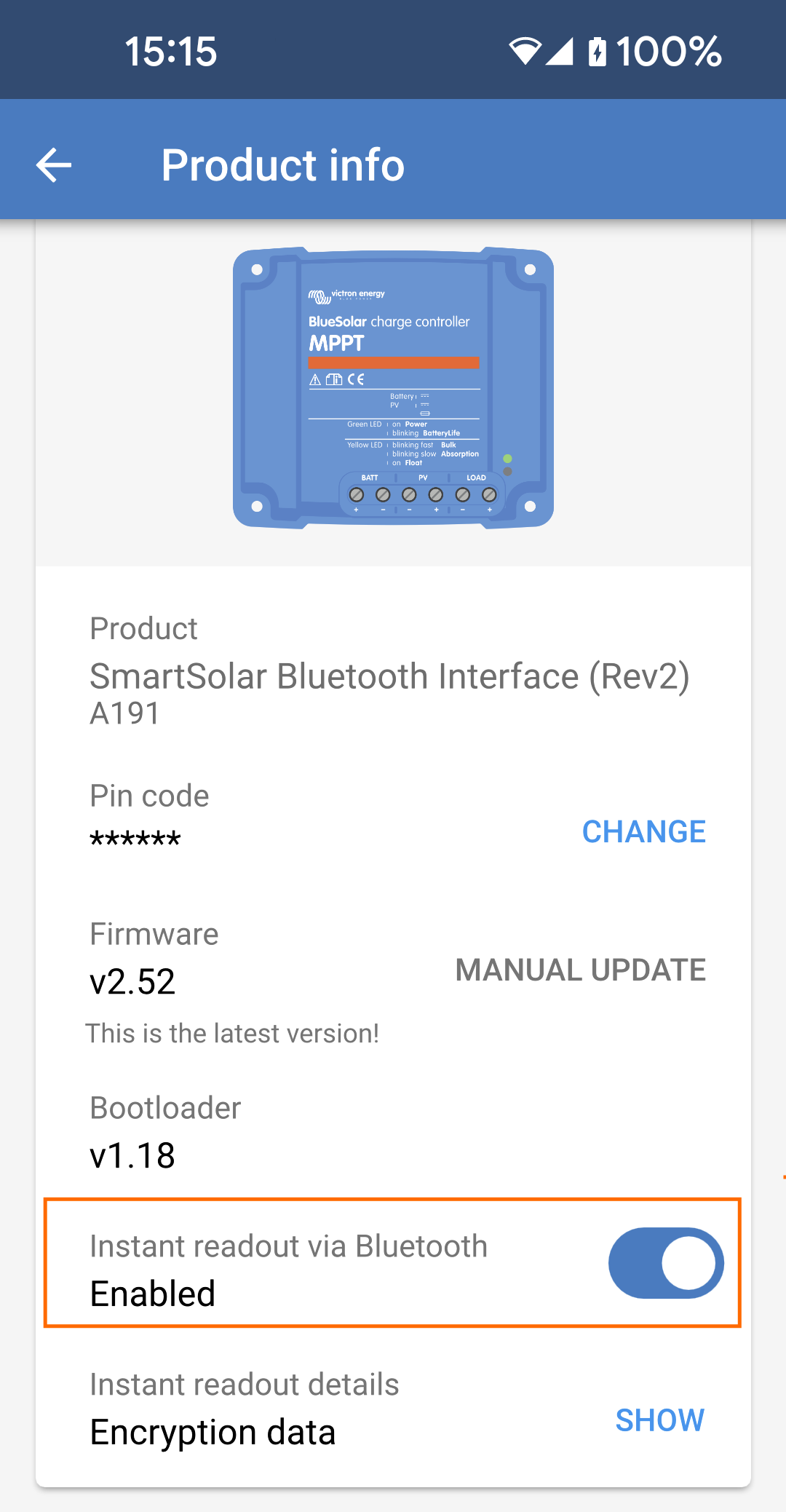
To manually enable Instant readout:
|
|
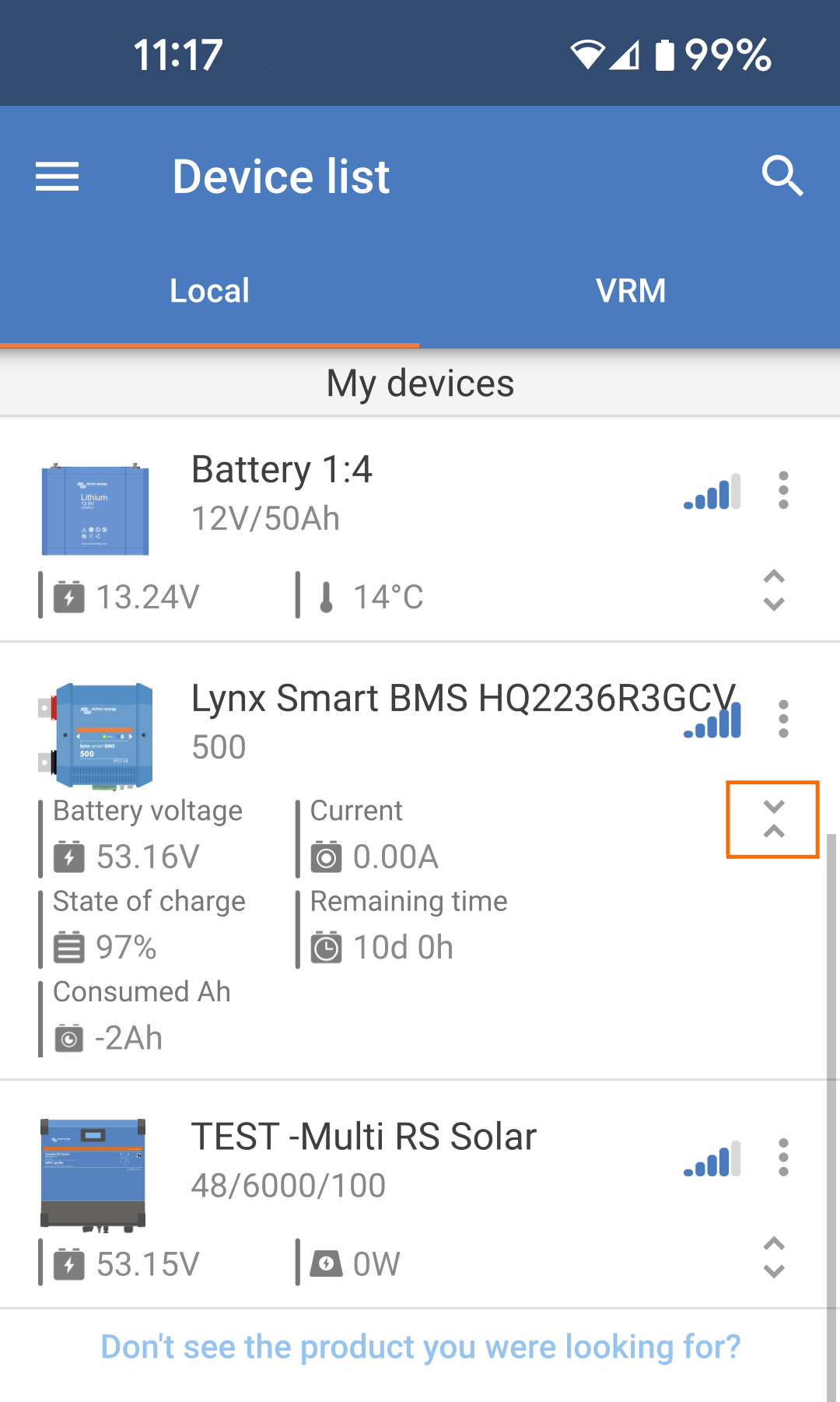
When Instant readout is enabled, additional information is displayed for each device within Bluetooth range.
Each device has some additional information displayed below it. |
|
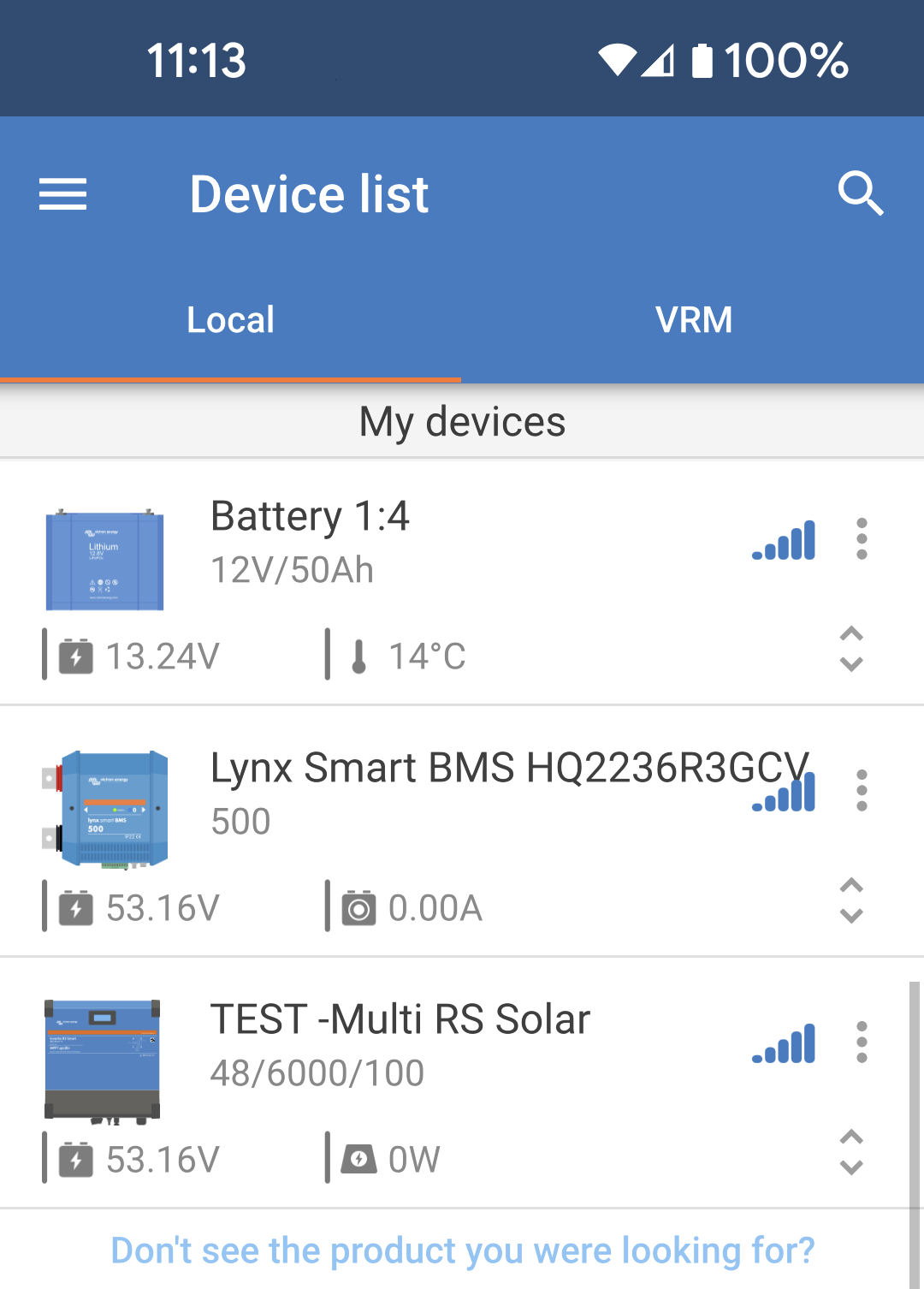
|
|
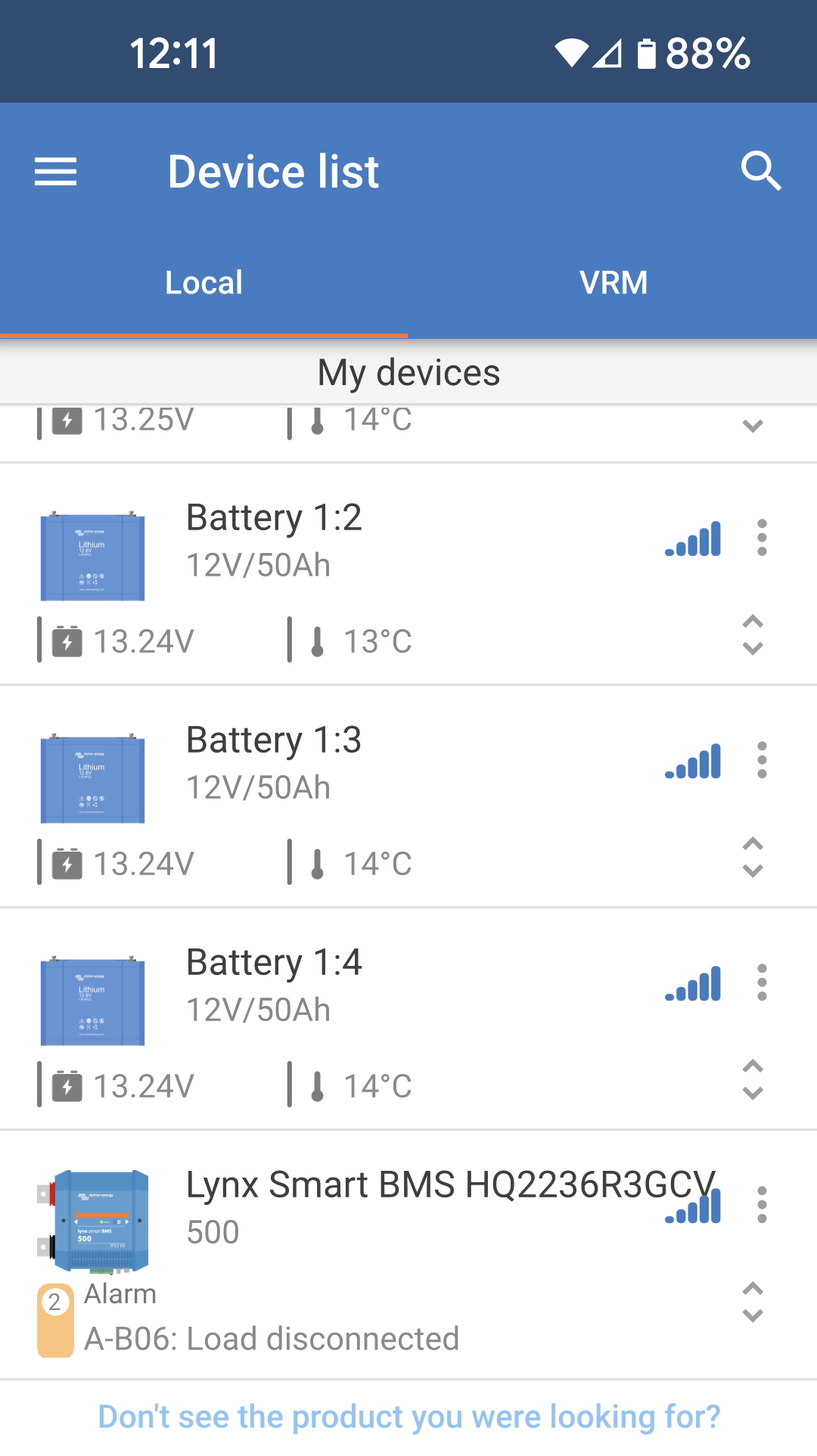
Alerts will appear below each device with an alarm or error. The alert icon's colour will indicate its severity. |
|
11.3. Stored trends and Instant readout compatibility
See the table below for an overview of Victron smart products and which of them support stored trends and/or instant readout. Products not listed are not supported even though they have Bluetooth.
Victron smart device | Stored trends | Instant readout |
|---|---|---|
Smart Solar Charger | Yes | Yes |
Inverter RS, Multi RS, MPPT RS | No | Yes |
Lynx Smart BMS | No | Yes |
Lithium Battery Smart | No | Yes |
SmartShunt | Yes | Yes |
BMV-712 | Yes | Yes |
Smart Battery Sense | Yes | Yes |
Inverter Smart | No | Yes |
Sun Inverter | No | Yes |
Orion-Tr Smart DC-DC Charger | No | Yes |
VE.Bus Smart dongle | No | Yes |
VE.Bus Inverter/Charger | No | Yes1) |
Smart BatteryProtect | No | Yes |
Smart BMS 12-200 and CL | No | Yes |
Orion XS 12/12-50A DC-DC battery charger | No | Yes |
VM-3P75CT Energy Meter | No | Yes2) |
SolarSense 750 | Yes | Yes |
VE.Direct Bluetooth Smart Dongle i.c.w. BlueSolar MPPT BMV-700/702 Inverter VE.Direct | No | Yes |
1) VE.Bus Inverter/Chargers supports instant readout, either wired (via an MK3 interface) or wireless (via VE.Bus Smart dongle). Note that when wired through an MK3 interface, communication with a GX device will be blocked (and thus may result in alarm and error conditions for the VE.Bus device) as long as this cable connection exists.
2) Even though the VM-3P75CT does not have Bluetooth, Instant readout is supported over VictronConnect Remote via direct cable connection (VE.Can or Ethernet).