9. Firmware updates
9.1. Introduction & automatic updates
Note
In order to perform firmware updates on VE.Bus products, such as MultiPlus and Quattro, please follow this separate Firmware guide for updating products such as MultiPlus and Quattro that use a VE.Bus connection.
You'll need a MK3-USB adaptor to be able to connect to VE.Bus products.
Firmware updates can be done offline, an internet connection is not required. The latest version of VictronConnect includes the most recent product firmware files available at the time of its release.
Some firmware versions are mandatory. When you connect to the product, VictronConnect will prompt to update immediately in case there is a mandatory version available.
Settings and historical data, if applicable, are preserved.
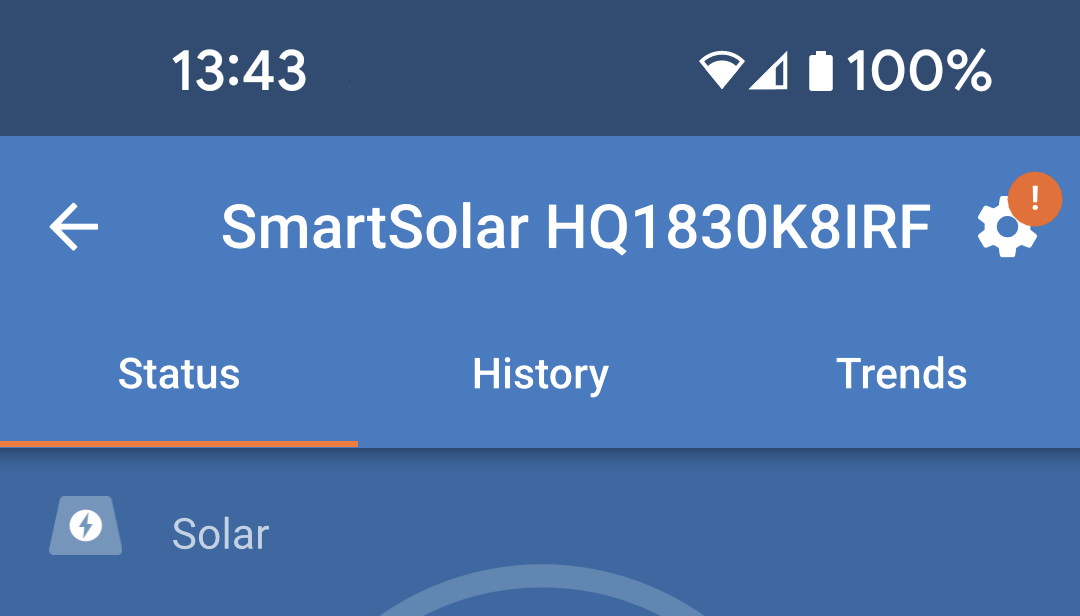
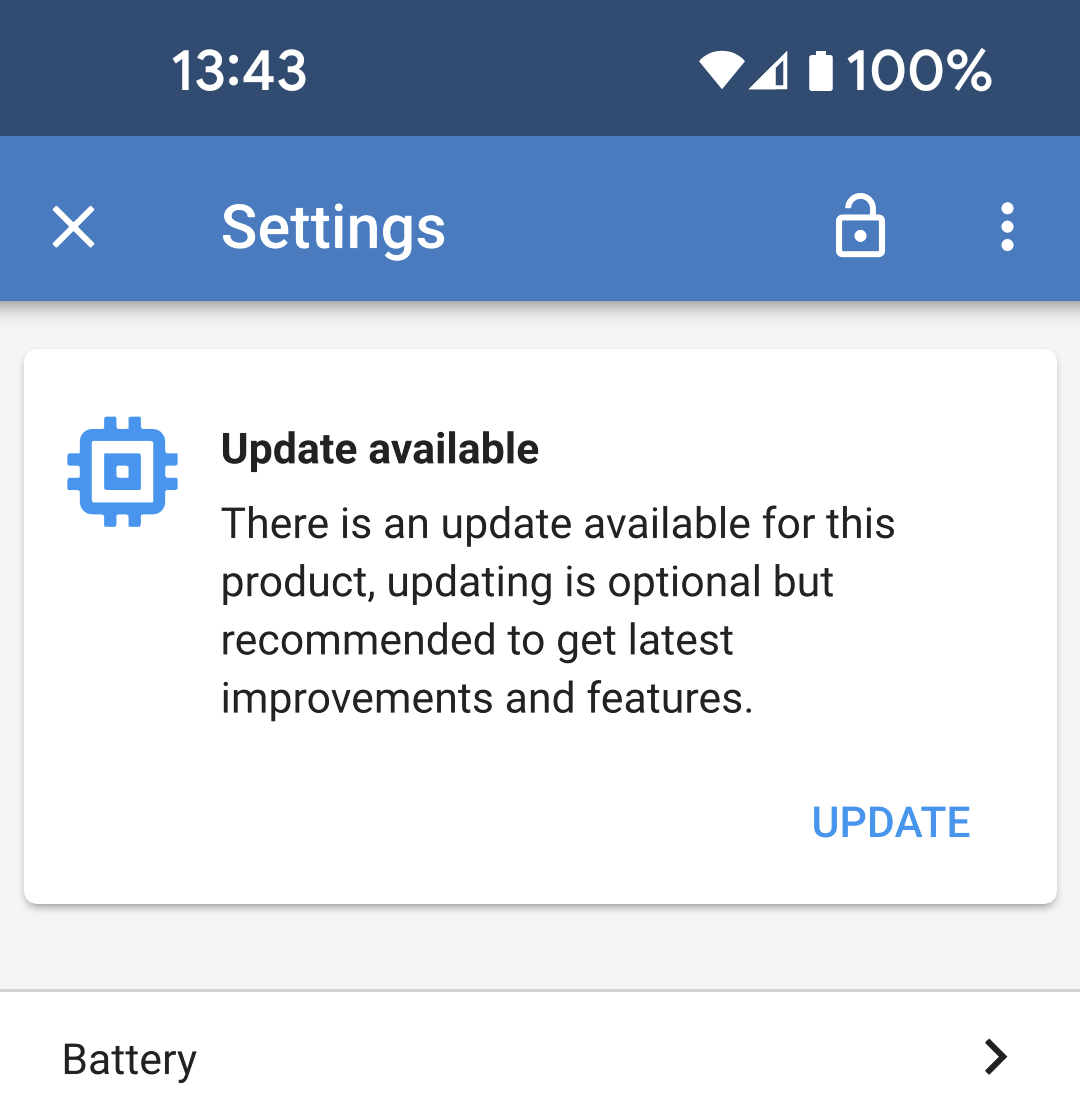
If you connect to your product, and a firmware update is available, an orange exclamation may appear over the settings cog at the top right of the Status page. |
|
|
|
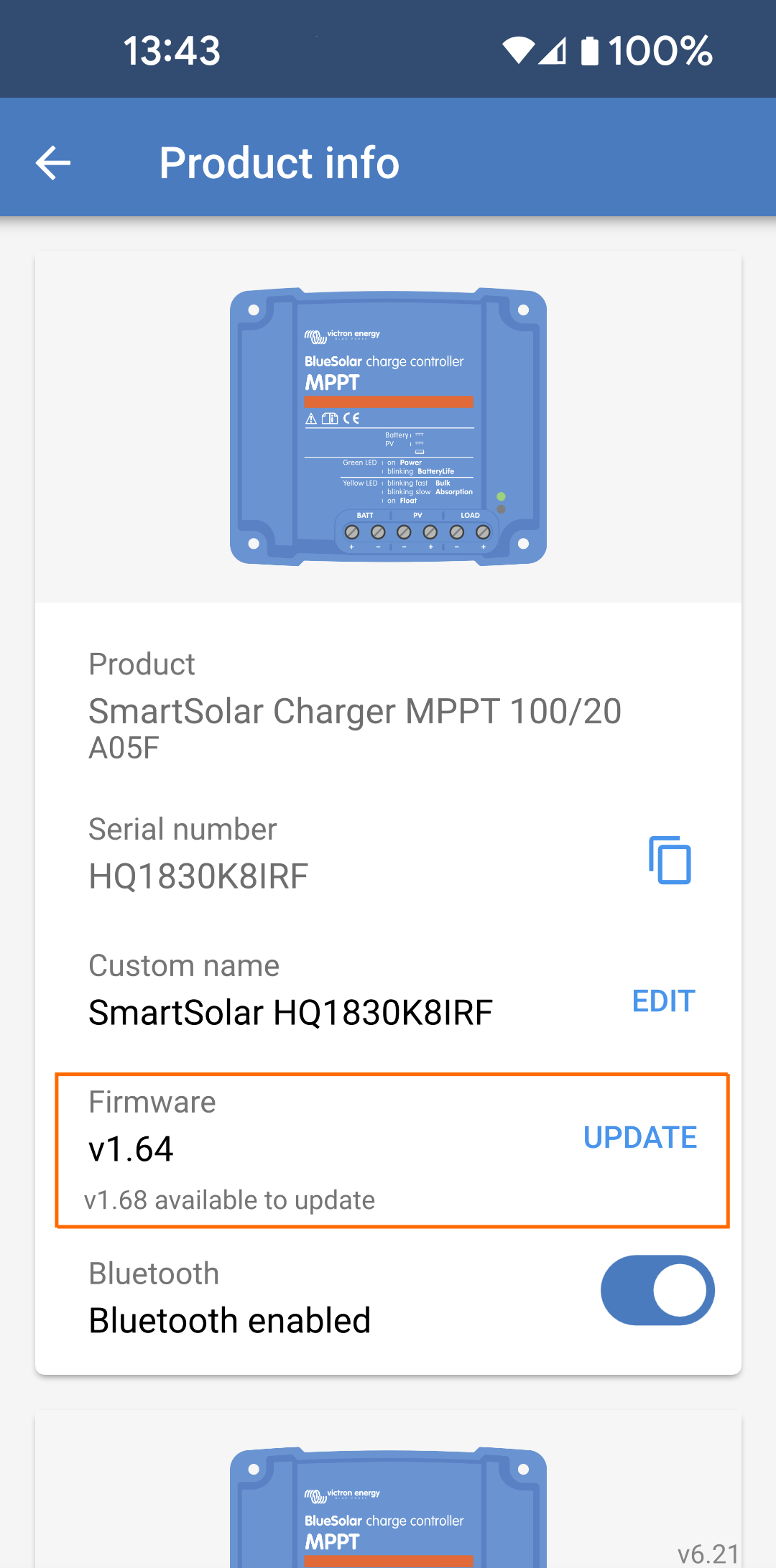
You can also check the current firmware version of a product:
|
|
9.2. Updating to a self-supplied firmware file
In addition to automatic updates, you can manually update the firmware using a self-supplied firmware file.
You typically don't need to perform a manual update except in the following cases:
Update to a more recent version, that's available on Victron Professional but not shipped with the current version of VictronConnect. You only need to perform a manual update if you don't want to wait for the next release of VictronConnect.
Update a product to a special or unreleased version.
Manual update process for mobile devices
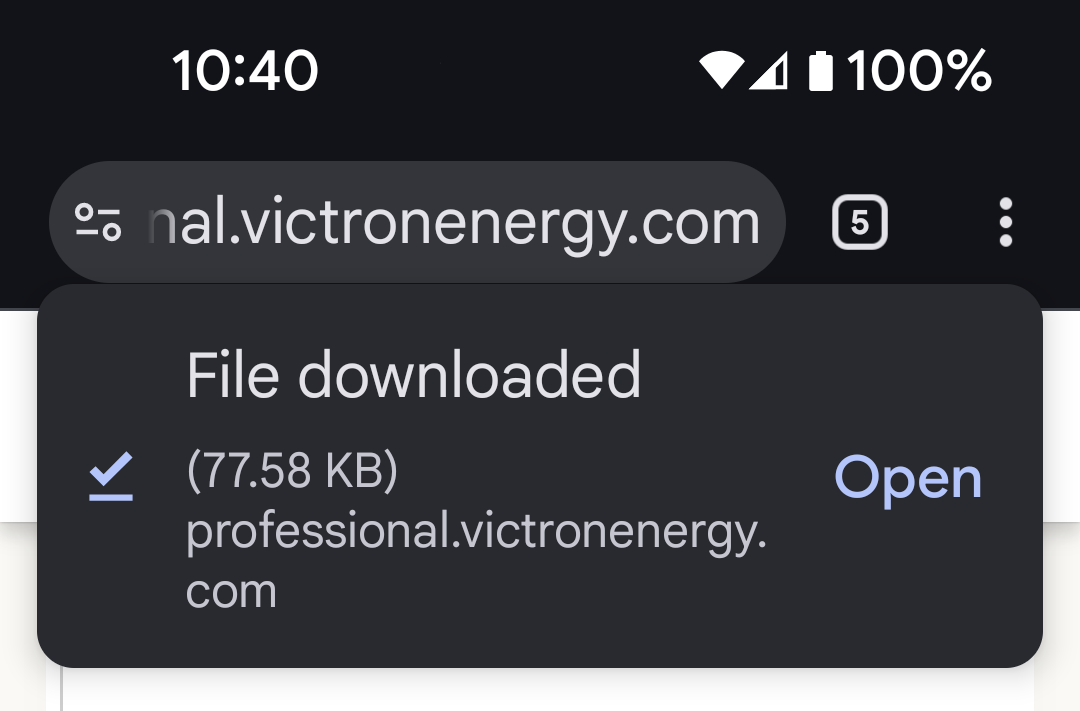
Make sure that the VictronConnect app is running. Once it is opened, you can switch to the app to download the firmware file.
This example shows downloading the firmware file from Victron Professional.
|
|
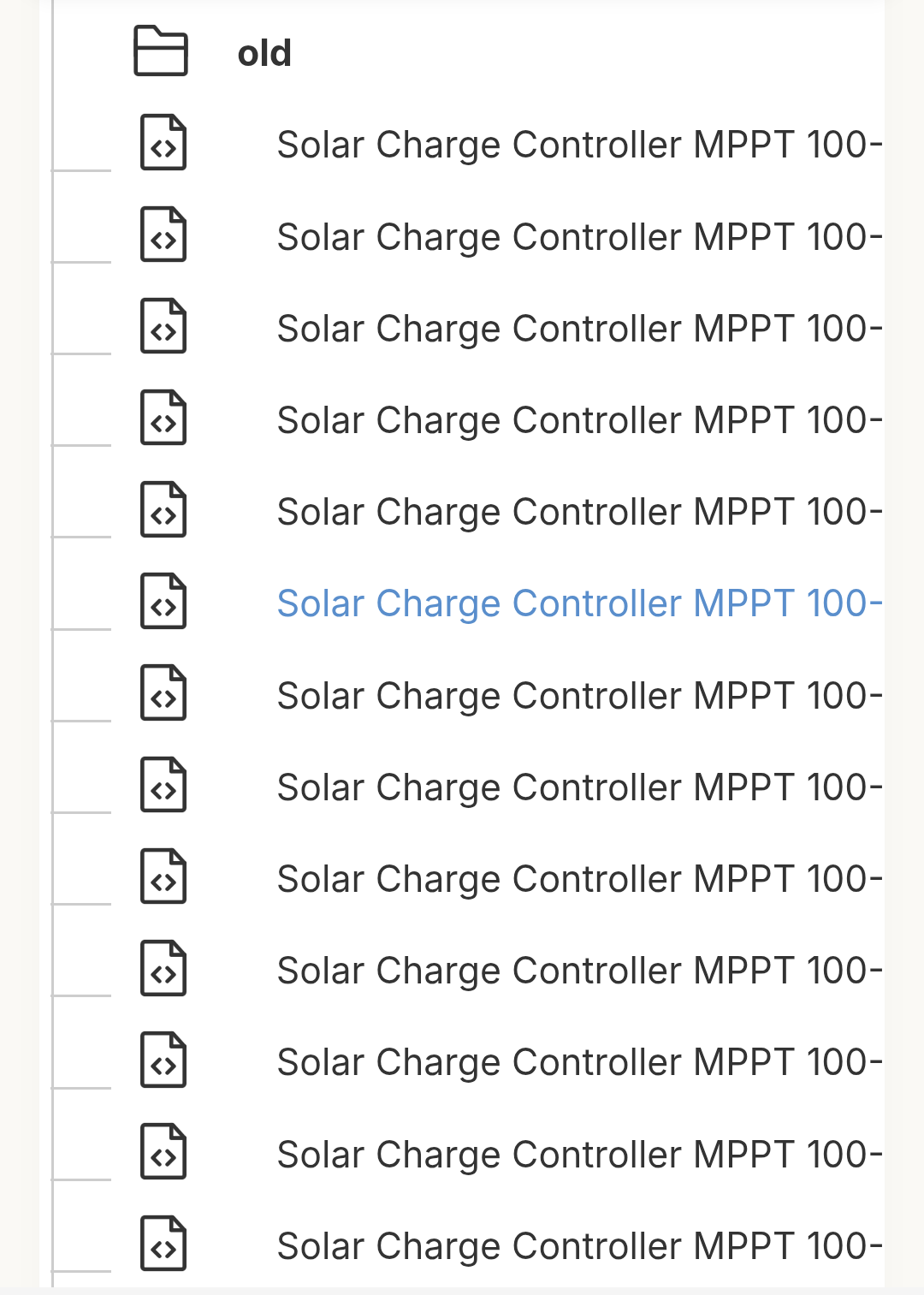
NoteDepending upon your device's security settings, you might not be able to open the file directly from the browser. In this case, open the file from within your device's file browser instead. |
|
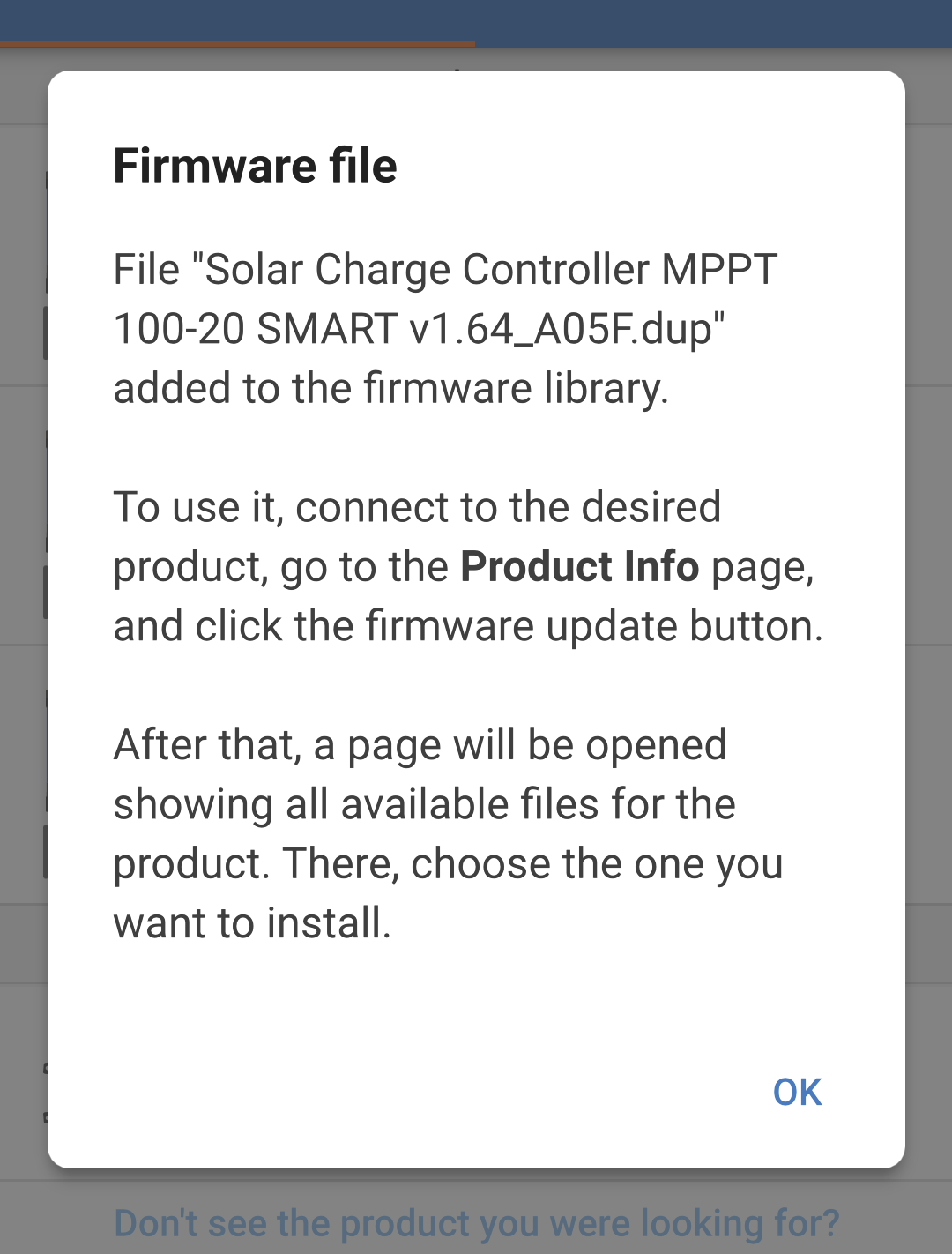
When the file opens in VictronConnect, a popup will confirm that the file has been added to the library.
|
|
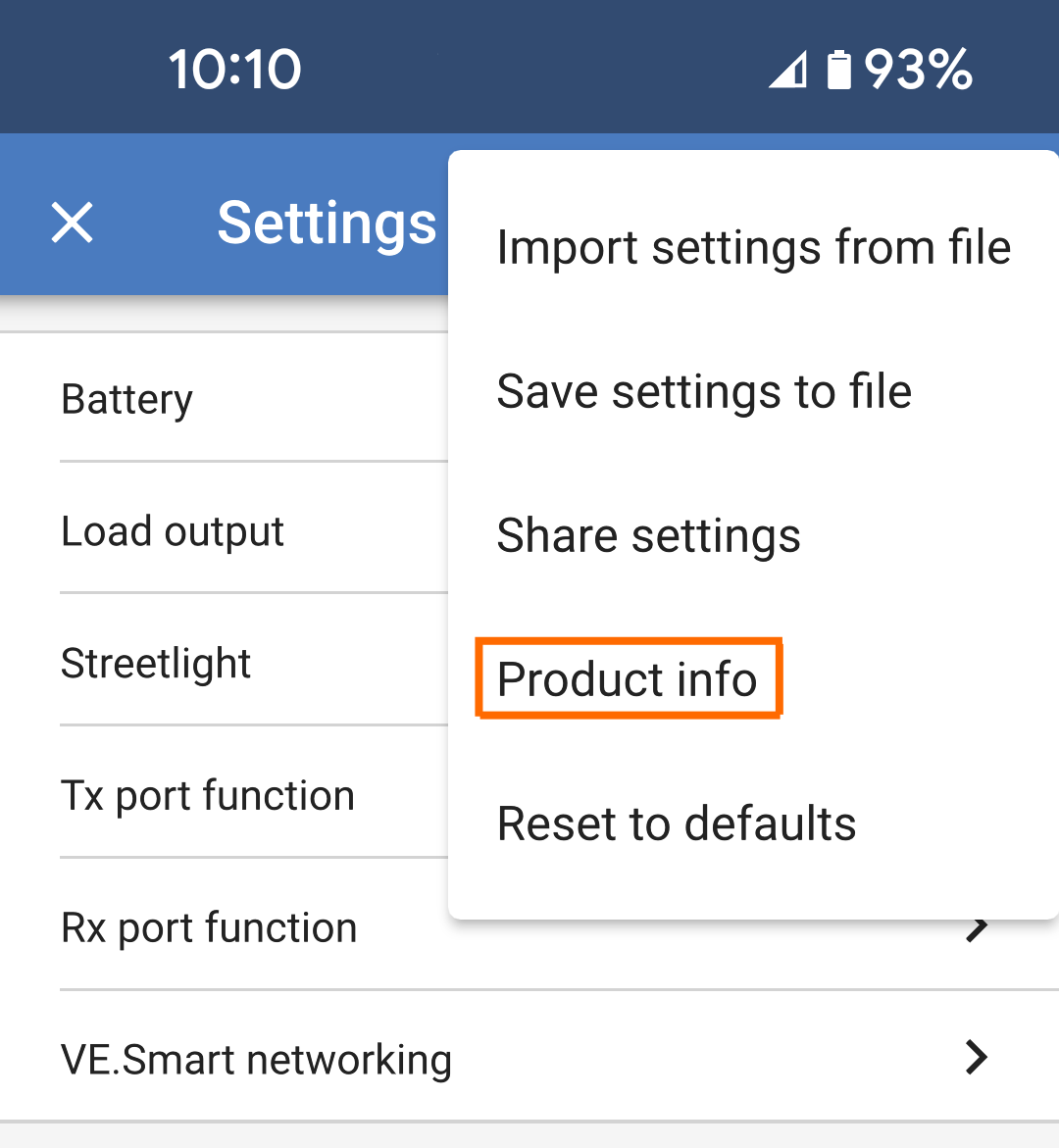
Now go to the product info page:
|
|
NoteIn this example, the firmware is up-to-date. If the firmware is not currently up-to-date, then you might just see an UPDATE button instead. |
|
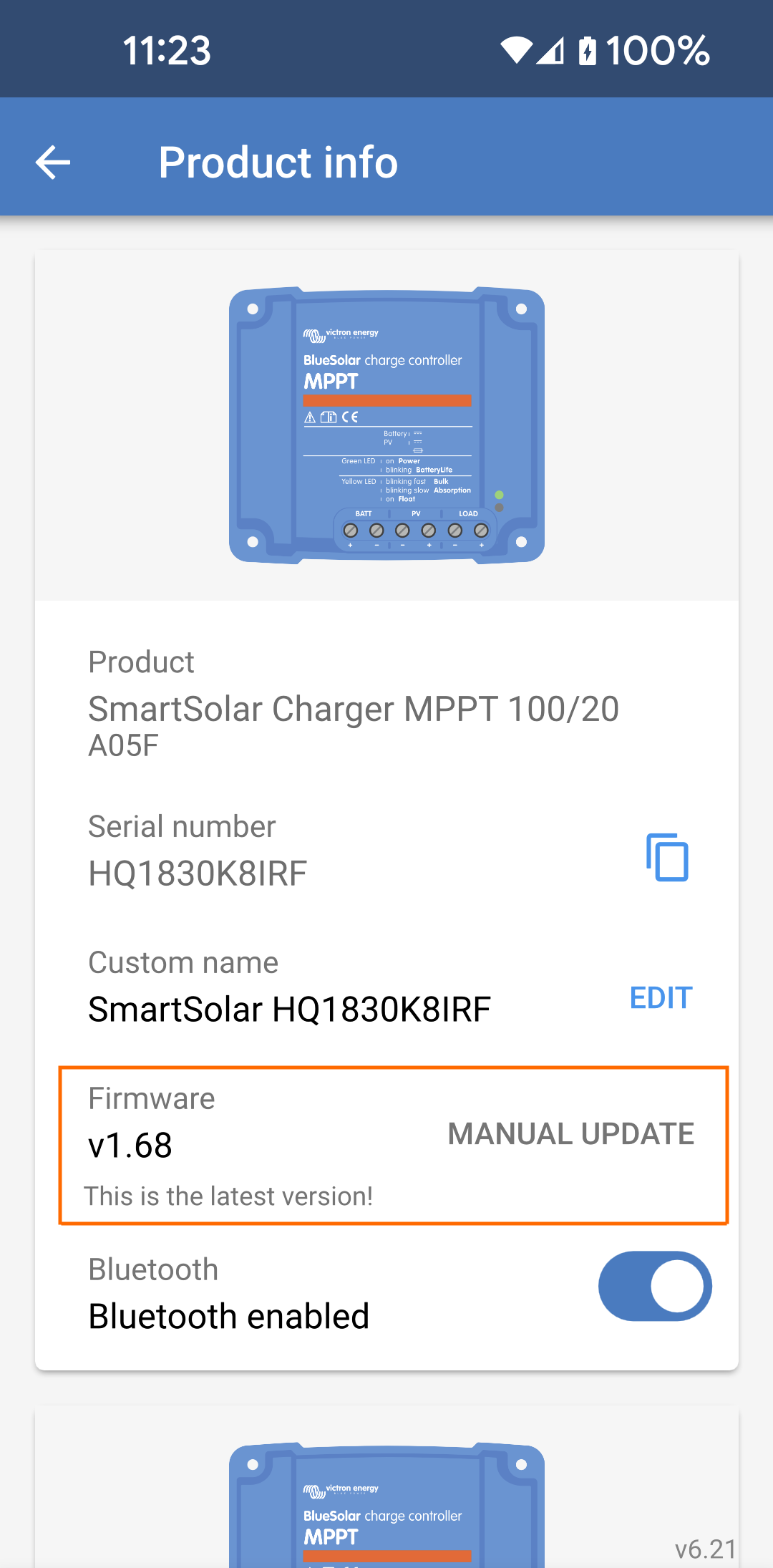
NoteIn this example, the firmware is up-to-date. If the firmware is not currently up-to-date, then you might just see an UPDATE button instead. |
|
NoteThe file list will only display firmware files which match the product you are connected to. |
|
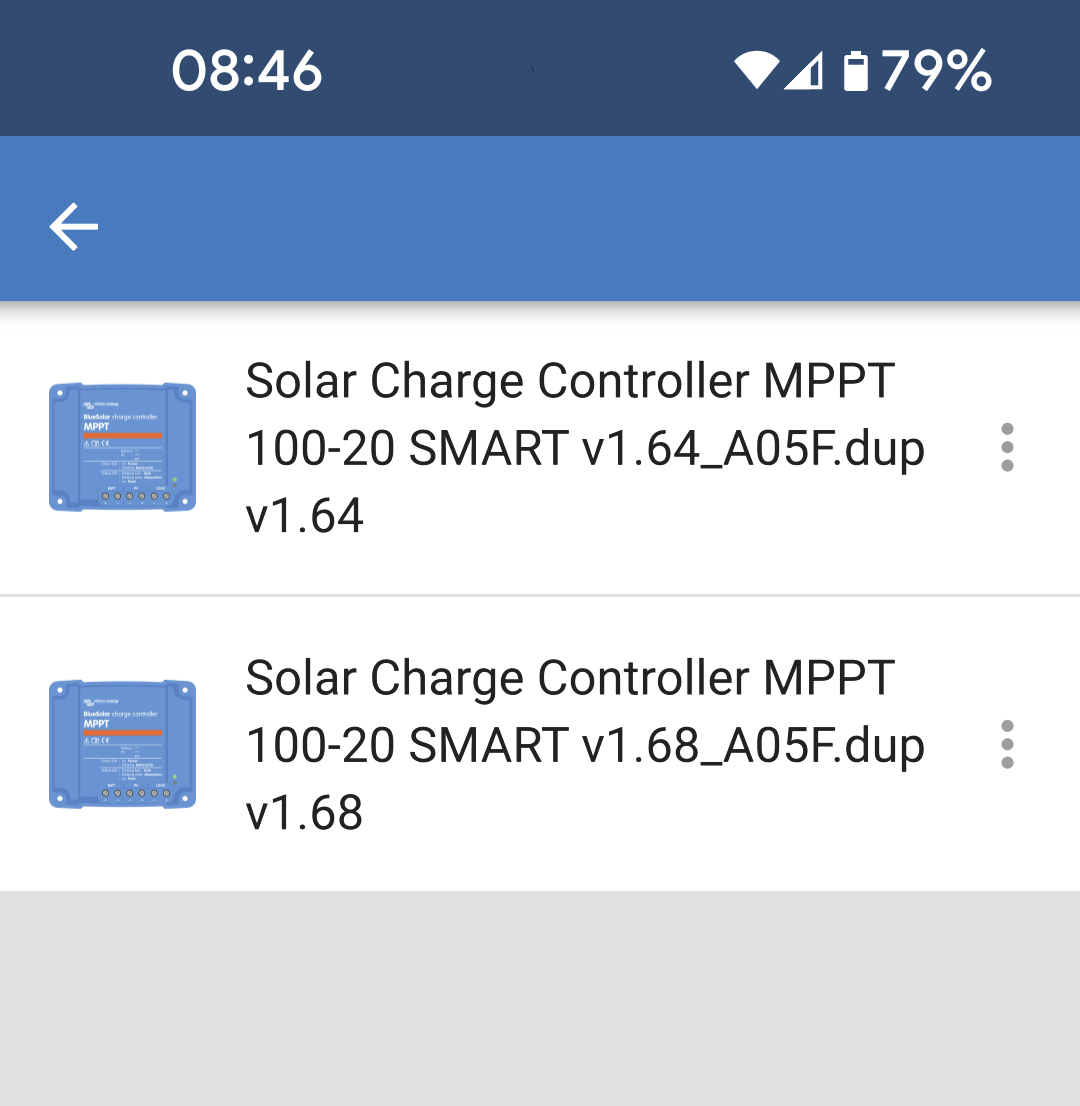
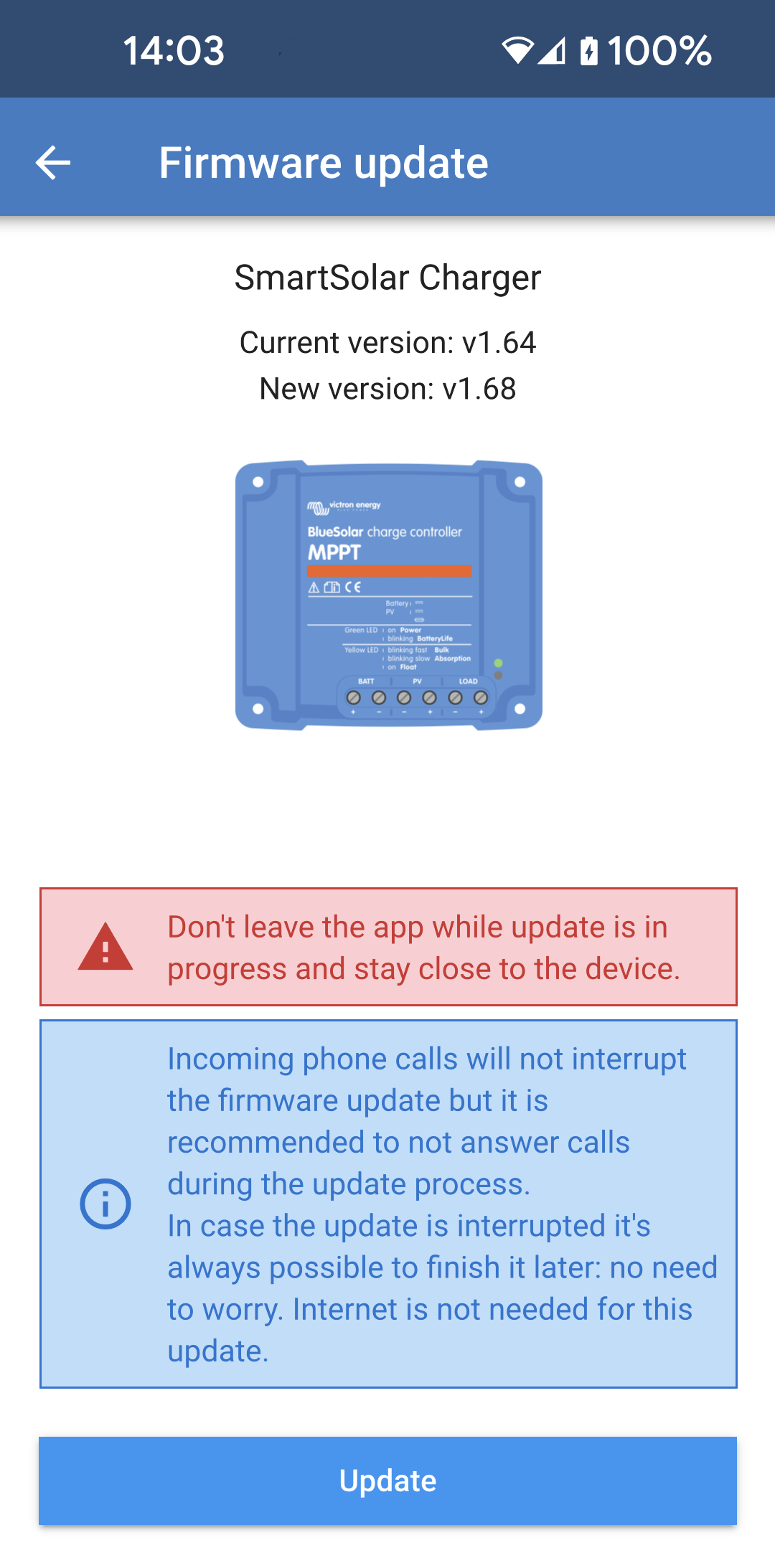
The Firmware update page shows the current firmware version and the new version to be installed.
|
|
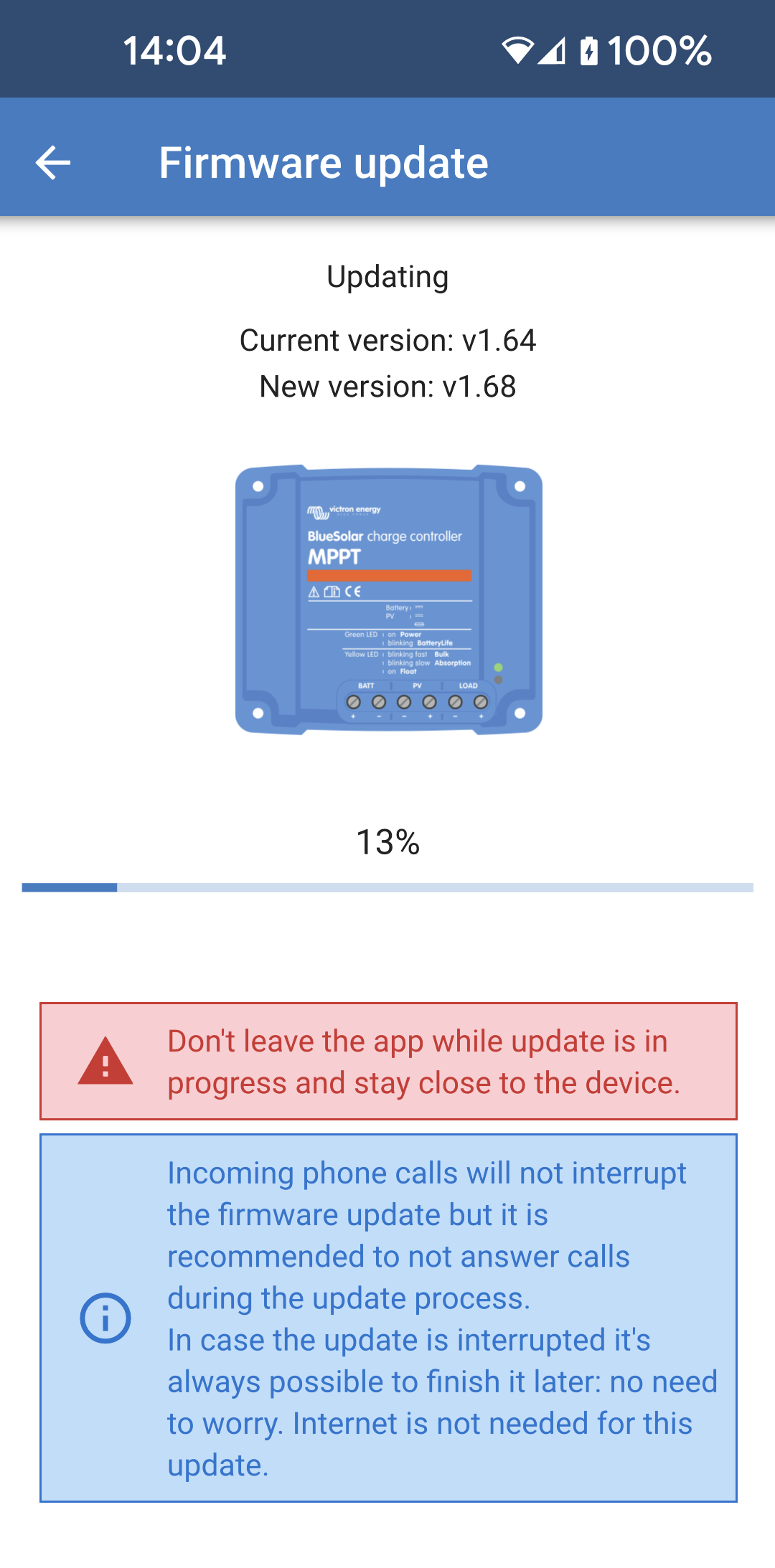
Once the firmware update is complete, you will return to the Device list page. |
|
Manual update for Windows and MacOS computers
You can also do firmware upgrades from Windows or MacOS computers.
Note
Bluetooth connectivity is not supported on Windows computers. A VE.Direct - USB cable is required to connect to the product.
The process is similar to that for mobile devices described above.
With your computer and Victron product connected to VictronConnect, go to the “Product info” page, click on “Update” and open the correct firmware file.
With your computer and Victron product connected to VictronConnect, go to the “Product info” page, click on “Update”. Any applicable firmware files in the VictronConnect library will be visible.
|
|
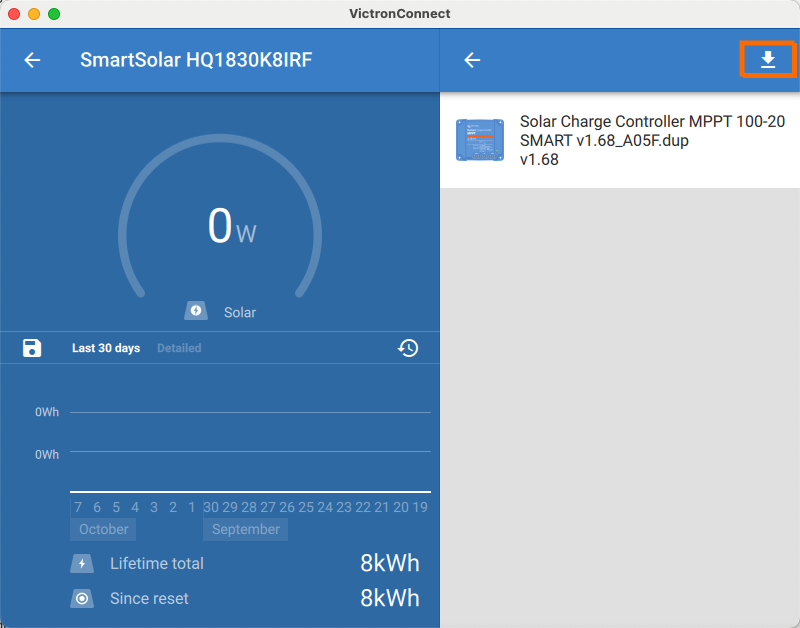
A system file browser window will open where you can choose the correct firmware file. NoteBe careful when choosing a firmware file from the system file browser, as all firmware files in a folder will be displayed, not only those compatible with the connected product. |
|
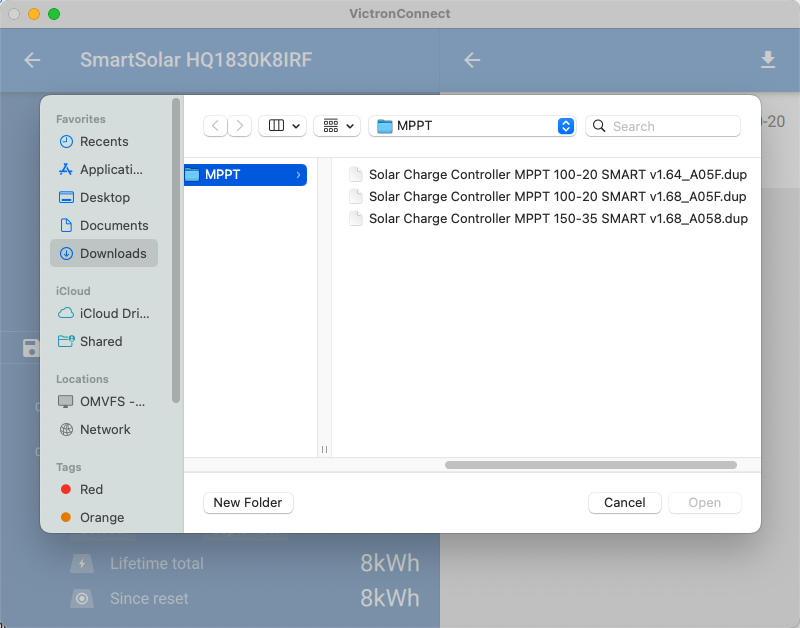
After you have selected a firmware file, the Firmware update screen will show the current version and the new version.
|
|
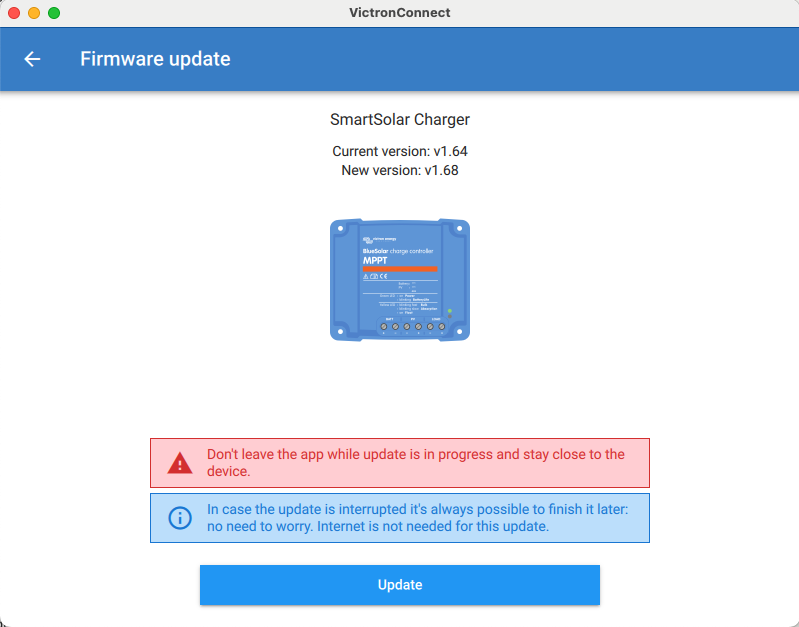
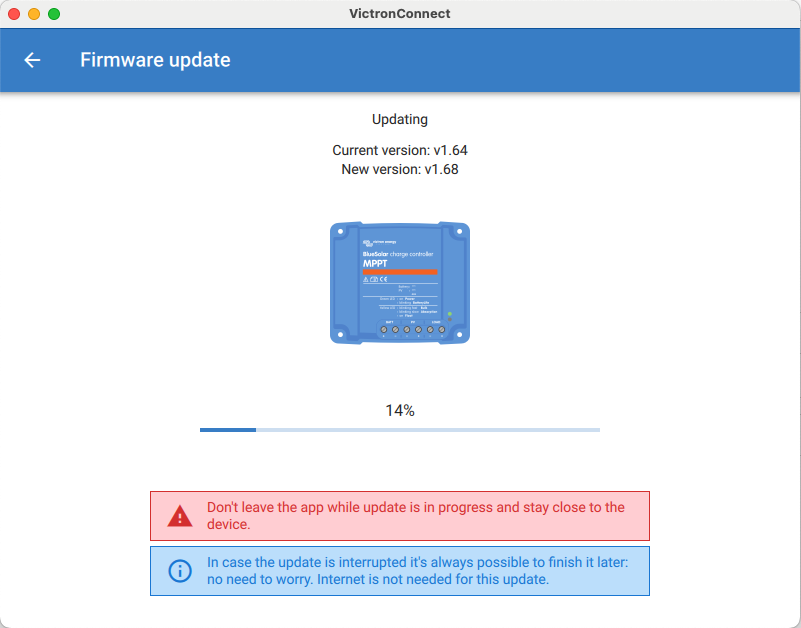
A progress bar will show the update's progress. Once the firmware update is complete, you will return to the Device list page. |
|
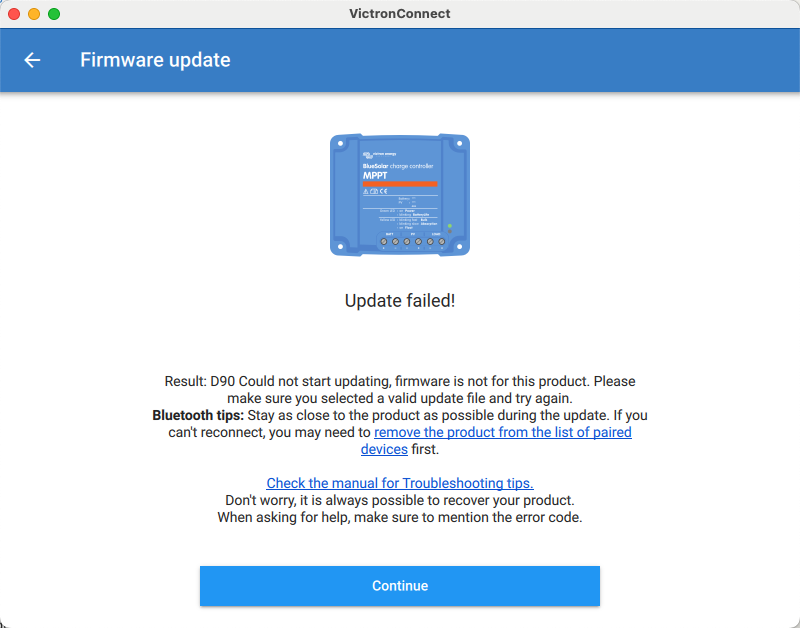
If you select an incompatible firmware file, an 'Update Failed' screen will display the reason. The product will not be updated and you can start the update process again with a different firmware file.
|
|
9.3. Troubleshooting firmware updates
A troubleshooting guide relevant to firmware updates can be found in chapter 11.3
9.4. Error codes
Despite our best efforts, errors can sometimes occur. Don’t worry — you can always recover your product.
In most cases, errors are caused by communication problems. Always make sure to check all cable connections and, if you are using Bluetooth, stay as close to the product as possible and check that the Bluetooth function is enabled on your phone. Sometimes you may need to remove the Bluetooth pairing information from your phone in order to be able to reconnect with your product.
Check chapter 10.3 of this manual for Troubleshooting firmware updates. When asking for help, make sure to always mention the error code.
VE.Direct products
Error | Description |
|---|---|
D3 | No VE.Direct product(s) found. |
D4 | Unknown error occurred. Try again and check the product settings once updated. |
D10 | Error closing com port. |
D20 | Could not start updating, no updatable product found. |
D26 | Updating failed, communication lost. The product might be unusable. Check connection and power supply. Try again and check the product settings once updated. |
D29 | Could not start updating, the firmware file is corrupt. |
D31 | Updating failed, the product is unusable. Try again and check the product settings once updated. |
D32 | Could not start updating, entering boot mode failed. |
D33 | Could not start updating, the firmware file is not found. |
D90 | Could not start updating, the firmware is not for this product. |
D91 | Could not start updating, an unknown product was found. |
D92 | Updating failed, erasing firmware failed. The product might be unusable. Try again and check the product settings once updated. |
D93 | Error starting firmware after updating. Power cycle (off/on) your product and if that does not help, try updating again, and check the product settings once updated. |
D94 | Product updated successfully, but an error occurred reading the previous settings. Check the product settings. |
D95 | Product updated successfully, but an error occurred restoring the previous settings. Check the product settings. |
D96 | Updating failed due to version mismatch. Power cycle (off/on) your product and if that does not help try updating again, and check the product settings once updated. |
D97 | Dup executable too old. |
D98 | Firmware file is not a valid dup file. |
D99 | Product updated successfully, but an error occurred restoring the settings. Check the product settings. |
D100 | Cannot migrate settings because the application is not active. Manual action required. |
Blue Smart Charger, Smart Lithium, and VE.Direct Bluetooth Smart dongle
Error | Description |
|---|---|
B1 | Error reading file. |
B2 | Victron BLE service not found. Please remove the product from the list of paired devices and retry. |
B3 | Dfu BLE service not found. Please remove the product from the list of paired devices and retry. |
B4 | The product disconnected unexpectedly. Perhaps the bond information is no longer valid? Please remove the product from the list of paired devices and retry. |
B5 | A write to the device failed. |
B6 | The product did not activate its bootloader - although it should have. |
B7 | The product did not disconnect - although it should. |
B8 | Timeout waiting for access to the Victron BLE service. |
B9 | Timeout waiting for access to the Dfu BLE service. |
B10 | Timeout waiting for a response. |
B11 | Timeout while writing to the product. Perhaps a pairing dialogue is shown? Please retry. |
B12 | Device was no longer found. Perhaps out of range? Please retry. |
B13 | The product did not start the new firmware. Please try again. If you are still having problems, send a service report to Victron Energy. |
B14 | Could not start updating, firmware is not for this product. Please make sure you selected a valid update file and try again. |
B96 | An internal error occurred (Opcode not supported). Please send a service report to Victron Energy. |
B97 | The requested encryption is not supported by the product. Please send a service report to Victron Energy. |
B98 | An internal error occurred (Data size exceeds limits). Please send a service report to Victron Energy. |
B99 | The product could not store the firmware in its memory. Please retry, and if the problem persists, please contact Victron Energy. |
B100 | An internal error occurred (CRC error). Please send a service report to Victron Energy. |
B101 | An internal error occurred (Data length error). Please send a service report to Victron Energy. |
B102 | An internal error occurred (Not allowed). Please send a service report to Victron Energy. |
B103 | An internal error occurred (Unexpected data length). Please try again. "If you are still having problems, send a service report to Victron Energy. |
B104 | An internal error occured (Unsupported data). Please try again. If you are still having problems, send a service report to Victron Energy. |
B105 | An internal error occured (Version mismatch). Please try again. If you are still having problems, send a service report to Victron Energy. |
B106 | This firmware is too old, make sure you have the latest version and try again. |
VE.Bus Products
Error | Description |
|---|---|
V1 | No product detected. Please check all the cable connections and try again. |
V2 | An unexpected timeout was triggered. Please check all the cable connections and try again. |
V3 | Incomplete vff file. Nonce missing. Please make sure you selected a valid update file and try again. |
V4 | Incomplete vff file. EEPROM lines missing. Please make sure you selected a valid update file and try again. |
V5 | The vff file contains more EEPROM data than supported. Please make sure you selected a valid update file and try again. |
V6 | The calibration map in the file exceeds the device calibration map. Please make sure you selected a valid update file and try again. |
V7 | Device calibration data size bigger than expected. Please make sure you selected a valid update file and try again. |
V8 | Bootloader did not respond to bootloader setup. Please check all the cable connections and try again. |
V9 | Bootloader response to version request failed. |
V10 | Incompatible bootblock. Function version invalid. |
V11 | Incompatible bootblock. Version invalid. |
V12 | Bootloader did not start after bootblock update. |
V13 | Incompatible bootblock type. |
V14 | No or unexpected response to target id query. |
V15 | No or unexpected response to EEPROM read action. |
V16 | No or unexpected response to calibration map query. |
V17 | The supplied firmware contains new unsupported calibration values. The updater does not know how to handle them. |
V18 | No response received to EEPROM write command. Please check all the cable connections and try again. |
V19 | Invalid response received to EEPROM write command. Please check all the cable connections and try again. |
V20 | No response received to code write command. Please check all the cable connections and try again. |
V21 | Invalid reponse received to code write command. Please check all the cable connections and try again. |
V22 | The MK2/MK3 did not respond. Please check all the cable connections and try again. |
V23 | The connected product does not match the specified model in the file. Please make sure you selected a valid update file and try again. |
V24 | The hardware revision specific EEPROM defaults data is corrupt. Please make sure you selected a valid update file and try again. |
V25 | Updates can not be performed with a VE.BUS BMS connected. |
V26 | Updates can not be performed with a DMC connected. |
V40 | Failed to start Update. Could not allocate memory. Malloc error. |
V50 | Failed to start Update. File open error. Please check the file location and access permissions. Make sure you selected a valid update file and try again. |
V51 | Failed to start Update. File write error. Please check file location and access permissions. Make sure you selected a valid update file and try again. |
V52 | Failed to start Update. File read error. Please check file location and access permissions. Make sure you selected a valid update file and try again. |
V53 | Failed to start Update. File checksum error. File corrupted or not a valid VFF file. Please make sure you selected a valid update file and try again. |
V54 | Failed to start Update. File has an incompatible version number. Please make sure you selected a valid update file and try again. |
V55 | Failed to start Update. File section not found. File corrupted or not a valid VFF file. Please make sure you selected a valid update file and try again. |
V56 | Failed to start Update. Format error. File corrupted or not a valid VFF file. Please make sure you selected a valid update file and try again. |
All other products (XUP update files)
Error | Description |
|---|---|
X51 | Invalid updater state. Please try again. |
X52 | File Error. No Product Id found in the update file. Please make sure you selected a valid update file and try again. |
X53 | File Error. No VE.Direct baudrates found in the update file. Please make sure you selected a valid update file and try again. |
X54 | File Error. No Xup Format Version found in the update file. Please make sure you selected a valid update file and try again. |
X55 | File Error. No Minimum Updater Version found in the update file. Please make sure you selected a valid update file and try again. |
X56 | File Error. No Firmware (product) Version found in the update file. Please make sure you selected a valid update file and try again. |
X57 | File Error. No Instance Blob could be found in the update file. Please make sure you selected a valid update file and try again. |
X58 | File Error. Invalid instance Blob attribute. Please make sure you selected a valid update file and try again. |
X60 | File Error. Instance Blob defined more than once. Please make sure you selected a valid update file and try again. |
X61 | File Error. No Firmware Version for instance found in the update file. Please make sure you selected a valid update file and try again. |
X62 | File Error. The update file does not match XML standard. Please make sure you selected a valid update file and try again. |
X63 | File Error. No/invalid Firmware data found for instance in the update file. Please make sure you selected a valid update file and try again. |
X64 | Update (xup) file format not supported. Please make sure you selected a valid update file and try again. |
X65 | Updater (version) too old. |
X66 | Firmware not for Product (Id). Please make sure you selected a valid update file and try again. |
X67 | Communication Error. No Callback handler connected. Please check the connection and try again. |
X68 | Communication Error. Vreg ack-ed with an unexpected error. Please check the connection and try again. |
X69 | Communication Error. Unexpected Vreg Ack received. Please check the connection and try again. |
X70 | Communication Error. The instance could not be reached. Please check the connection and try again. |
X71 | Fail on Minimum Firmware Version check. Please make sure you selected a valid update file and try again. |
X72 | Failed to Begin Update. Please check the connection and try again. |
X73 | Update Error. Invalid Ack on non-final Update Data. Please check the connection and try again. |
X74 | Update Error. Invalid sequence# in Update Data Ack. Please check the connection and try again. |
X75 | Update Error. Invalid instance# in Update Data Ack. Please check the connection and try again. |
X76 | Update Error. Invalid Ack on final Update Data. Please check the connection and try again |
X77 | Verification Error. Invalid Firmware Version Ack. Please check the connection and try again. |
X78 | Verification Error. Invalid UDF Version Ack. Please check the connection and try again. |
X79 | Verification Error. Invalid instance field in Minimum Firmware Version Ack. Please check the connection and try again. |
X80 | Verification Error. Invalid instance field in Firmware Version Ack. Please check the connection and try again. |
X81 | Verification Error. Invalid instance field in UDF Version Ack. Please check the connection and try again. |
X82 | Failed to verify Minimum Firmware Version. Please check the connection and try again. |
X83 | Failed to verify Firmware Version. Please check the connection and try again. |
X84 | Failed to verify UDF Version. Please check the connection and try again. |
X85 | Failed on Minimum Firmware Version verification. Please check the connection and try again. |
X86 | Failed on Firmware Version verification. Please check the connection and try again. |
X87 | Still in Bootloader Mode after the update. Please try again. |
X88 | Communication Error. Vreg Ack timeout. Please check the connection and try again. |
X89 | Communication Error. No product found. Please check the connection and try again. |
X90 | Communication Error. Comm port error. Please check the connection and try again. |
X91 | Update Error. Failed to set baudrate. Please check the connection and try again. |
X92 | Update Error. Update in progress on another interface. |
X93 | Update Error. Invalid instance# in Ack. Please check the connection and try again. |
X94 | Update Error. Vreg Ack error: Invalid instance. Please check the connection and try again. |
X95 | Update Error. Vreg Ack error. Please check the connection, power cycle the product and try again. |
X96 | Communication Error. CAN Network address error. Please check the connection, power cycle the product and try again. |