7. Settings files
7.1. Save, load, share and manage settings
This feature allows you to save product settings to a file so that they can be loaded onto the Victron product you are connected to at a later time. You can also load the settings file in to another product of the same model.
Save settings
Once connected to your Victron product, go to the settings page.
|
|
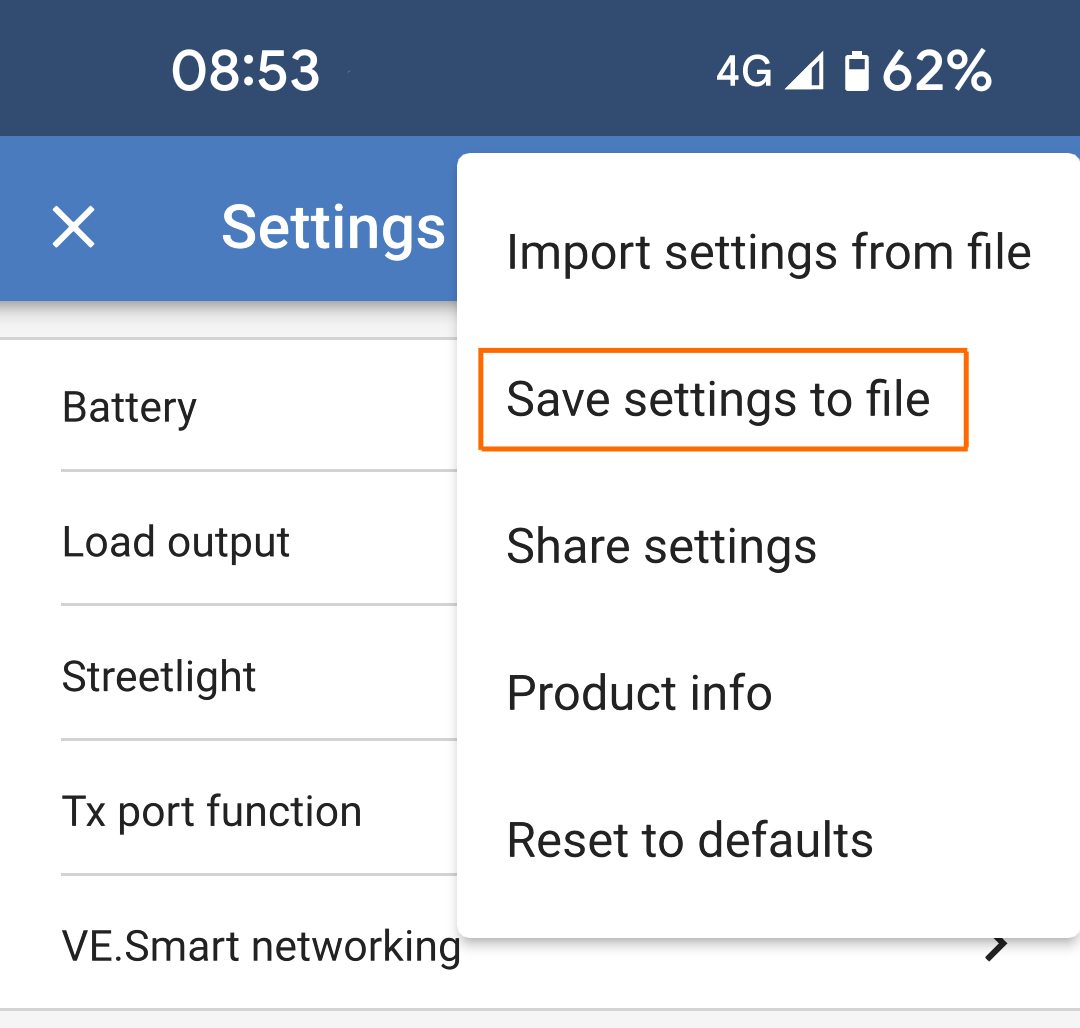
|
|
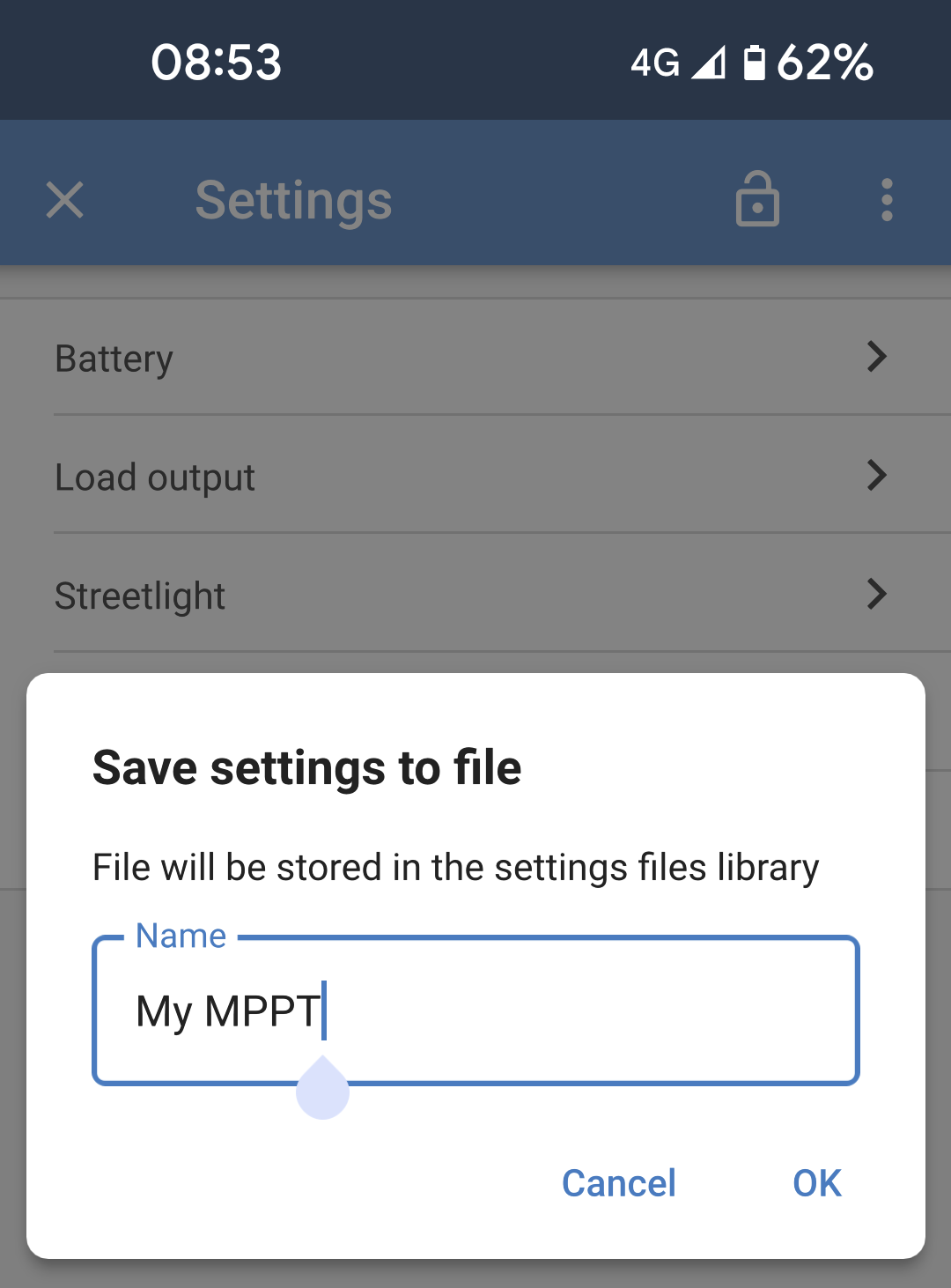
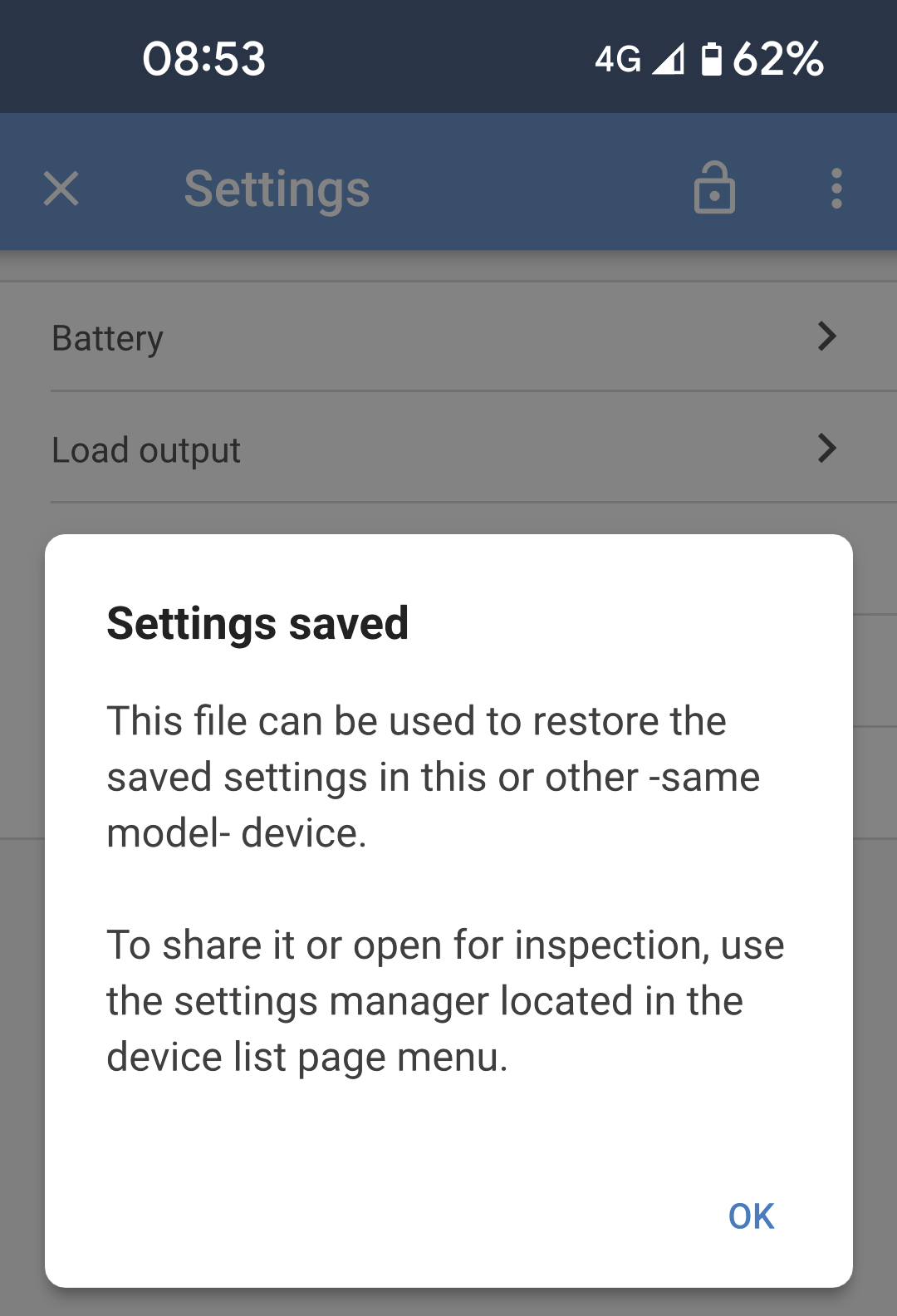
A confirmation box will appear once the settings have been saved. |
|
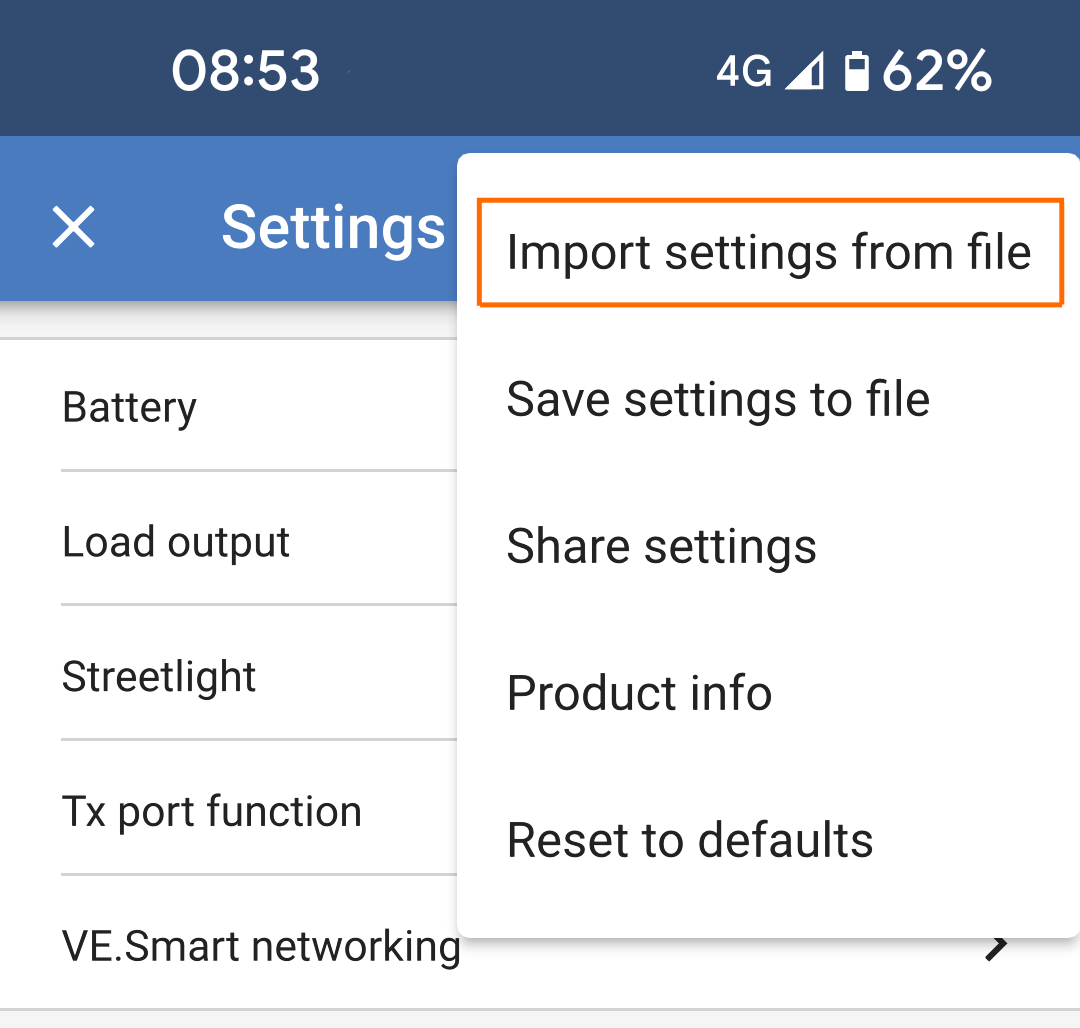
Load settings
Once connected to your Victron product, go to the settings page.
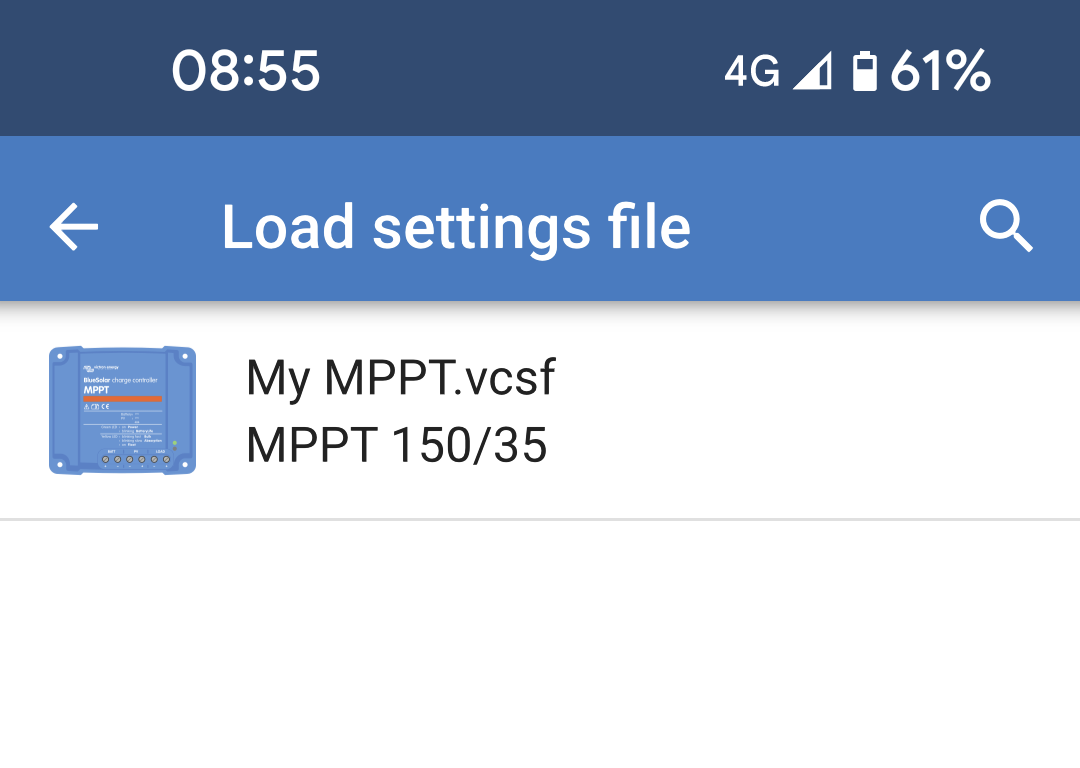
|
|
|
|
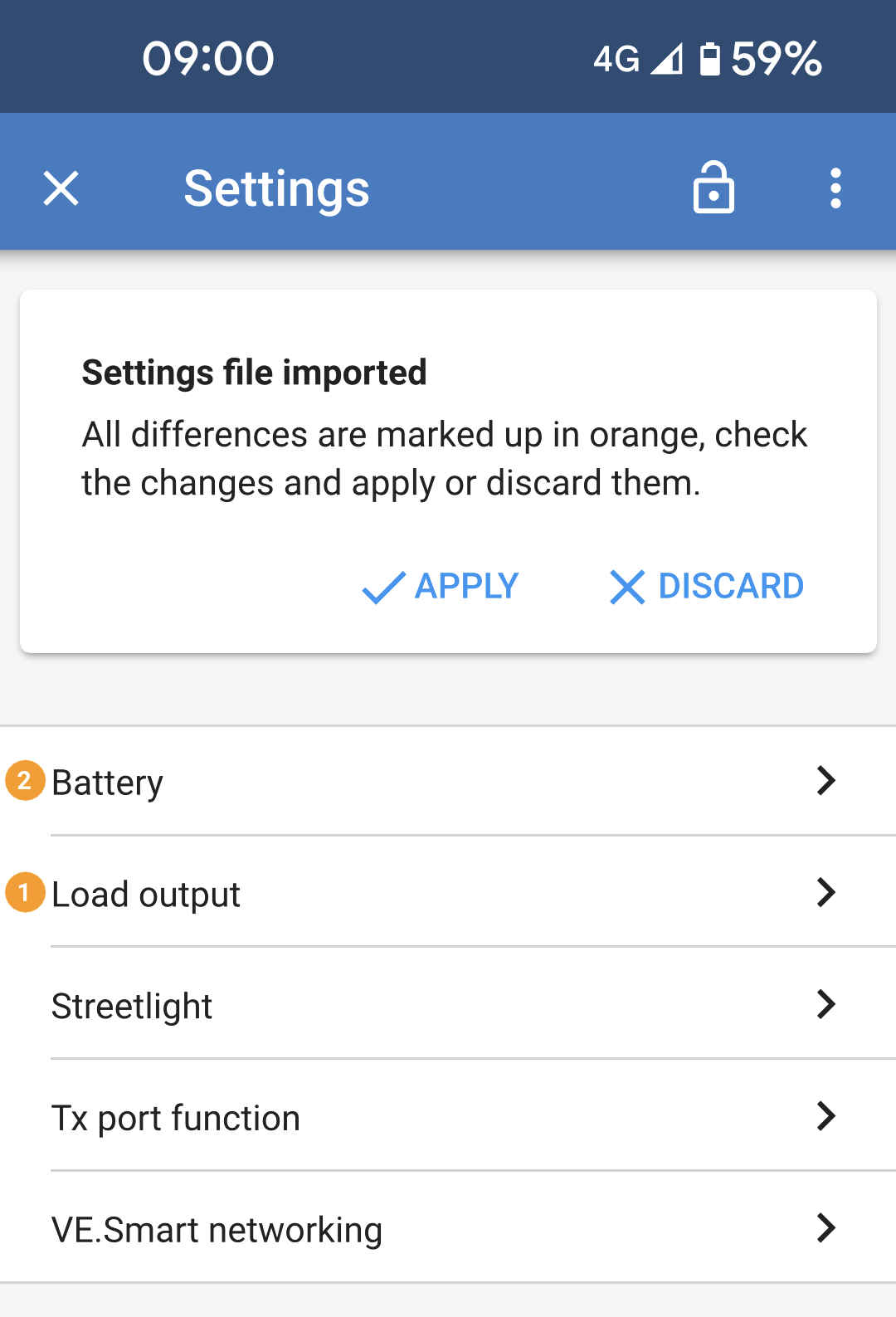
Once the settings file has been imported, any changes will be marked with an orange circle to the left of the settings category. The number within the orange circle shows how many settings will be changed in that category.
NoteChanges in the settings file won't take effect until after you review them (if needed) and you select 'Apply.' |
|
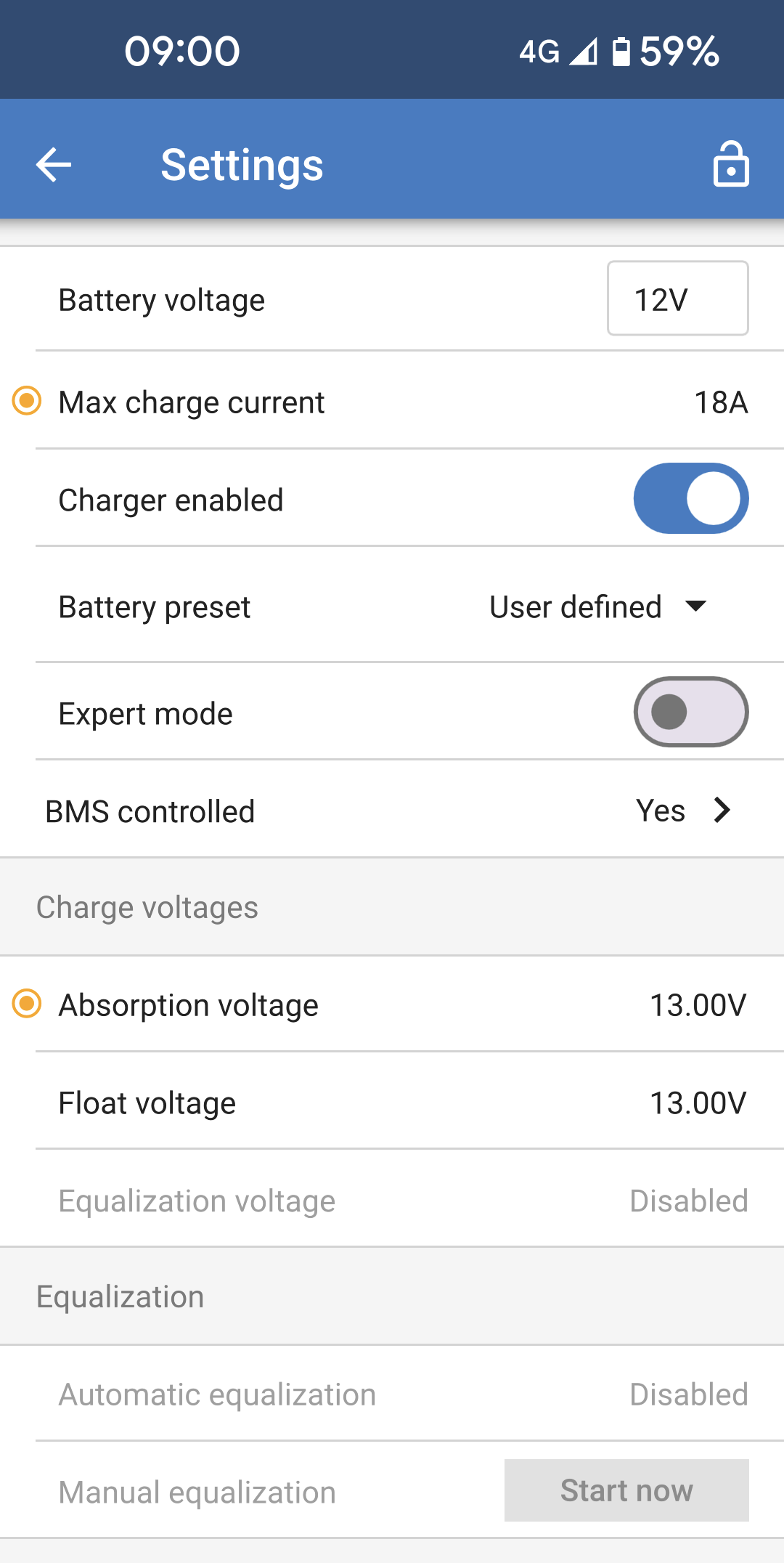
If you want to confirm which settings will be applied, you can drill down into a category to see which settings will be changed. Settings marked with an orange dot will be changed. The values shown will be the new values if you apply the settings file. |
|
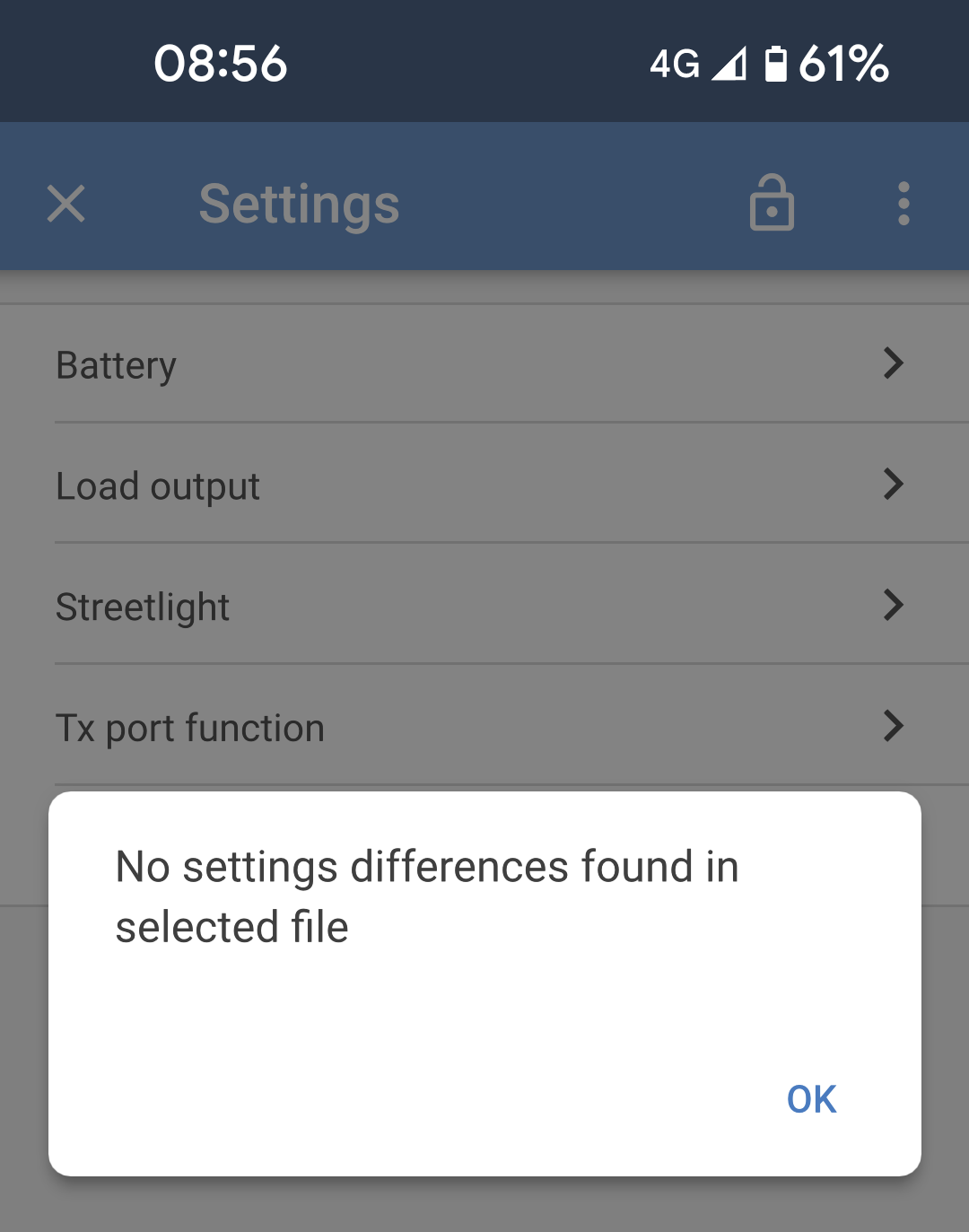
If the loaded settings file has no differences to the existing settings on the product then this notification will be shown. |
|
Share settings
A settings file can be shared using various platforms.
A system popup will be launched allowing you to select a platform by which to share the settings file. The platforms available will depend upon which ones you have currently got installed on your Android or iOS device. |
|
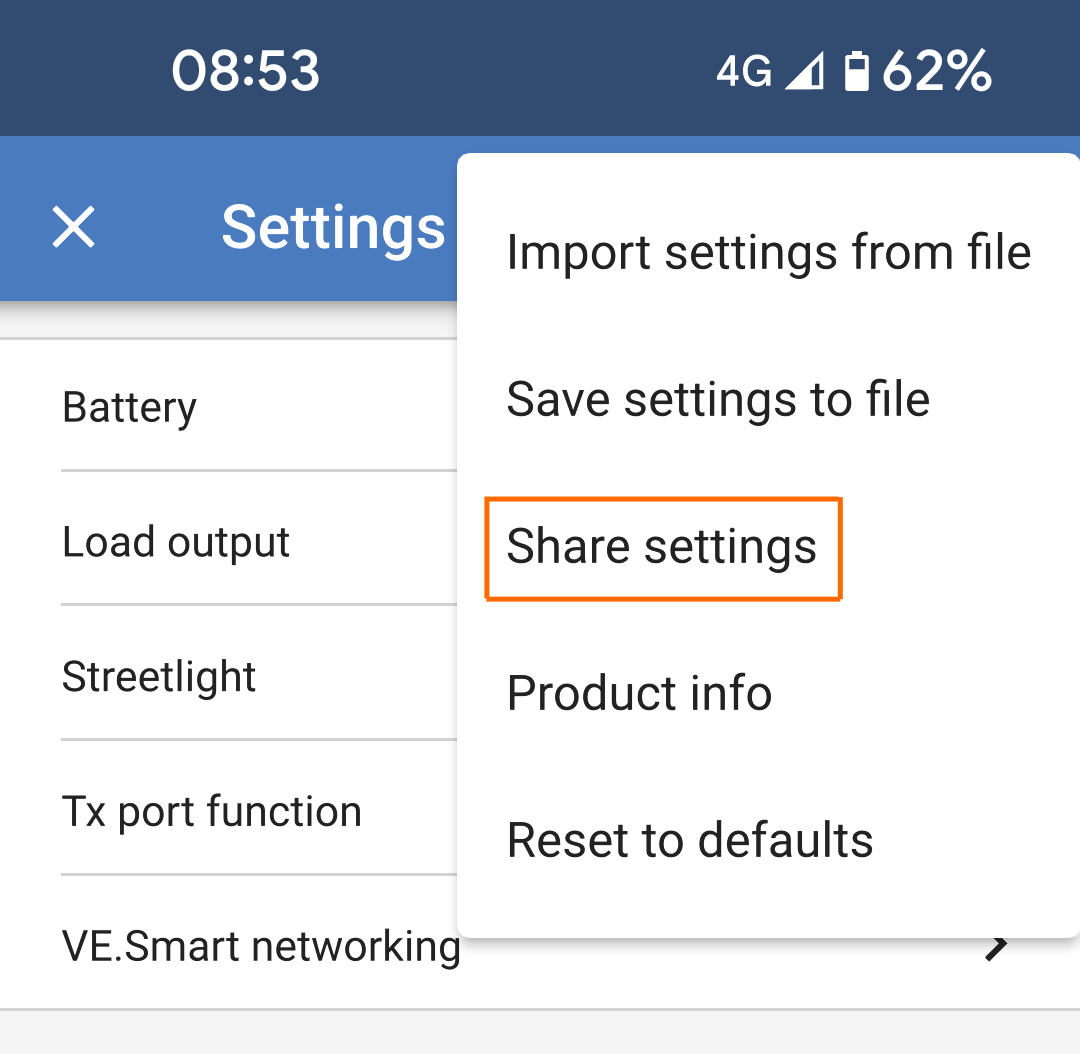
The 'Share settings' feature allows you to share the current product settings with other products, using your phone. Also, settings you have already saved using VictronConnect are stored in a settings file and can be shared with other products through the 'Settings file manager'.
Settings file manager
The Settings file manager is located in the main menu, and shows all stored settings:
The Settings files manager can be launched from the main page.
|
|
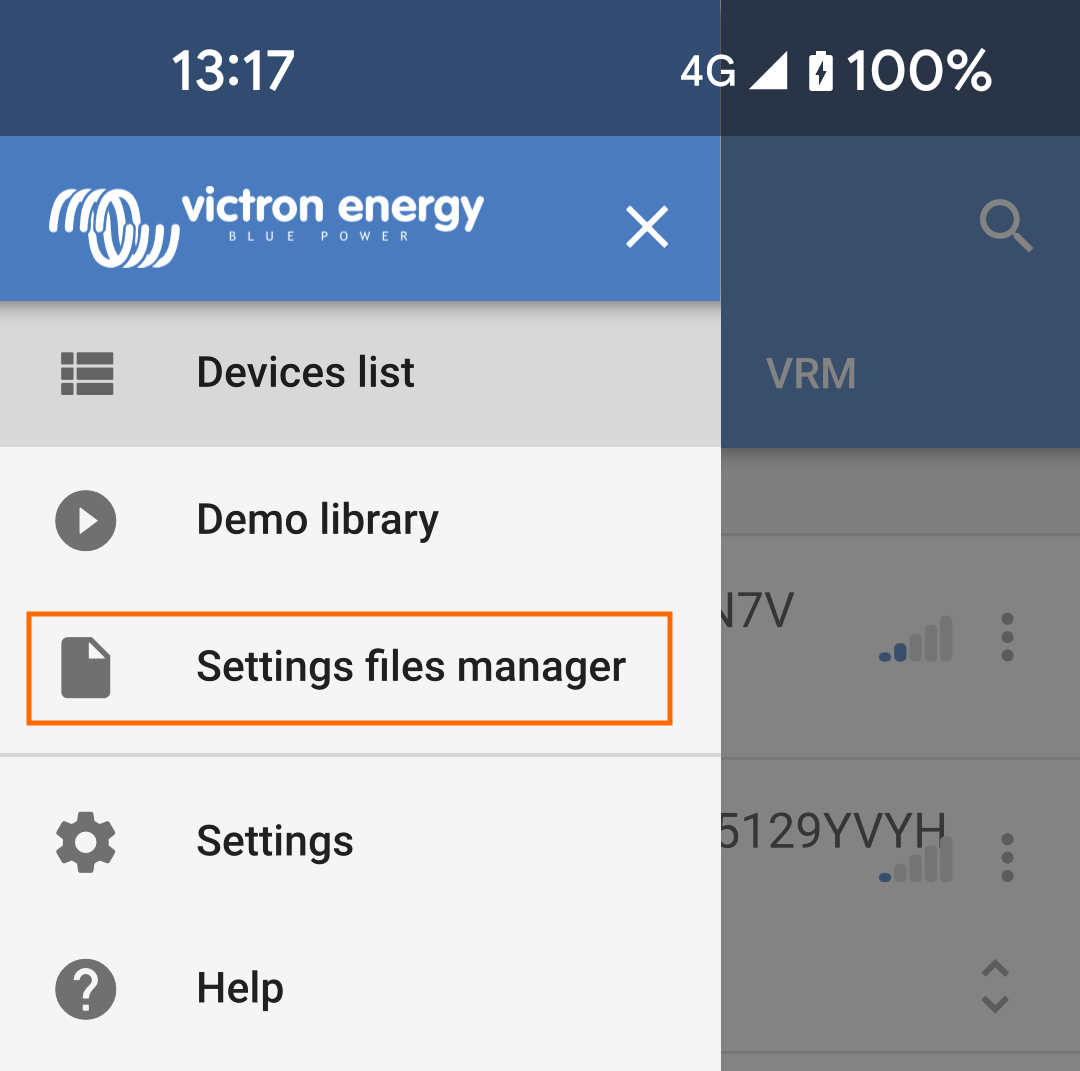
Any settings files that you have created appear in this list.
|
|
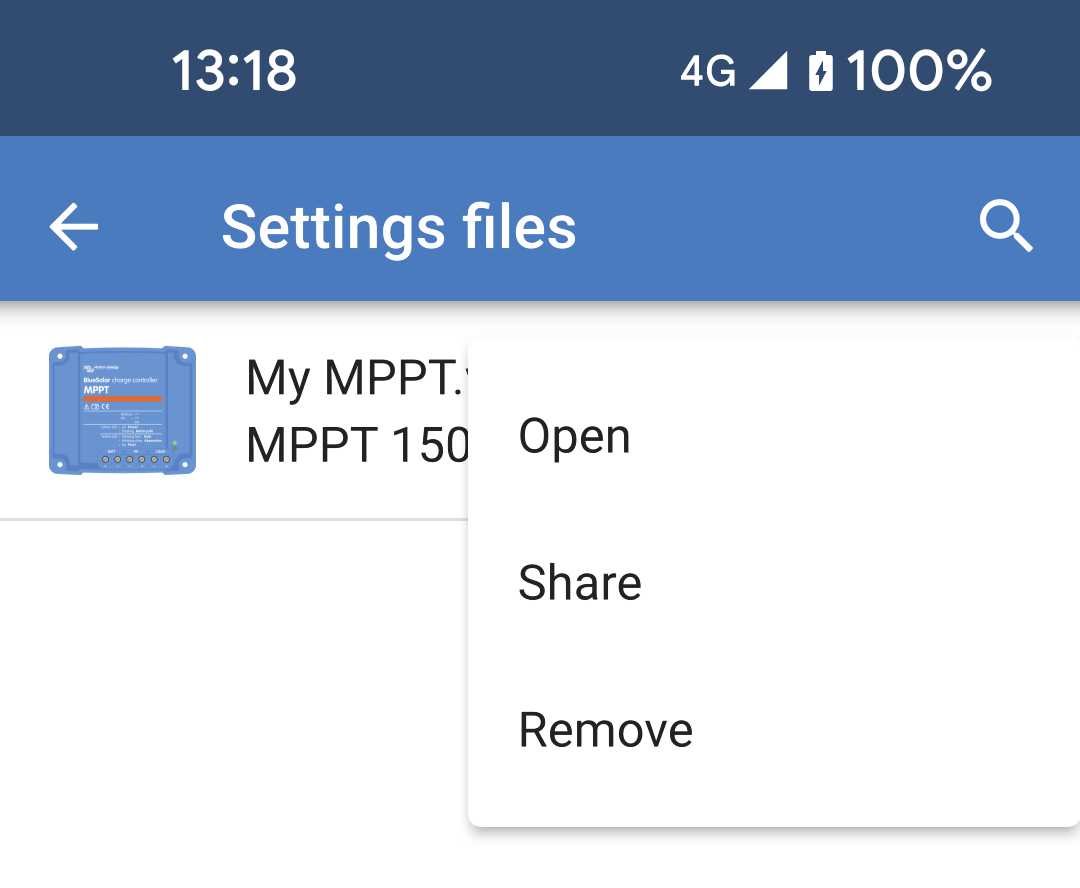
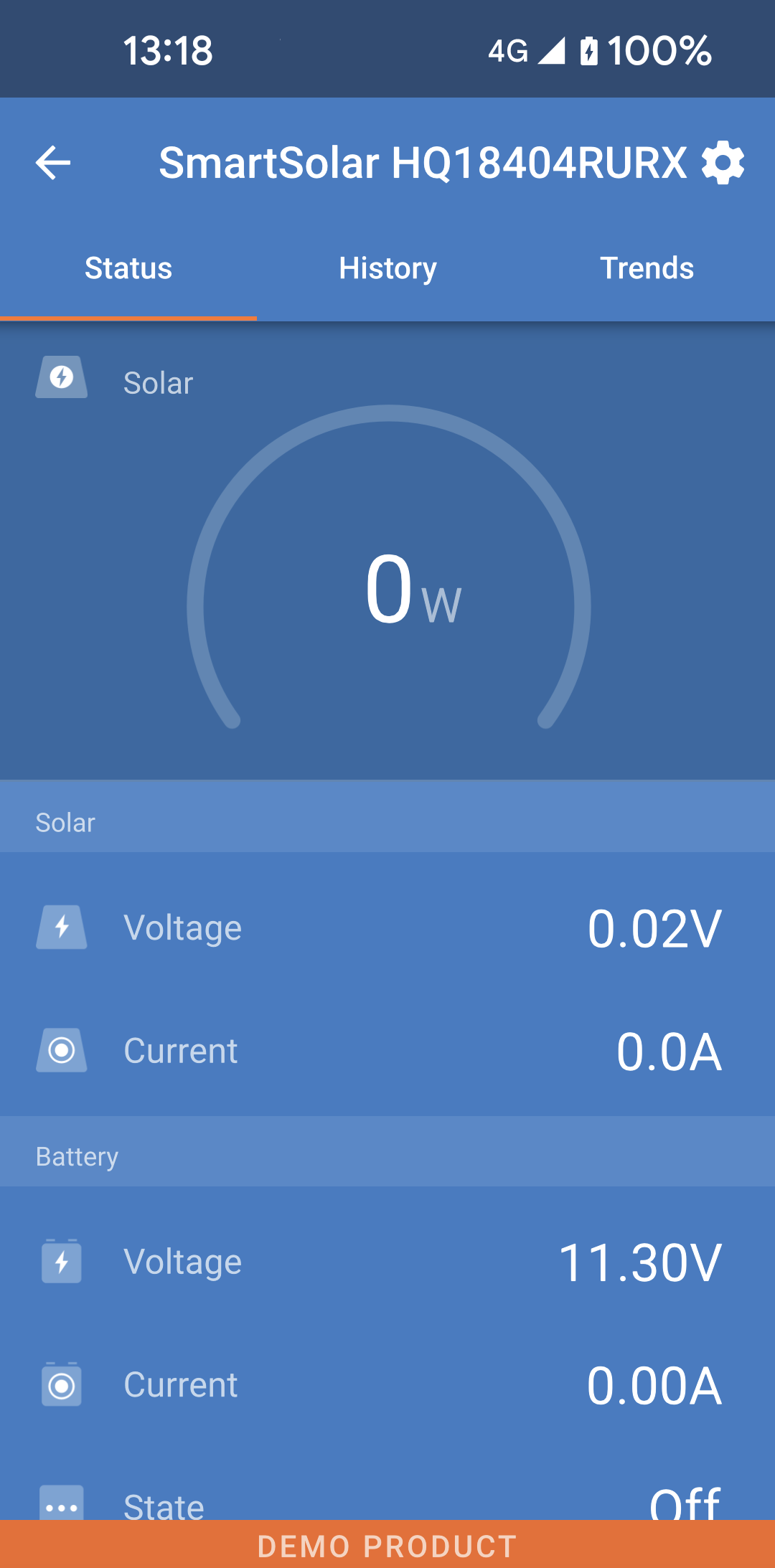
When a settings file is opened, it will load the file and display a demo product screen as if you were connected to a physical product. NoteNote the "DEMO PRODUCT" orange bar at the bottom of the screen, as a reminder that you are not connected to a physical product. It is possible to change settings in the open settings file and then save it again. You can save it as a different name, otherwise using the same name will overwrite the existing file. |
|
7.2. Settings files and the demo library
The demo library's products can serve as templates for creating sets of settings files that can later be shared and applied to other users' products.
Note
It is not possible to load settings from within the demo library.
7.3. Limitation when opening older settings files
There are two ways to open a previously saved settings file:
Via the Settings File Manager
As shown in the screenshot above, this option lets you view the settings without being connected to the product. A full snapshot of all settings — as well as voltage readings, history data, and other information — will be loaded and available for inspection.
Via the Product Settings Pages
This option is only available when you are connected to the product.
Important
The first method only works if the settings file was created with the exact same software version you are using now.
If the file was created with an older software version, use the second method instead: connect to the same product and then load the settings file.